Case study · 9 min read
Google Workspace AI Training for 30 People Across 9 Departments: Meenakshi Polymers
How a full-day, on-site Google Workspace and Gemini working session on 19 September 2026 gave Meenakshi Polymers' HR, Quality, Production, Logistics, Accounts, Operations, Legal, MIS and IT teams 27 hands-on exercises. With slides and photos from the day.
By Surendra Pandar, AI Trainer ·
- Organisation
- Meenakshi Polymers Pvt. Ltd.
- Audience
- About 30 people across 9 departments
- Departments
- HR, Quality, Production, Logistics, Accounts, Operations, Legal Compliance, MIS, IT
- Date
- 19 September 2026, 9:30 AM to 5:00 PM
- Format
- On-site, full-day working session, 11 modules
- Topic
- Gemini, Gmail, Docs, Sheets, NotebookLM, Slides, Forms, Meet, Drive and Workspace Studio
In short
- A full day, not a talk. The deck has 79 slides in 11 modules, and 27 of those slides are hands-on exercises that people did on their own laptops, in their own Google Workspace.
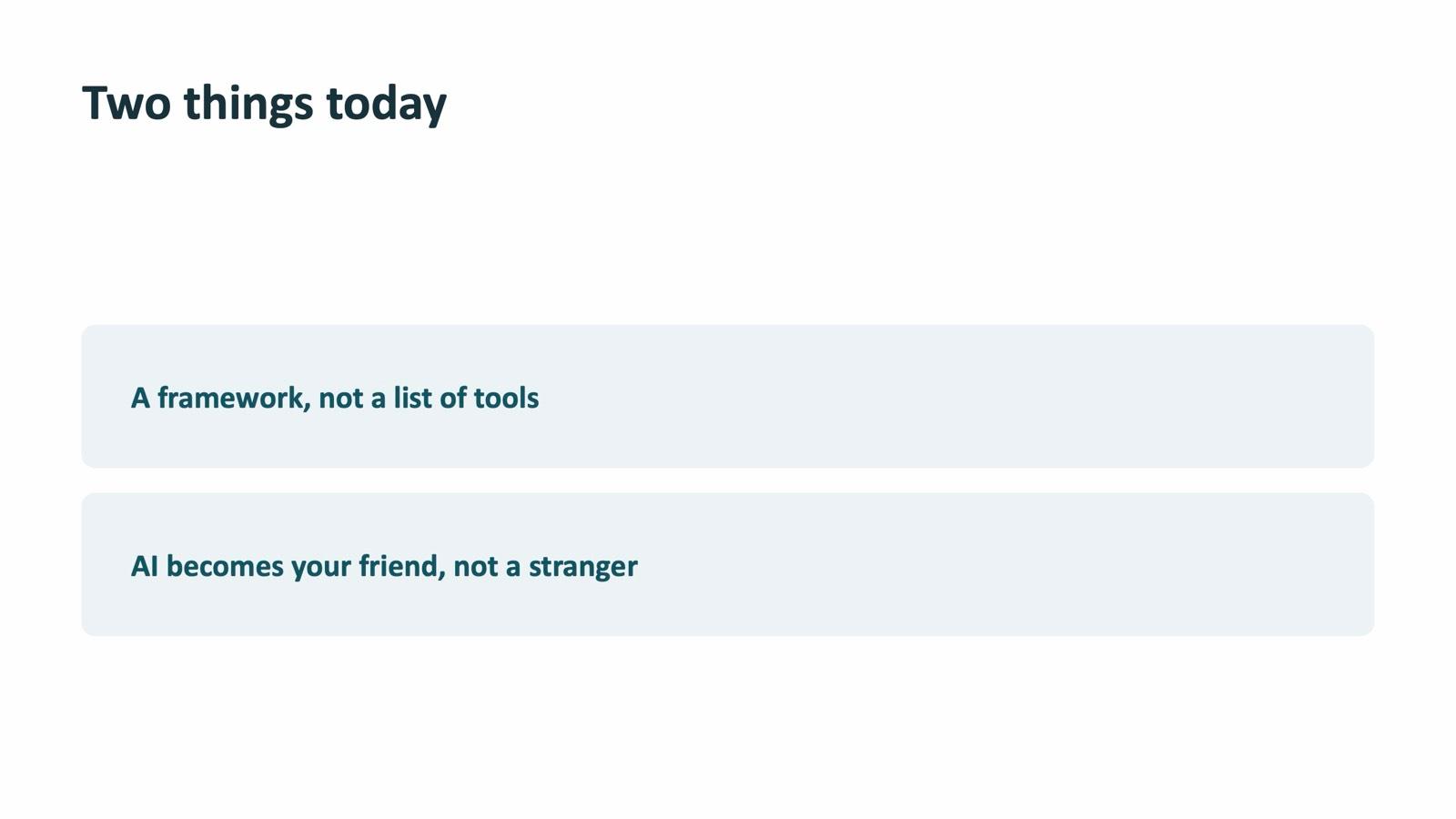
- The day was built around one framework, not a list of tools: Role, Task, Context, Format. Every app after Gemini was taught as the same skill in a different place.
- Each department worked on its own material: HR on policies and circulars, Quality on SOPs, Production on rejection data, Accounts and Legal on policies and contracts, IT on the questions it gets every week.
- The day ended with four red lines and a list of the skills AI cannot replace, so the team left with confidence and with limits.
The challenge
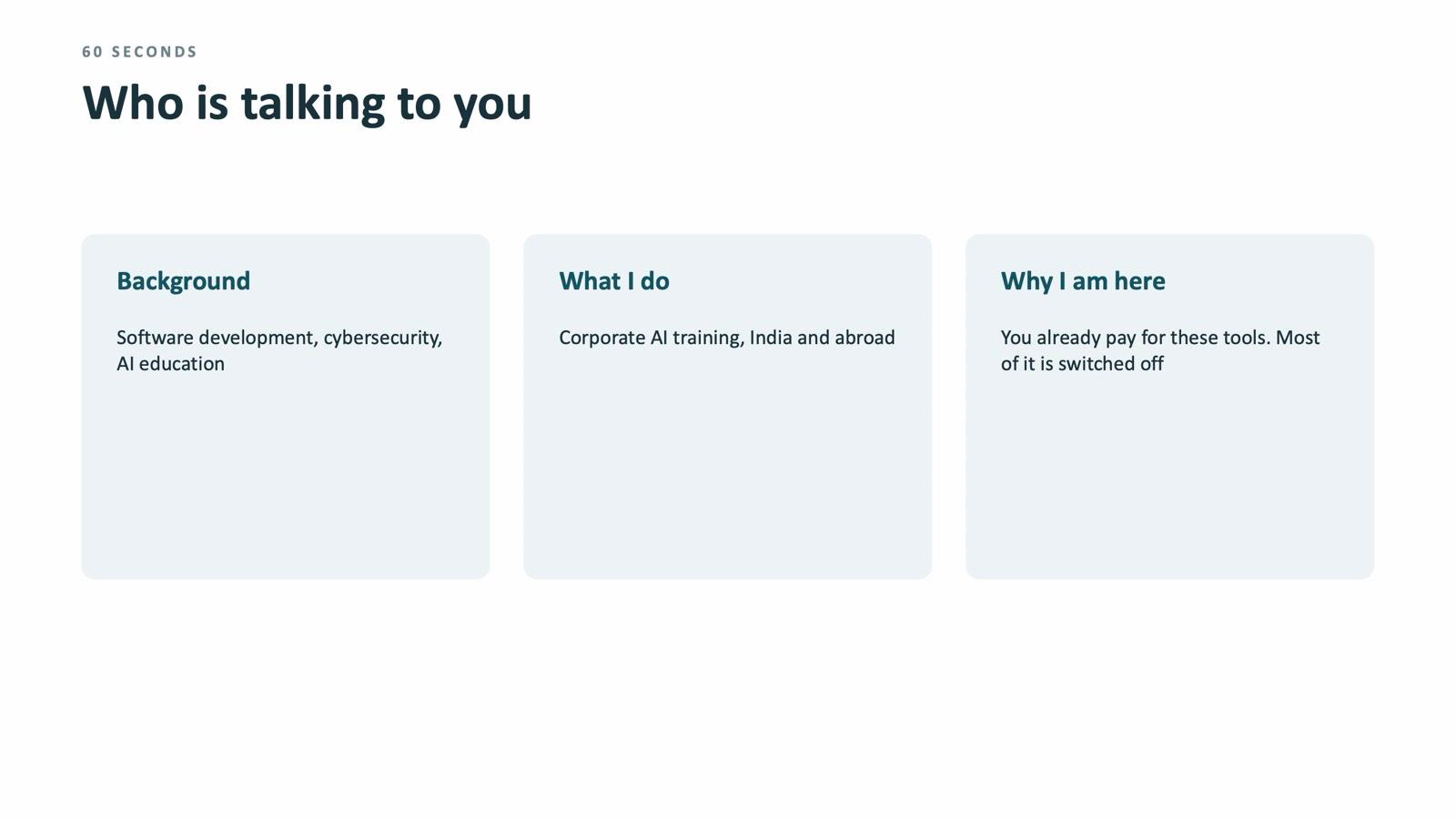
Meenakshi Polymers already works inside Google Workspace every day: Gmail, Docs, Sheets and Meet. The AI inside those apps had arrived, but most of it was switched off or unused. The session opened with exactly that line: "You already pay for these tools. Most of it is switched off."
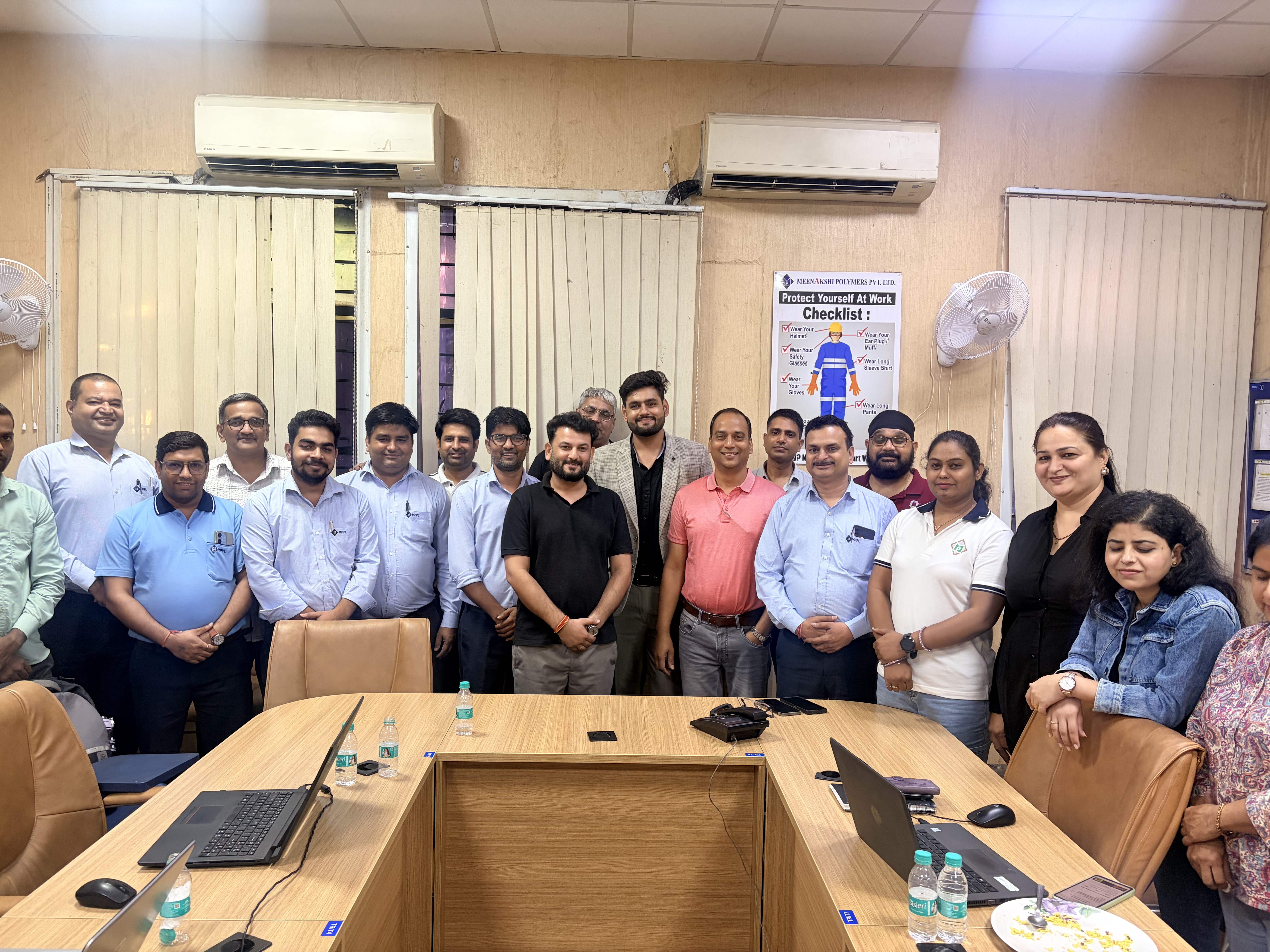
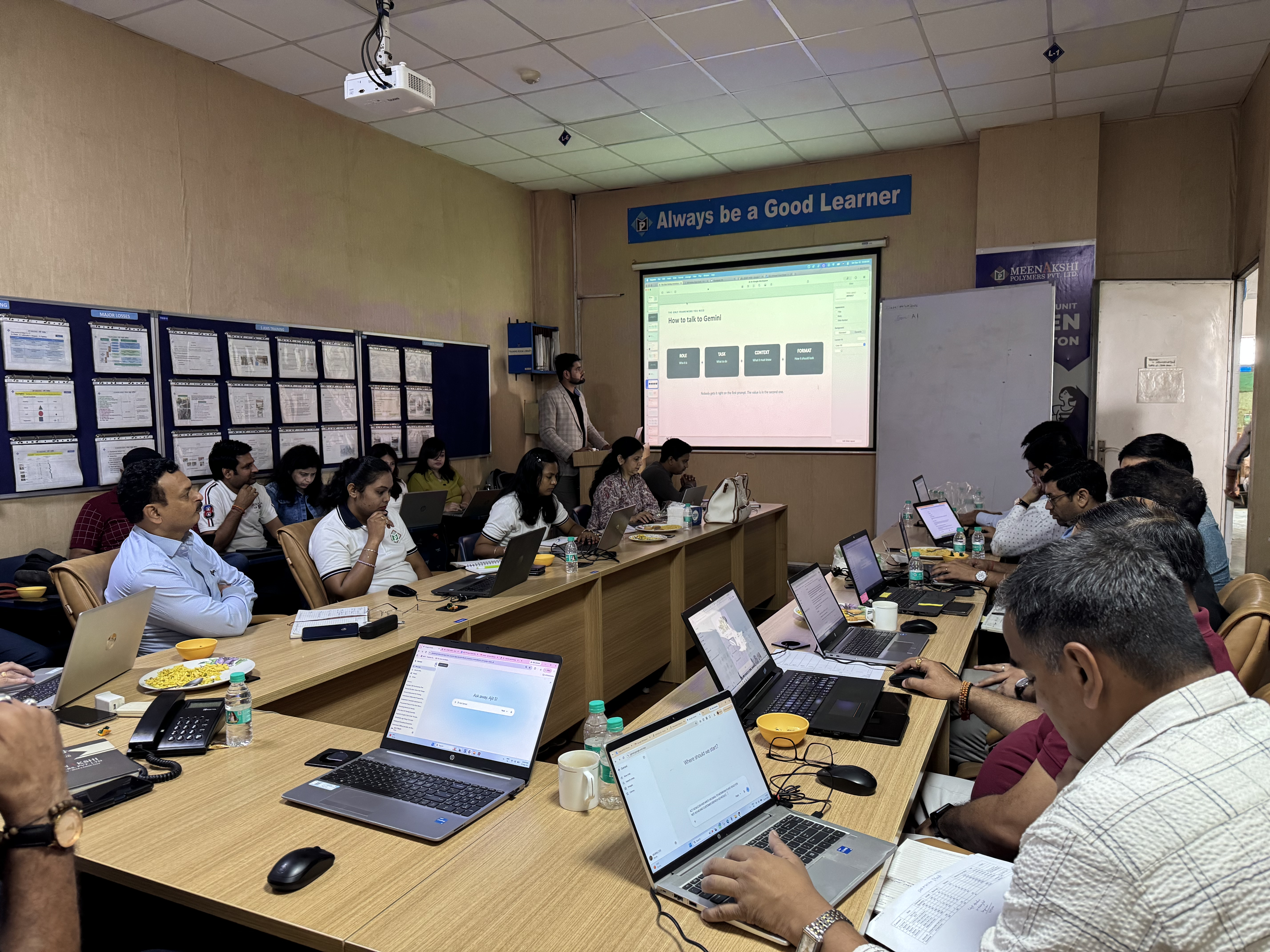
The room was not one team. About 30 people from nine departments sat together, from HR and Quality to Production, Logistics, Accounts, Operations, Legal Compliance, MIS and IT. A generic demo would have helped nobody. The brief was a working day where every person tries the tools on their own work and leaves with something that keeps working after the trainer has gone.
How the day was built
The day ran from 9:30 AM to 5:00 PM with two tea breaks and a lunch break. The day plan was built so that about a quarter of the time was talking, a third was live demonstration, and about two-fifths was people doing the work themselves. The deck is organised in 11 modules, and every module after the first two has at least one exercise slide that starts with "Hands on".
| Module | What the room did |
|---|---|
| 01 Why AI now | Seventy years of AI in one slide, predictive versus generative AI |
| 02 How to talk to Gemini | Role, Task, Context, Format; the same question asked as a lazy prompt and a full prompt |
| 03 Making it permanent | Gems, scheduled actions, skills and Spark |
| 04 Gmail | Ask the inbox, draft and refine, turn a mail into a calendar event |
| 05 Google Docs | Fix a real SOP, write in your own voice |
| 06 Google Sheets | Plain-English formulas, questions to your data, and checking one answer yourself |
| 07 NotebookLM | Cited answers from your own documents, Audio Overview |
| 08 Slides and Forms | A deck and a form built from one description |
| 09 Calendar, Meet and Drive | Meeting notes that write themselves, finding a file by describing it |
| 10 Workspace Studio | An agent that starts on its own, with a person approving |
| 11 Limits, and you | Where AI fails, four red lines, the skills only people have |
Module 2: one framework for every app
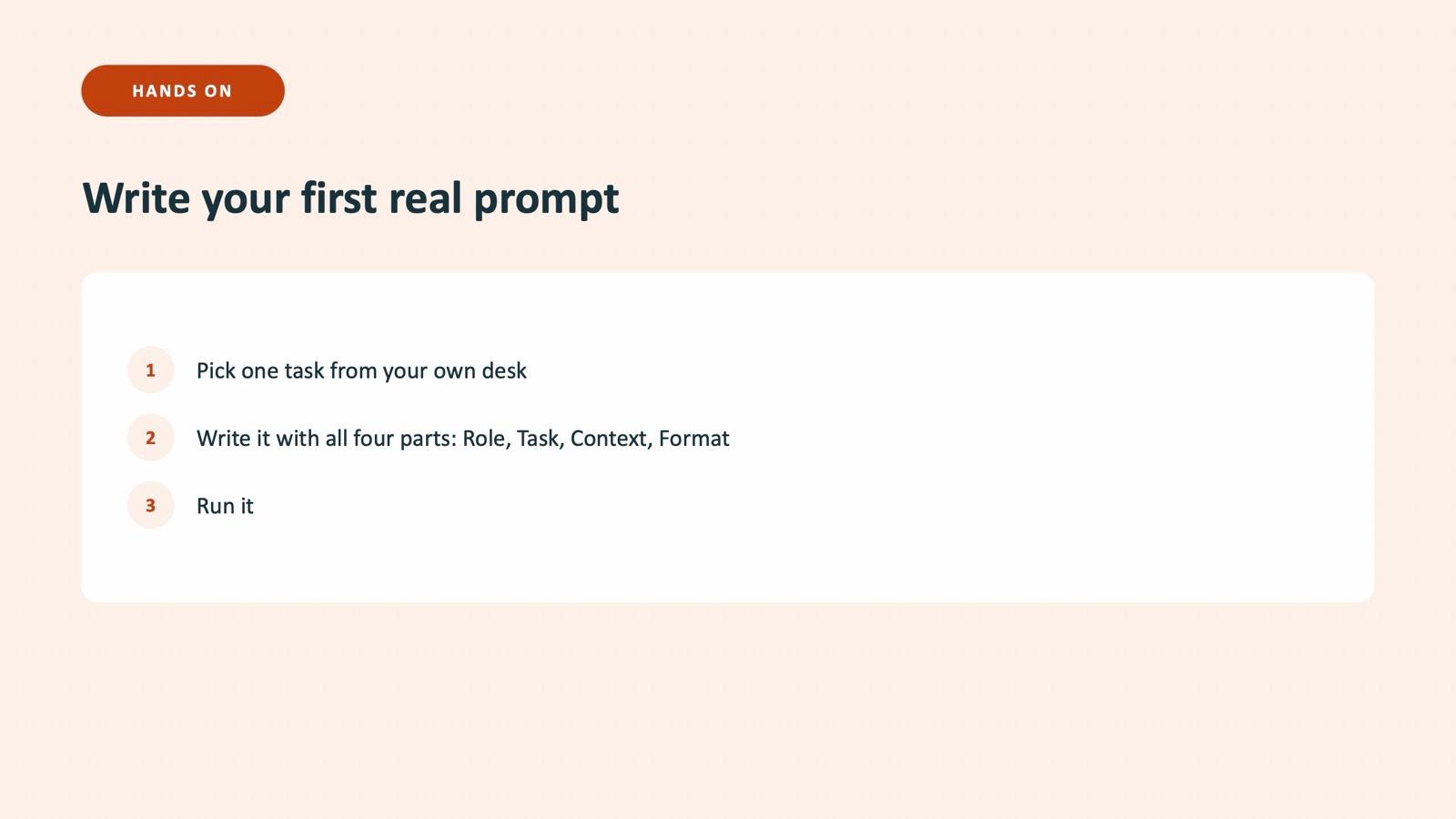
The only framework in the day was Role, Task, Context, Format. It was taught once, in Gemini, and then used in every app that followed. The reasoning in the deck is simple: once people can talk to the AI, every AI button in every app starts to make sense within half a minute.
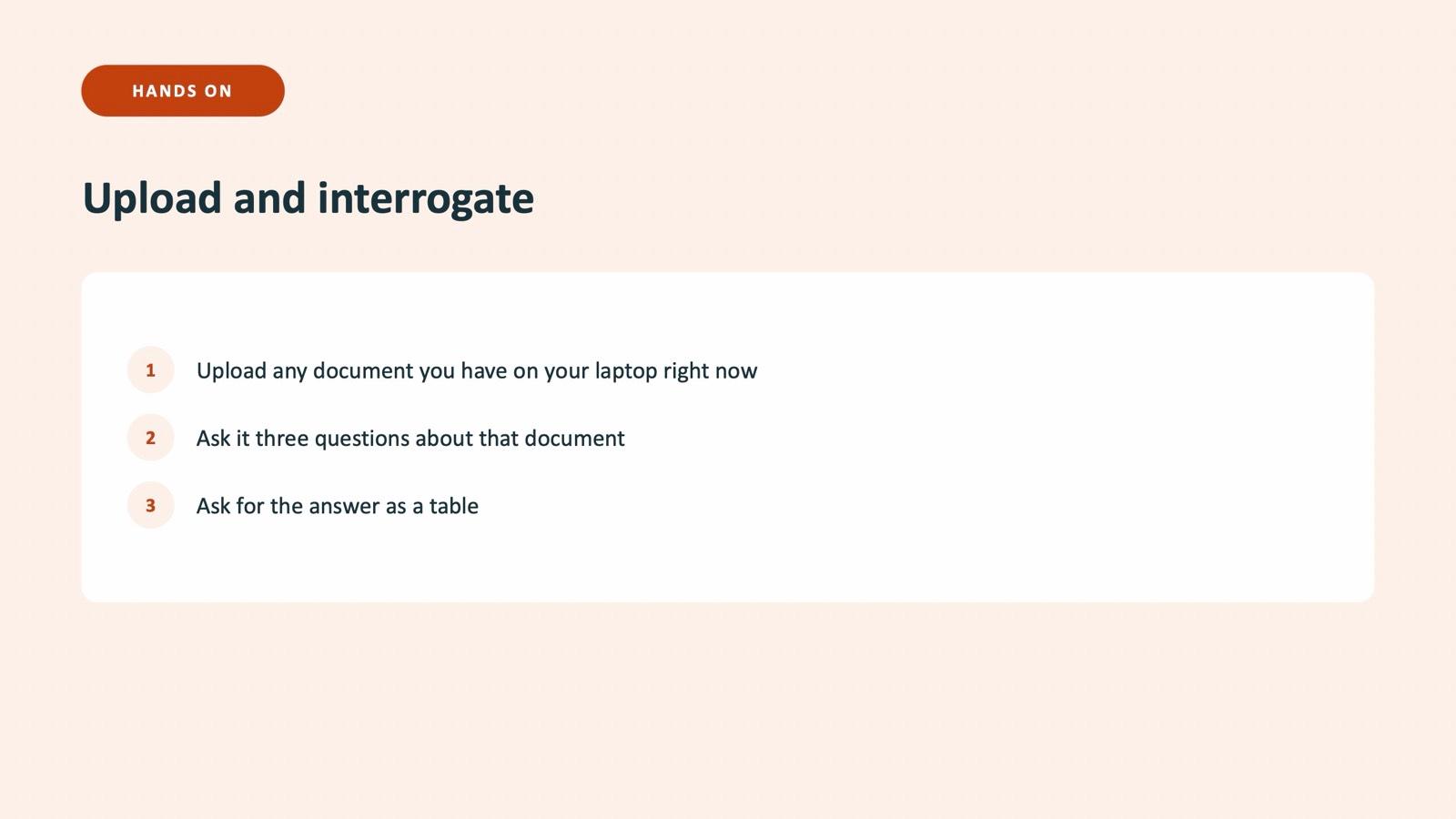
The first exercise was deliberately personal. Each participant picked one task from their own desk, wrote it using all four parts, and ran it. After that the room followed the follow-up habit: shorter, more formal, as a table, in Hindi.
Module 3: from a demo to a habit
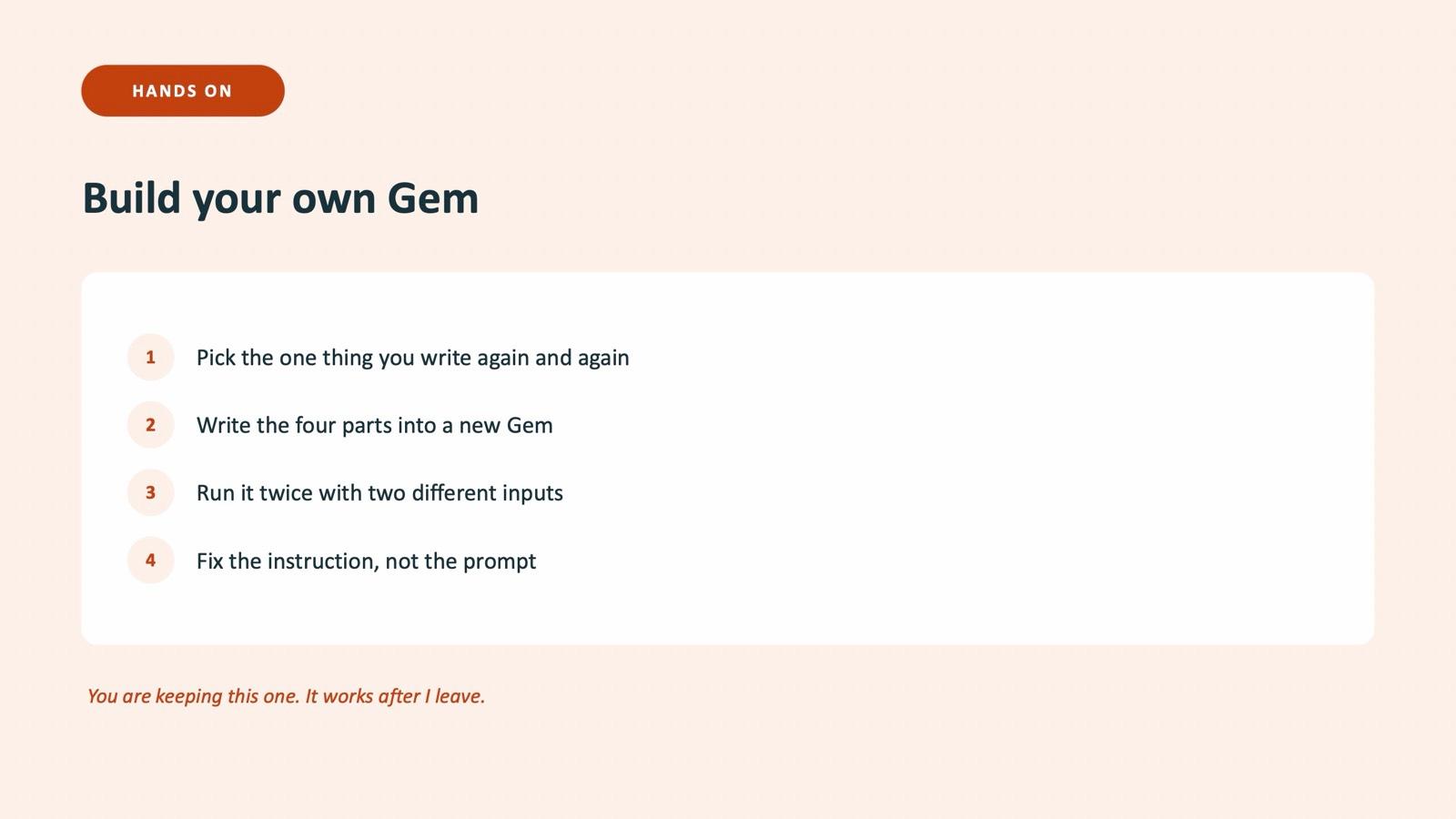
A demo impresses people for an afternoon. A saved Gem works for months. This module was where the day moved from trying to keeping. Participants picked the one thing they write again and again, wrote the four parts into a new Gem, ran it twice with two different inputs, and then fixed the instruction, not the prompt.
The point made on the slide: ten people using one Gem produce one format; ten people prompting fresh produce ten. For a company where reports go between departments, that is the whole business case.
Gmail and Docs: the work people already do all day
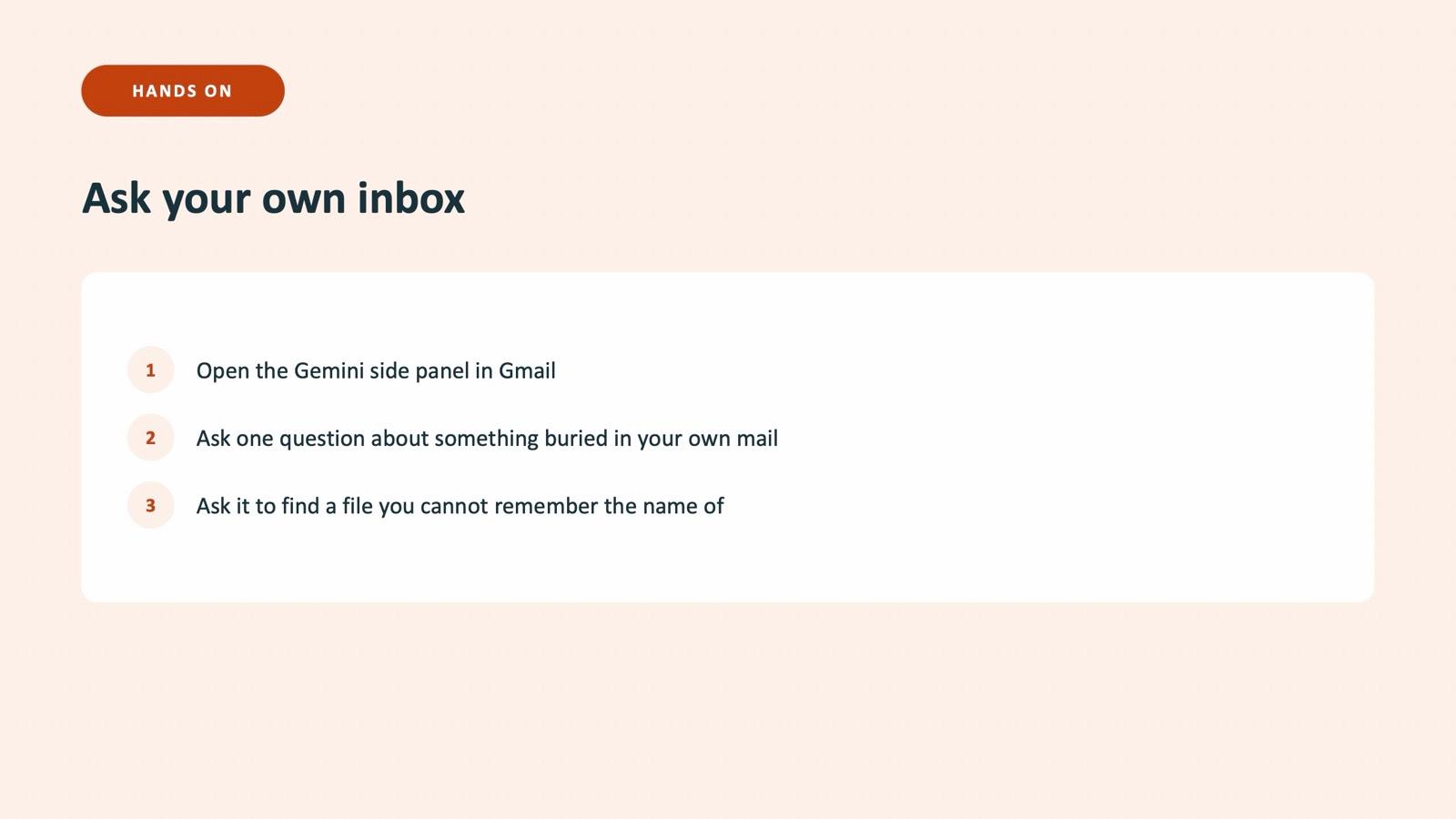
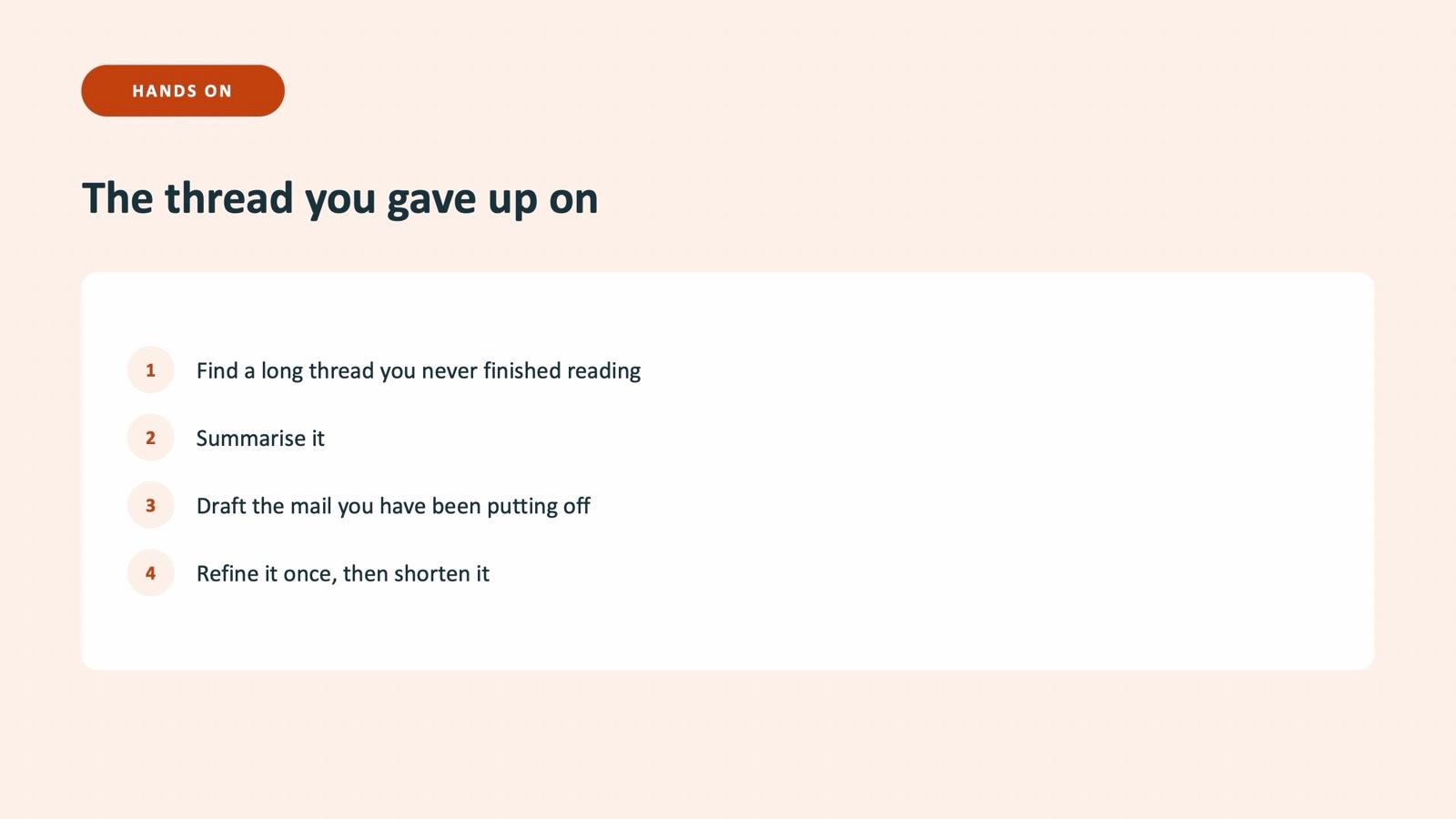
Gmail was taught in three ways, as on the deck: search and pull information from your own mail and Drive, draft and write, and trigger the next thing. The exercise that people remember is "the thread you gave up on": find a long thread you never finished reading, summarise it, draft the mail you have been putting off, refine it once, then shorten it.
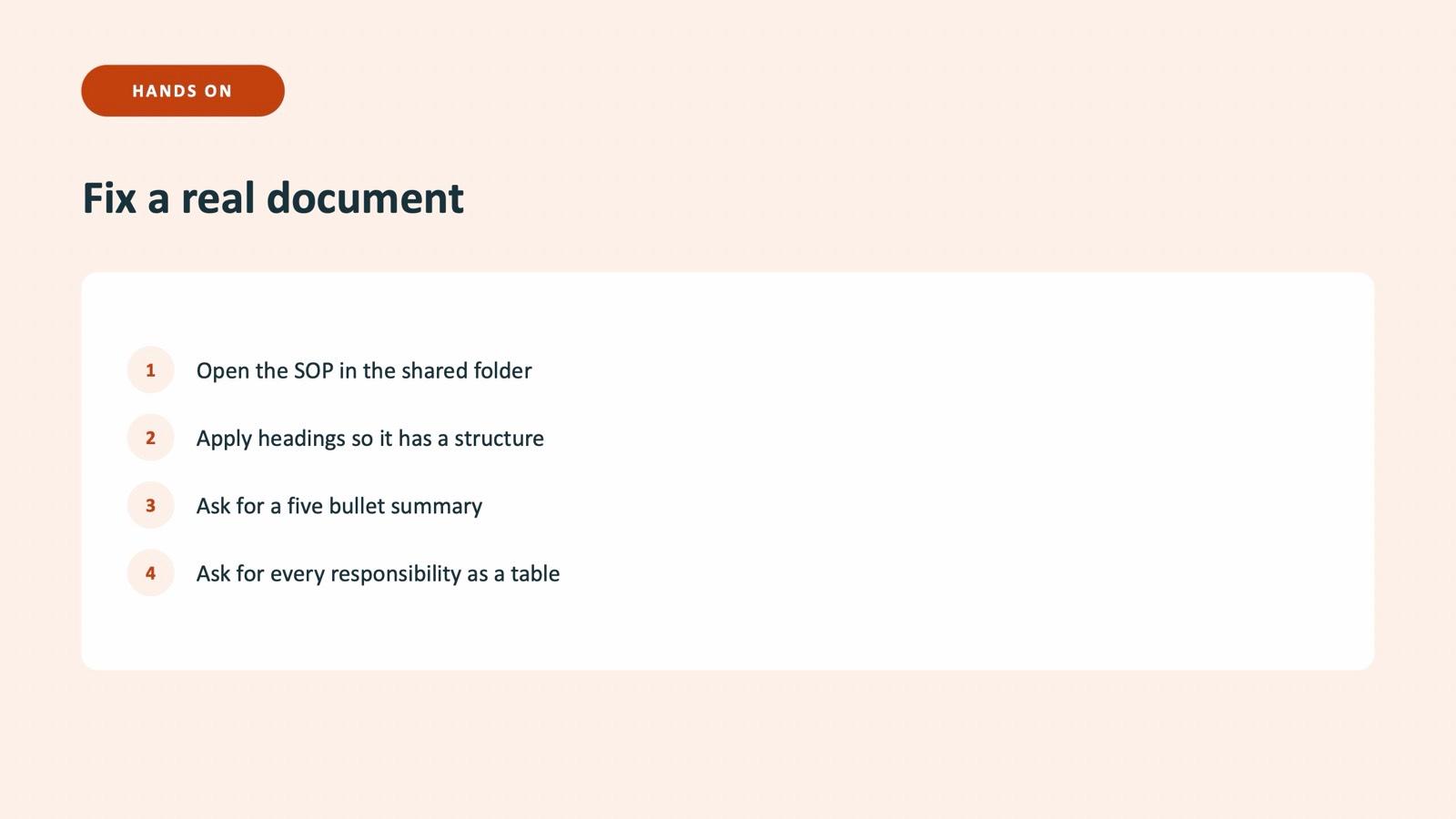
In Docs the room fixed a real document. An SOP from the shared folder was given headings, summarised in five bullets and turned into a responsibility table. The second exercise is the one HR and Sales said they would use every week: paste two documents your team actually wrote, ask Gemini to write the next one in the same voice, and compare it with your first draft.
Gmail, the thread you gave up on
Summarise this thread in five bullets. List every open question and who it is waiting on. Then draft a reply from me that answers the first open question in under 100 words, in a polite and direct tone.
Our wording of the exercise on the slide, using the same Role, Task, Context, Format parts.
Sheets: the formula problem is over, the judgment problem is not
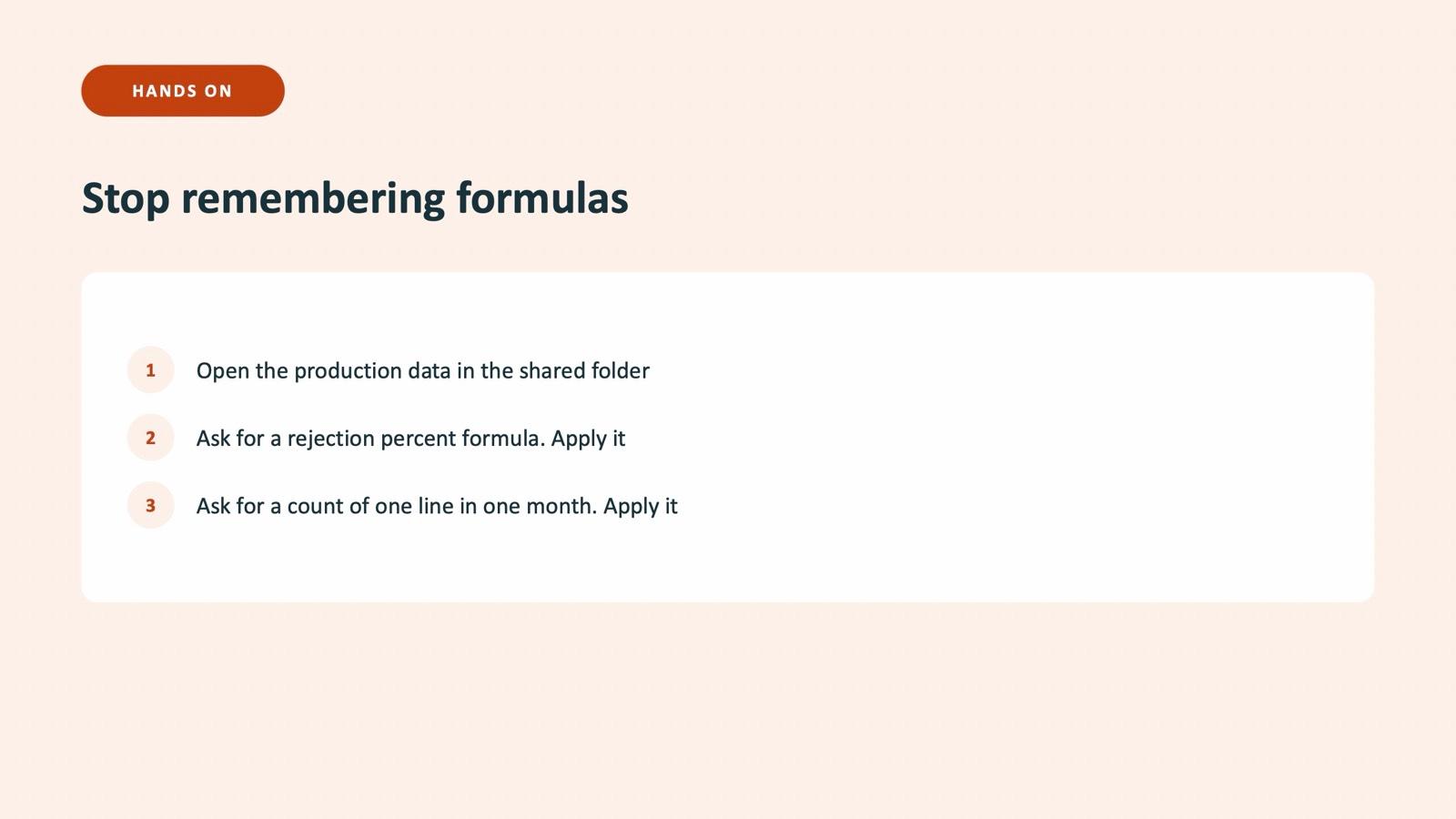
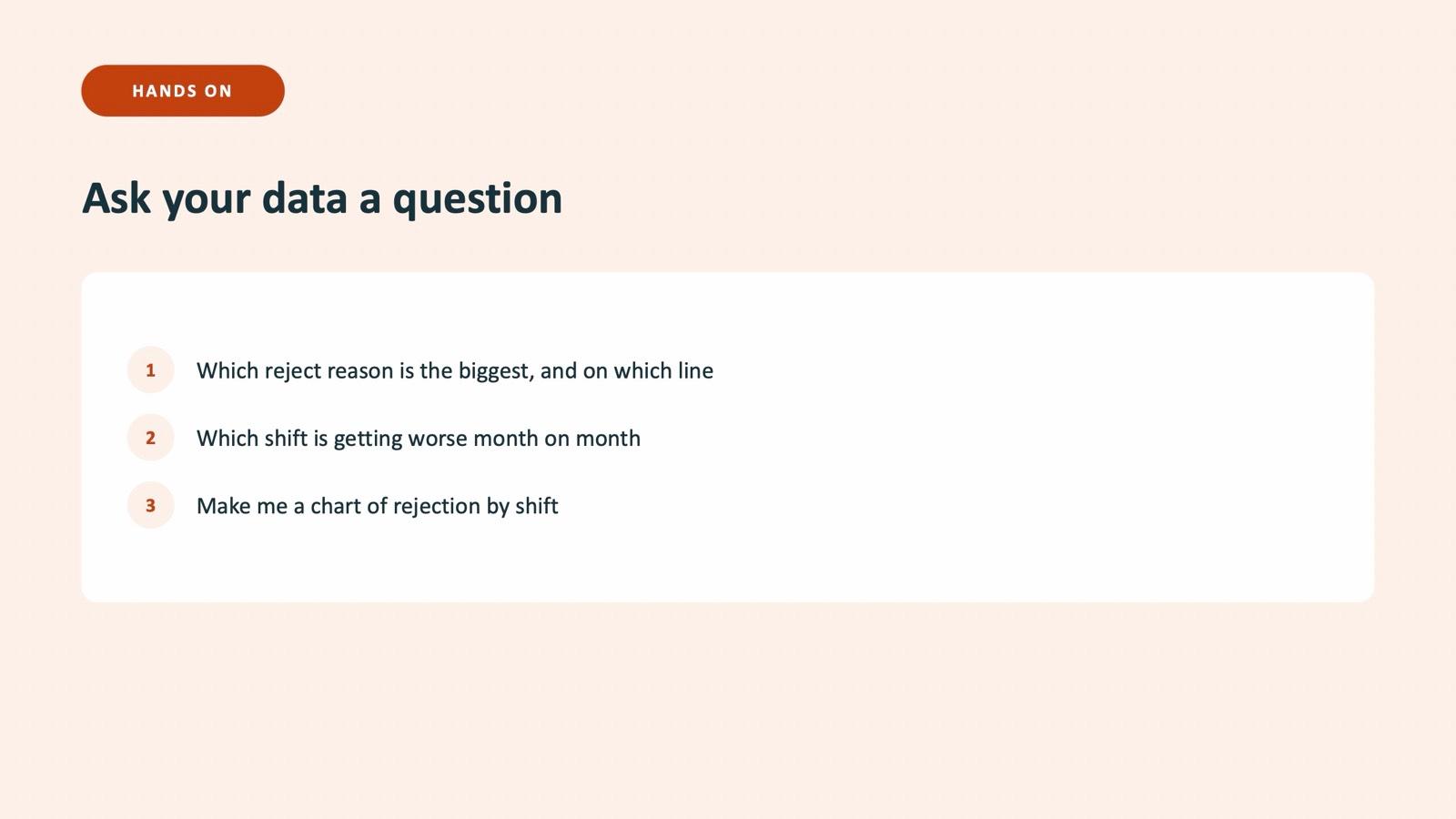
In Sheets the room used a production data file from the shared folder. The first exercise was "Stop remembering formulas": ask in plain English for a rejection percent formula and apply it, then ask for a count of one line in one month. The second was "Ask your data a question": which reject reason is the biggest and on which line, which shift is getting worse month on month, and a chart of rejection by shift.
Then came the slide that mattered most for a Quality team: check one answer yourself. Go into the data and verify what the AI told you. Sheets is where AI is weakest: excellent at the formula, not at the judgment. The number stays yours, especially in an audit.
NotebookLM, Slides, Forms, Meet and Drive
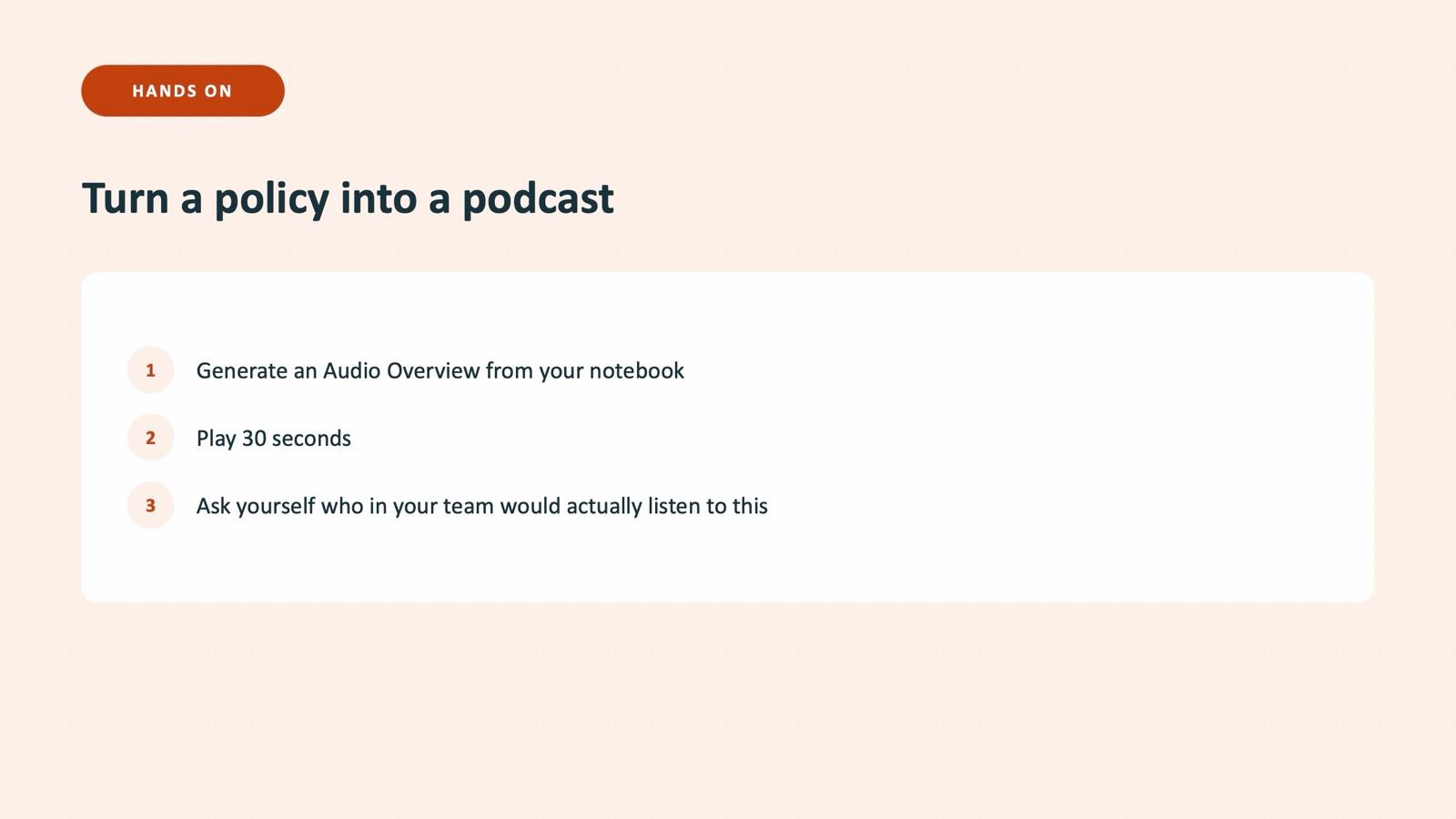
NotebookLM was positioned as the answer to everything the room was worried about at 10 AM. Gemini knows the world; NotebookLM knows only the documents you give it, and shows the page each answer came from. For a company full of SOPs, policies and audit files, that is the tool people took home. The exercise: generate an Audio Overview from your notebook, play 30 seconds, and ask yourself who in your team would actually listen to it.
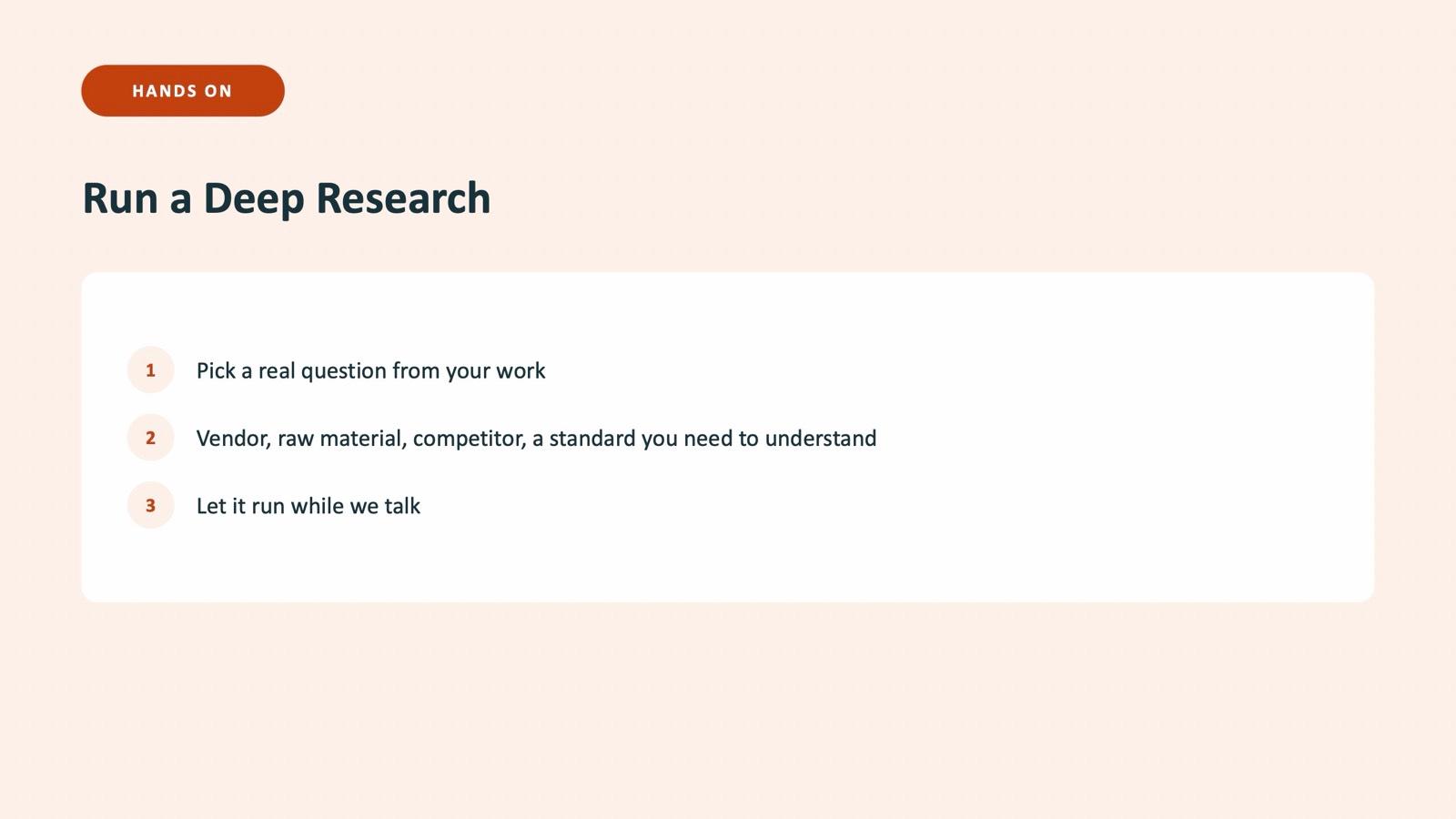
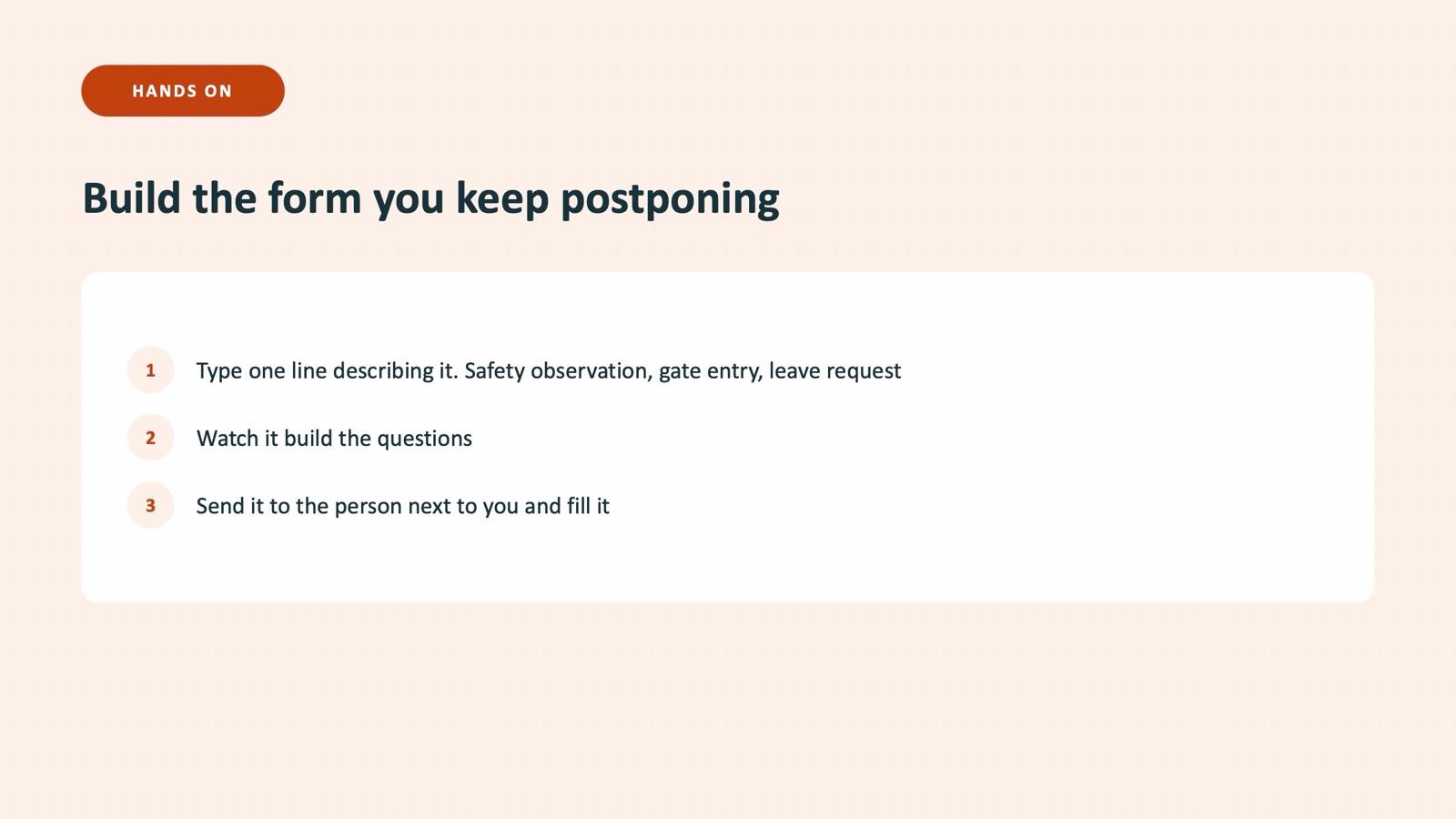
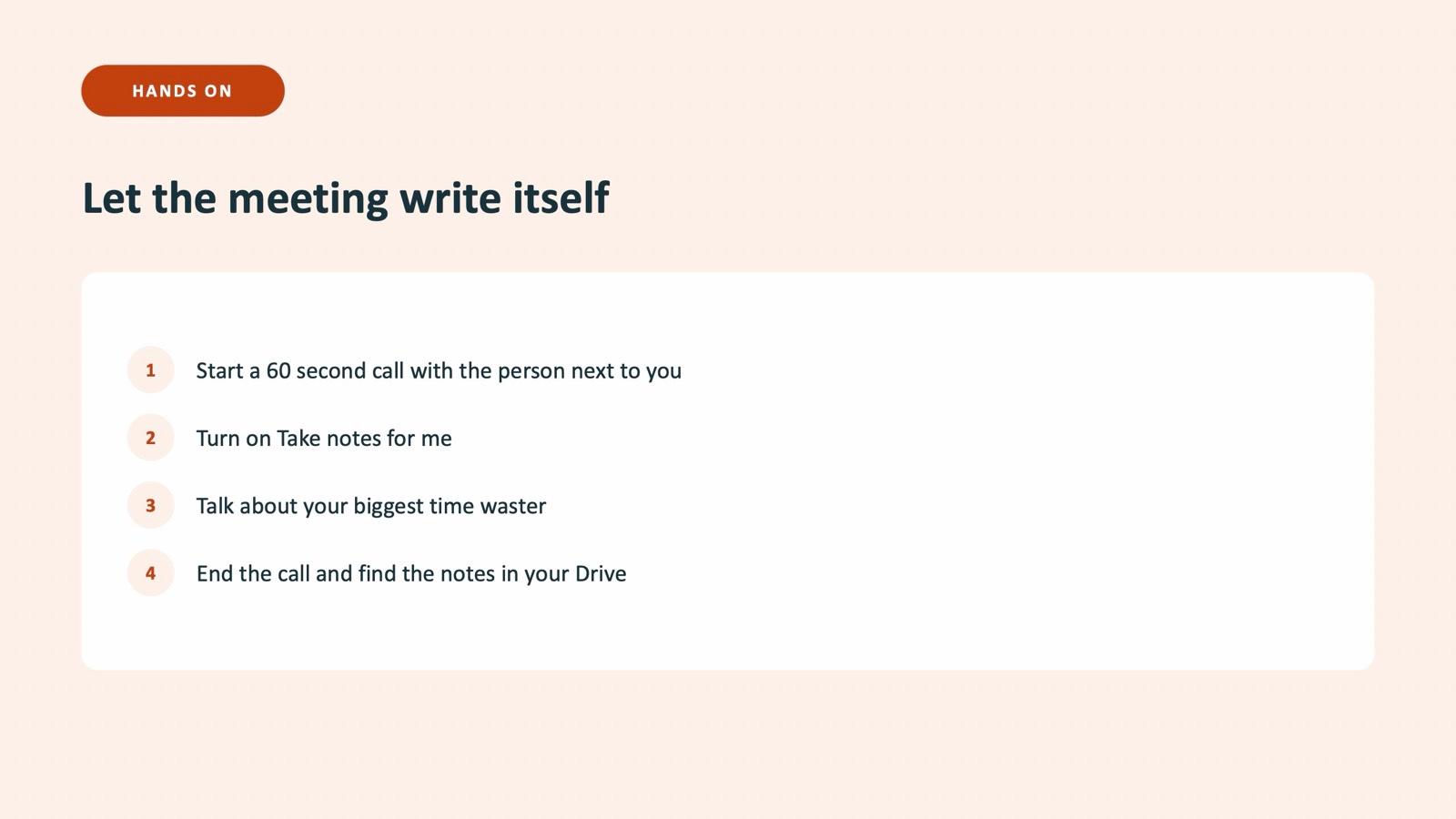
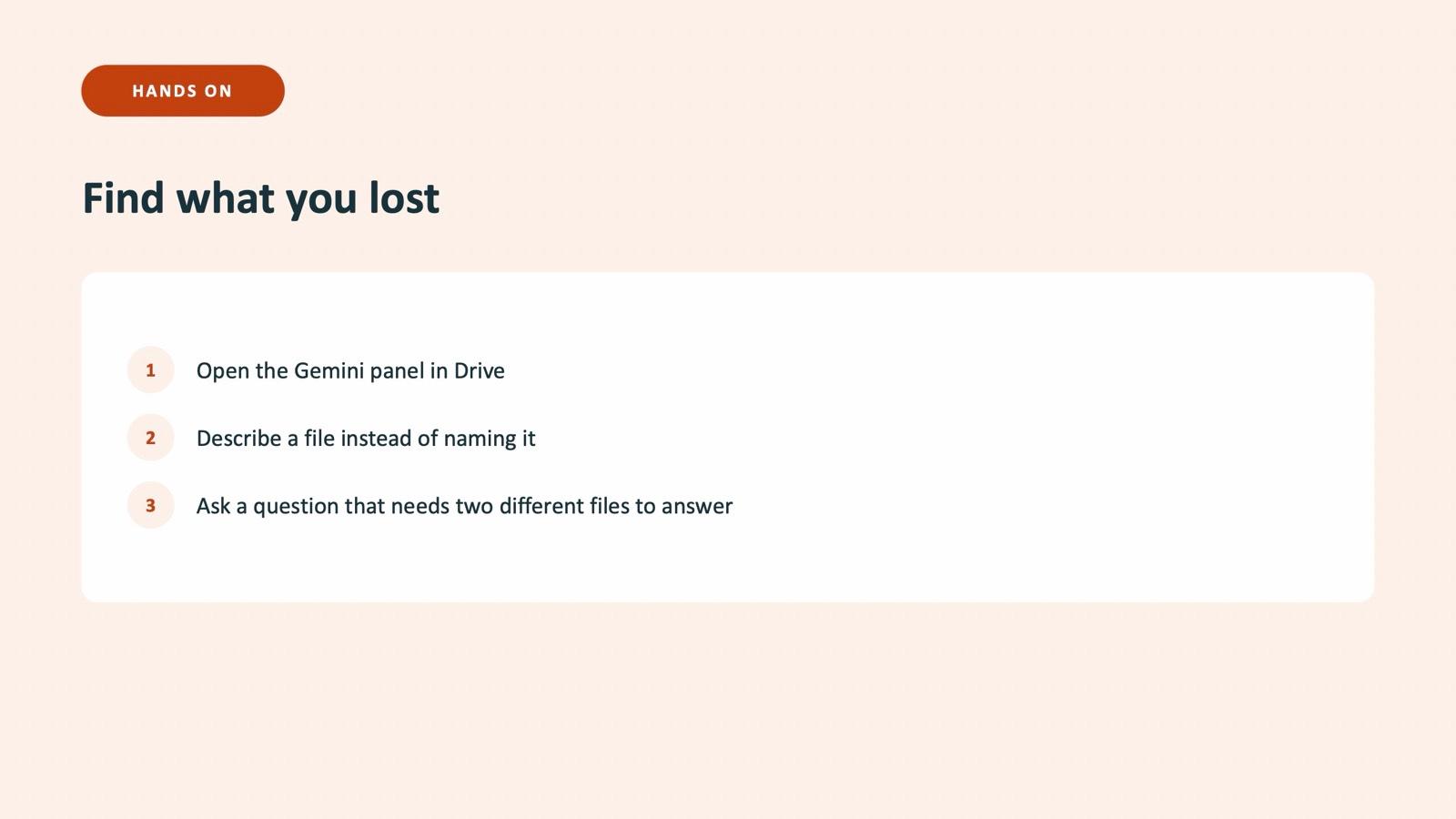
Forms and Meet gave the quickest wins. In Forms, people typed one line describing the form they keep postponing, such as a safety observation, gate entry or leave request, watched the questions build, and sent it to the person next to them to fill. In Meet, two people started a 60-second call, turned on Take notes for me, talked about their biggest time waster, ended the call and found the notes in Drive. In Drive, they described a file instead of naming it.
Workspace Studio: the agent drafts, a person approves
Everything until this point needed a person to start it. The Workspace Studio module showed an agent that does not. The worked example on the slides is a complaint: a mail arrives from a customer domain, the agent pulls out the part number and the issue, posts it for Quality and drafts an acknowledgement.
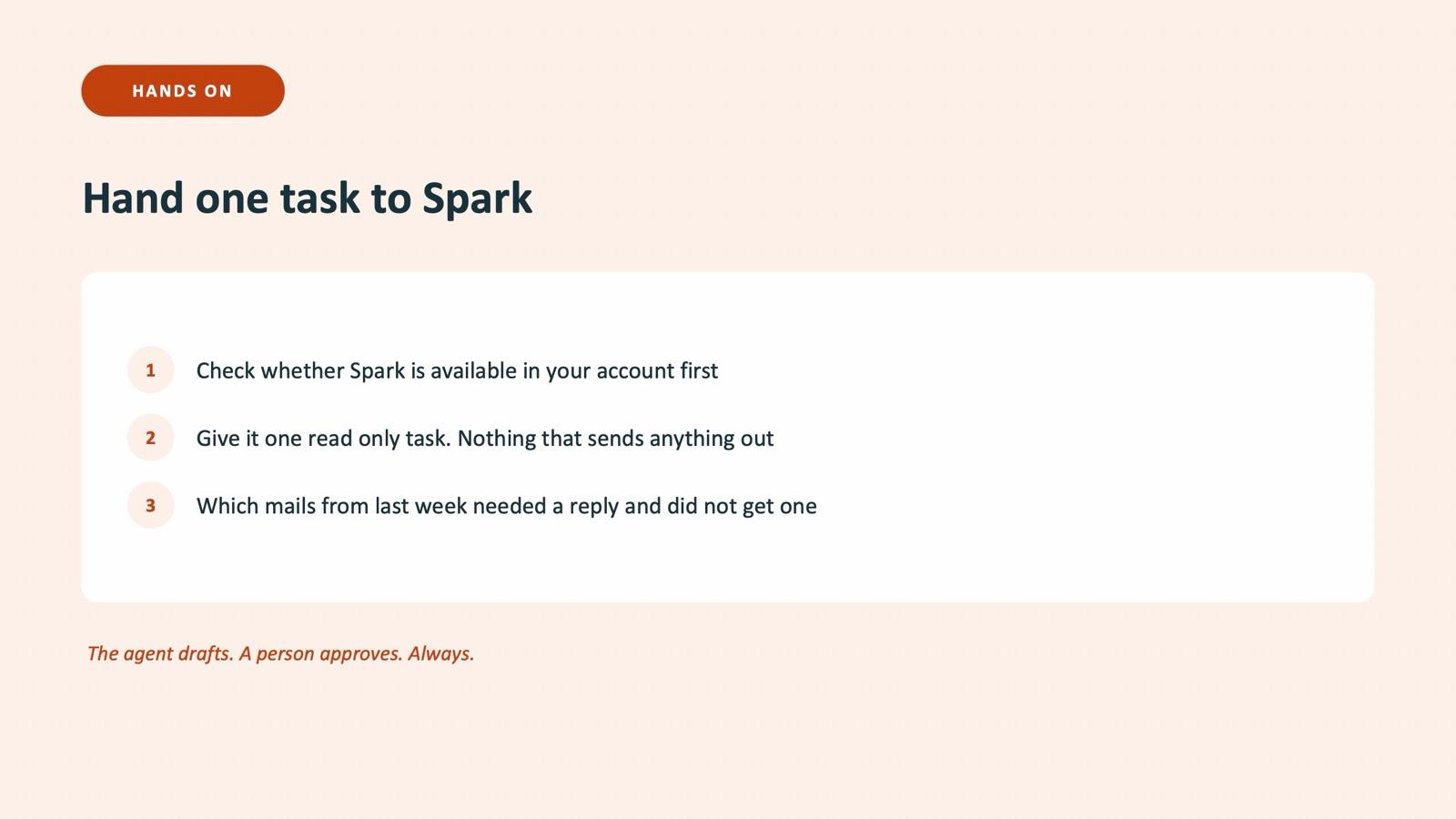
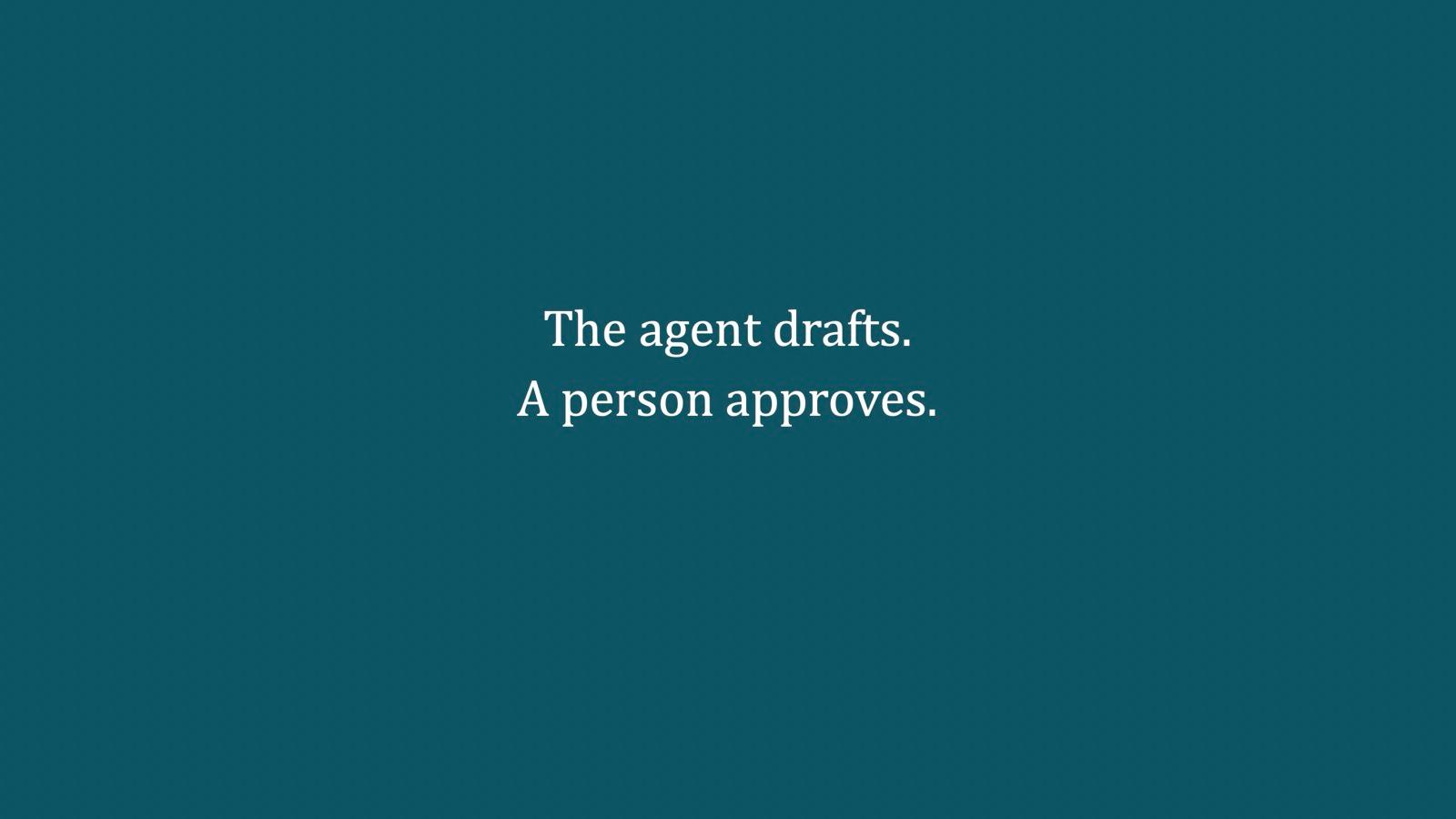
The most important slide in the module was the one that says what the agent does not do: the agent drafts and a person approves. The advice to the room was to build every agent that way for the first six months, and to automate the typing, not the decision.
How different departments used the day
Because the exercises asked people to pick their own task, each department ended up on its own material. The table below shows how the day mapped to the nine departments in the room.
| Department | Where the day fitted their work |
|---|---|
| HR | Writing in your own voice in Docs, policy questions in NotebookLM, induction questions |
| Quality | SOP structure in Docs, checking one answer in Sheets, cited answers from procedures |
| Production | Rejection questions in Sheets, work instructions in plain language |
| Logistics | Finding files in Drive, packing and dispatch documents in NotebookLM |
| Accounts | Plain-English formulas, policies and payment terms in NotebookLM |
| Operations | Meeting notes from Meet, open actions from long threads |
| Legal Compliance | Contracts and checklists in NotebookLM, with the red lines on checking |
| MIS | Charts from a sentence, metric definitions |
| IT | The questions it gets every week, saved as a Gem or a form |
This table is our summary of how the exercises map to each function. It describes the shape of the day and is not a measured result.
Limits and the close
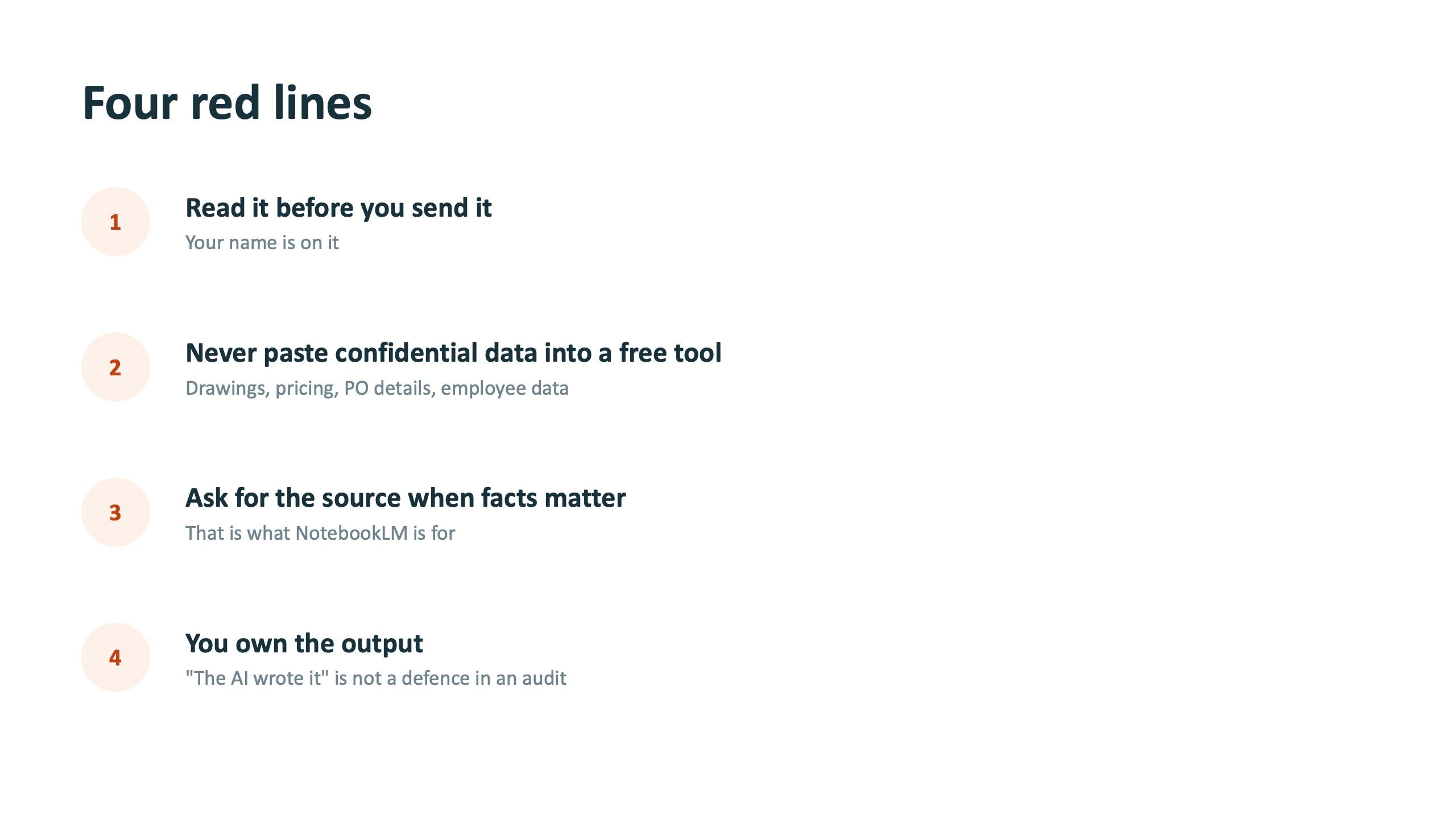
The last module was taught with laptops closed. It opened with the line that AI cannot be held responsible and has no intent of its own, so a person stays accountable for anything that leaves the company. It listed four red lines, including reading everything before you send it because your name is on it, and a slide of skills AI cannot replace, starting with taste.
The closing slide brought back the opening idea: a friend is useful, but you still do not let a friend sign your cheques.

The result
Each person left with something that works without the trainer: a Gem for a task they repeat, a notebook of their own documents, and a list of tasks to try in Gmail, Docs, Sheets, Forms and Meet. Because the session used tools Meenakshi Polymers already had, there was no new software to buy. The saving comes from using existing subscriptions properly.
Sandeep Sareen, VP at Meenakshi Polymers, said the session gave a practical understanding of how Gemini can be used across Google Workspace, and that the automation examples made it easier to see where AI saves time. We have not published hours or money saved because they were not measured in the session.
Takeaway for other organisations
If your company already uses Google Workspace or Microsoft 365, start there. Training people to use the AI inside tools they already own is often the lowest-cost way to save time with AI. Make the day a working day: every person should open their own mail, their own SOP and their own data, and finish with one thing saved that keeps working.
Want a similar day for your team? Read the full guide to Google Workspace and Gemini for business teams, then get in touch at /contact to plan a session for your departments.
“The session gave us a practical understanding of how Gemini can be used across Google Workspace. The automation examples made it easier to see where AI saves time.”
Frequently asked questions
How many people attended the Meenakshi Polymers training?
About 30 people from nine departments: HR, Quality, Production, Logistics, Accounts, Operations, Legal Compliance, MIS and IT.
Was the session online or on-site?
On-site, as a full working day on 19 September 2026, from 9:30 AM to 5:00 PM.
Do we need to buy new software to use AI at work?
Often not. Many teams already have AI features inside Google Workspace or Microsoft 365. Training is what turns those features into saved time.
Does every Workspace plan include every feature shown?
No. Some features, such as Spark and Workspace Studio, are rolled out in stages and depend on the plan and country. The day treats those as a look ahead where they are not available on a company account.
Can the training be tailored to our departments?
Yes. Exercises use your own mail, documents and data, so each department practises on its own work. Contact Surendra Pandar to plan a session.