Guide · 14 min read
Google Workspace and Gemini for Business Teams: A Hands-On Guide From a Real One-Day Training
How to use Gemini, NotebookLM and the AI inside Gmail, Docs, Sheets, Slides, Forms, Meet and Drive, with the exact hands-on exercises, prompts and slides from a one-day working session for Meenakshi Polymers. Includes examples for HR, quality, production, accounts, logistics and compliance teams.
By Surendra Pandar, AI Trainer ·
In short
- If your company already pays for Google Workspace, most of the AI is already inside it, and most of it is switched off or unused. The fastest win is to teach people one prompt framework and then walk through each app in turn.
- This guide follows a real one-day working session (19 September 2026, 9:30 to 5:00) delivered to Meenakshi Polymers, in the order the room did it: Gemini, Gmail, Docs, Sheets, NotebookLM, Slides and Forms, Calendar, Meet and Drive, Workspace Studio, and the limits.
- Each section has the hands-on exercise people actually did, the slide that framed it, and where it fits different departments. The last section covers what AI cannot do, and the four red lines people took away.
Why Workspace, and why a framework rather than a list of tools
Most Indian companies we meet already run on Gmail, Docs, Sheets and Meet. The AI features arrived inside those apps in the last two years, but nobody trained the team to use them. The session opened with the line "You already pay for these tools. Most of it is switched off."
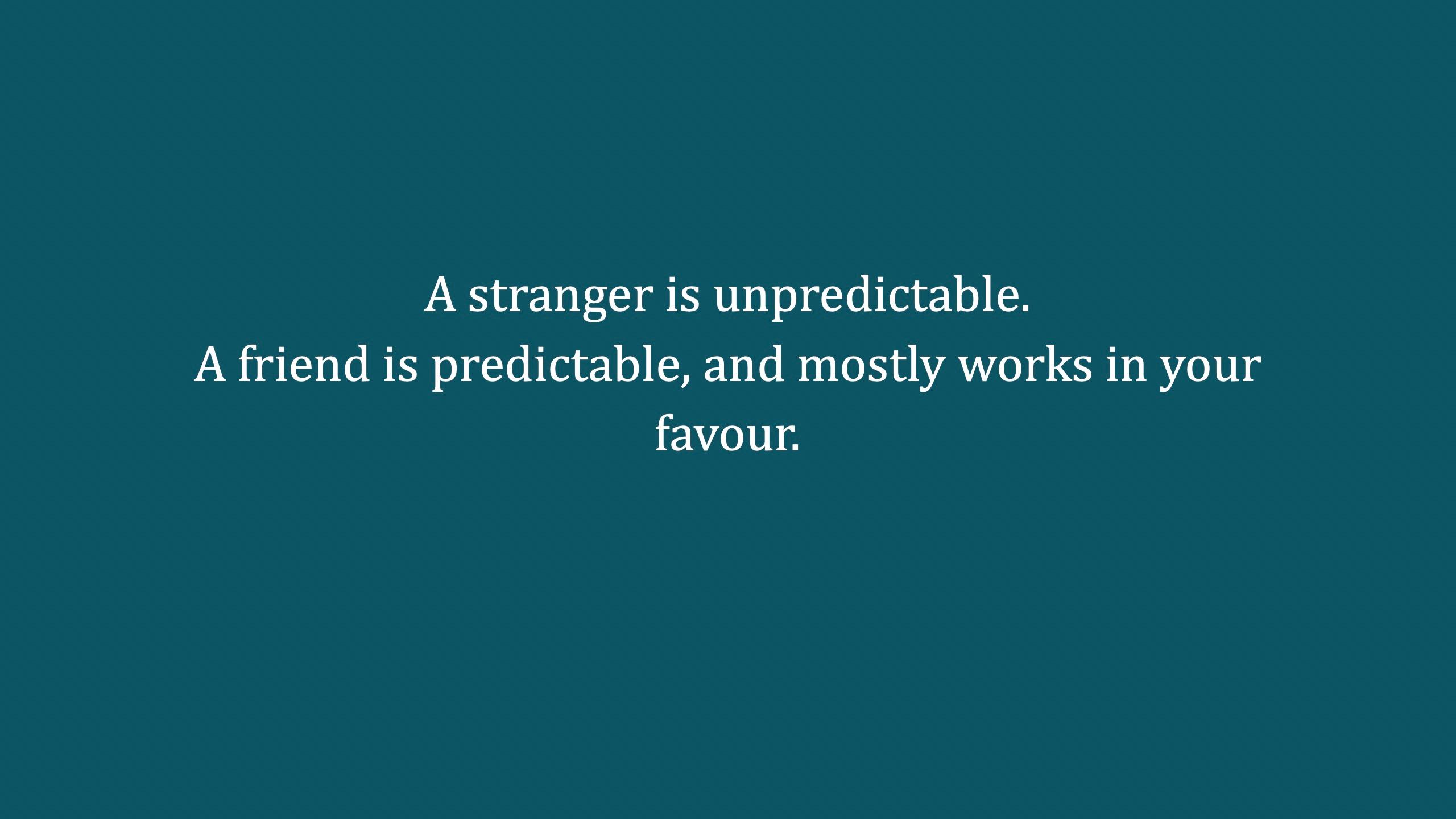
The goal for the day, stated on slide two, was two things. First, a framework, not a list of tools, because the tools will change within months. Second, to make AI a friend rather than a stranger. A stranger is unpredictable. A friend is predictable and mostly works in your favour.
That framing sets the tone for everything below. If people understand how to talk to the AI, every AI button in every app starts to make sense within 30 seconds.
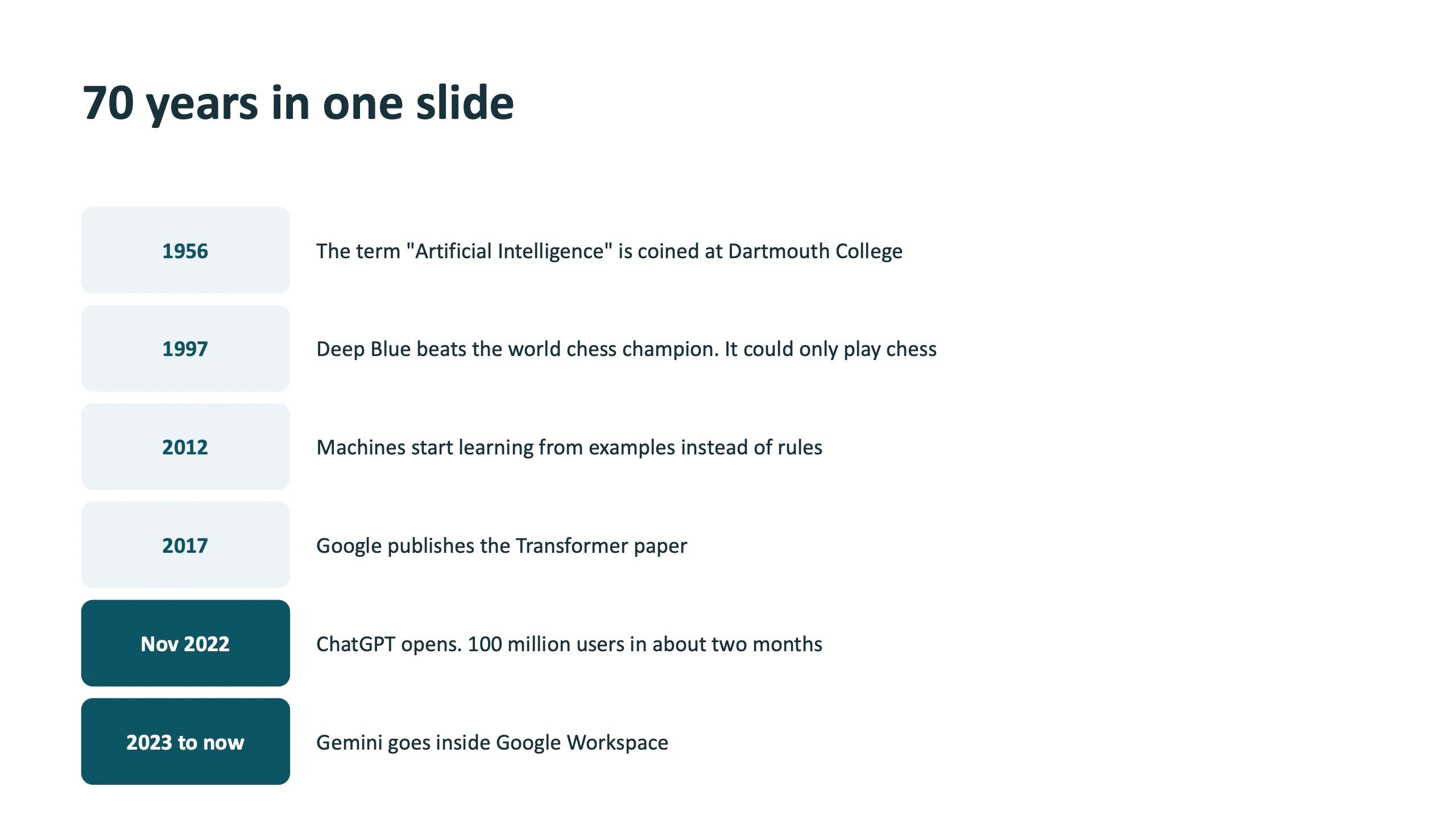
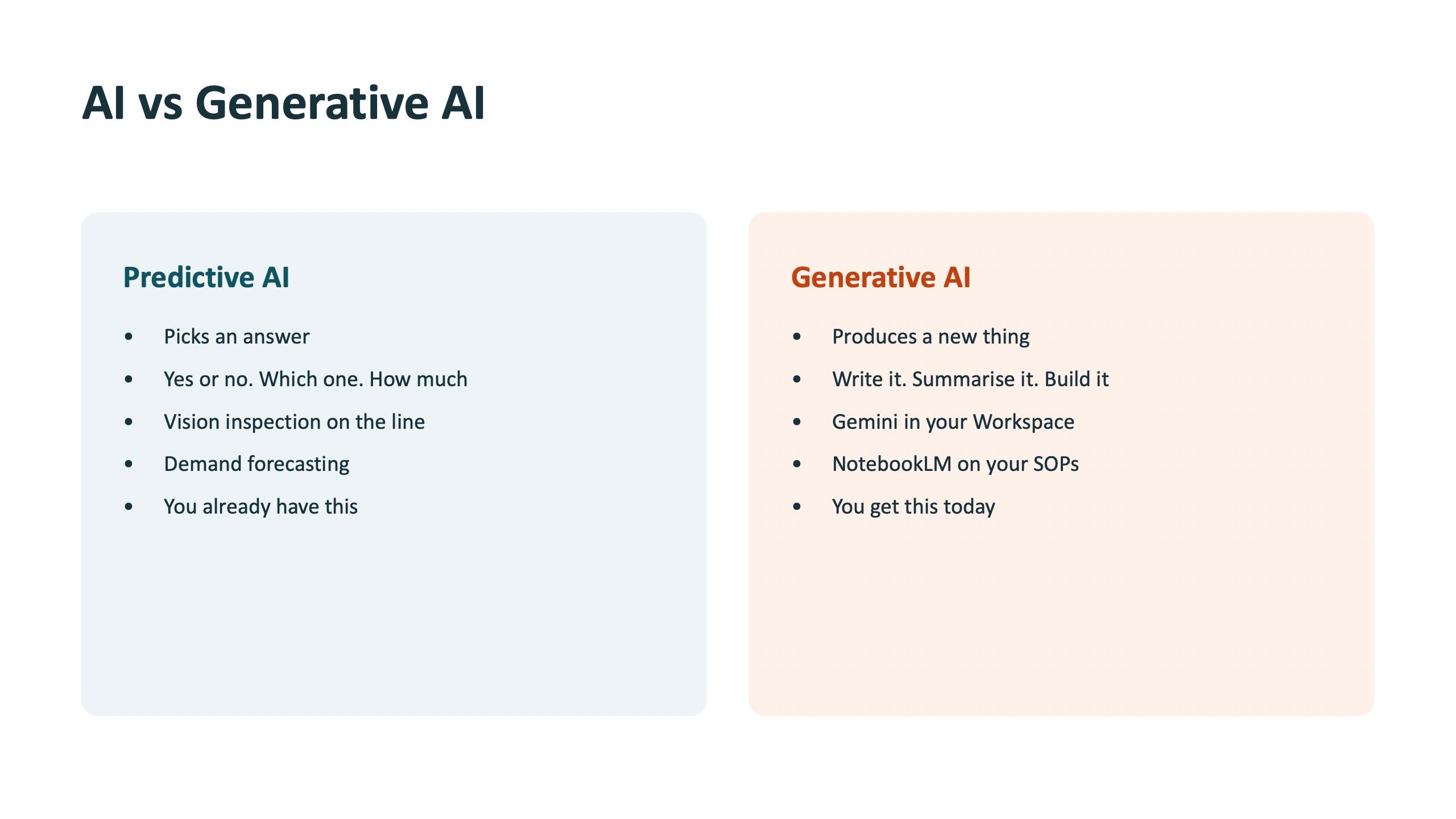
A useful distinction the room took away: predictive AI, such as vision inspection on a line or demand forecasting, picks an answer, and you may already have it. Generative AI produces a new thing: a draft, a summary, a deck. That second kind is what Gemini in Workspace gives you today.
Step 1: learn to talk to Gemini once
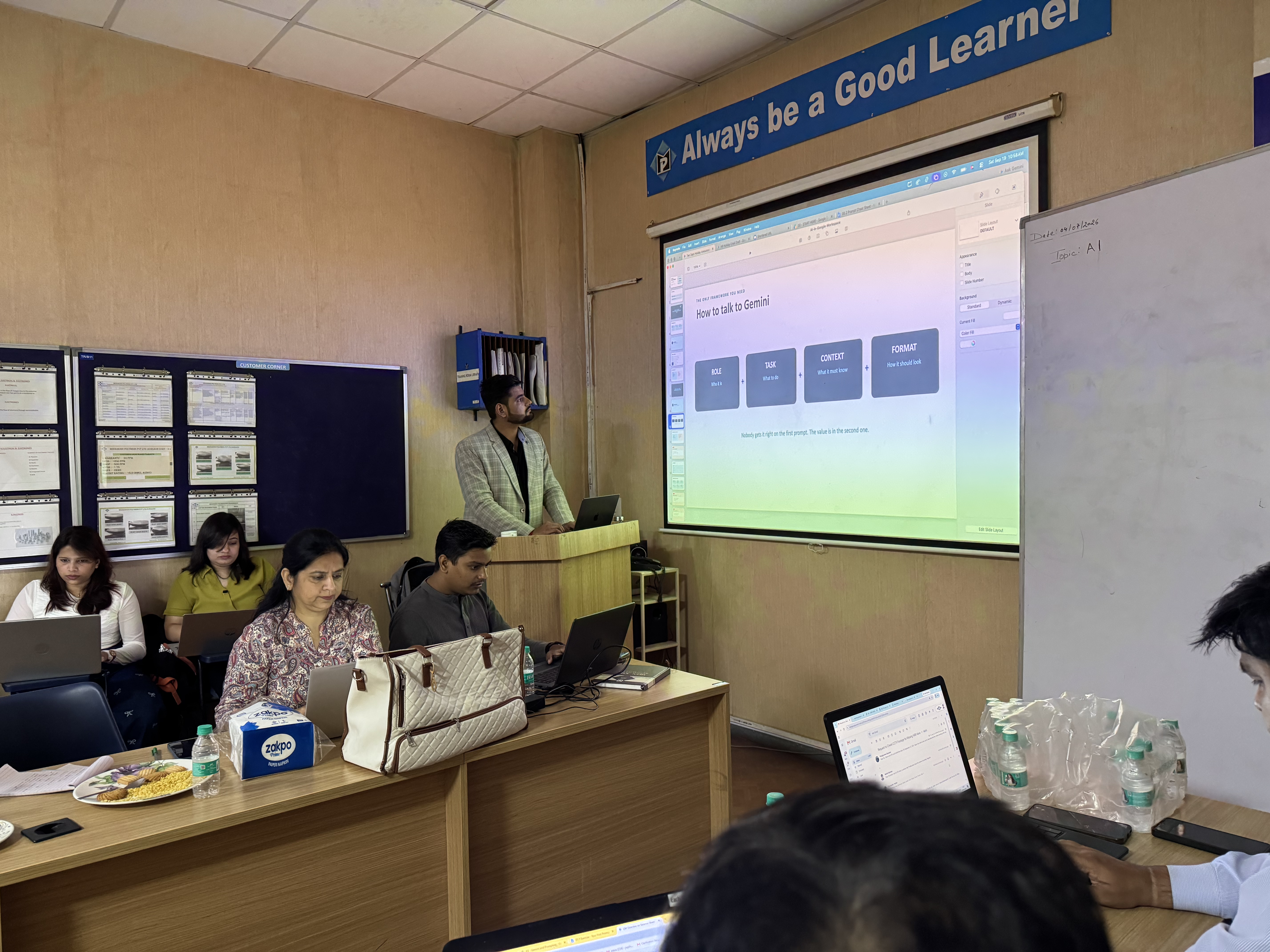
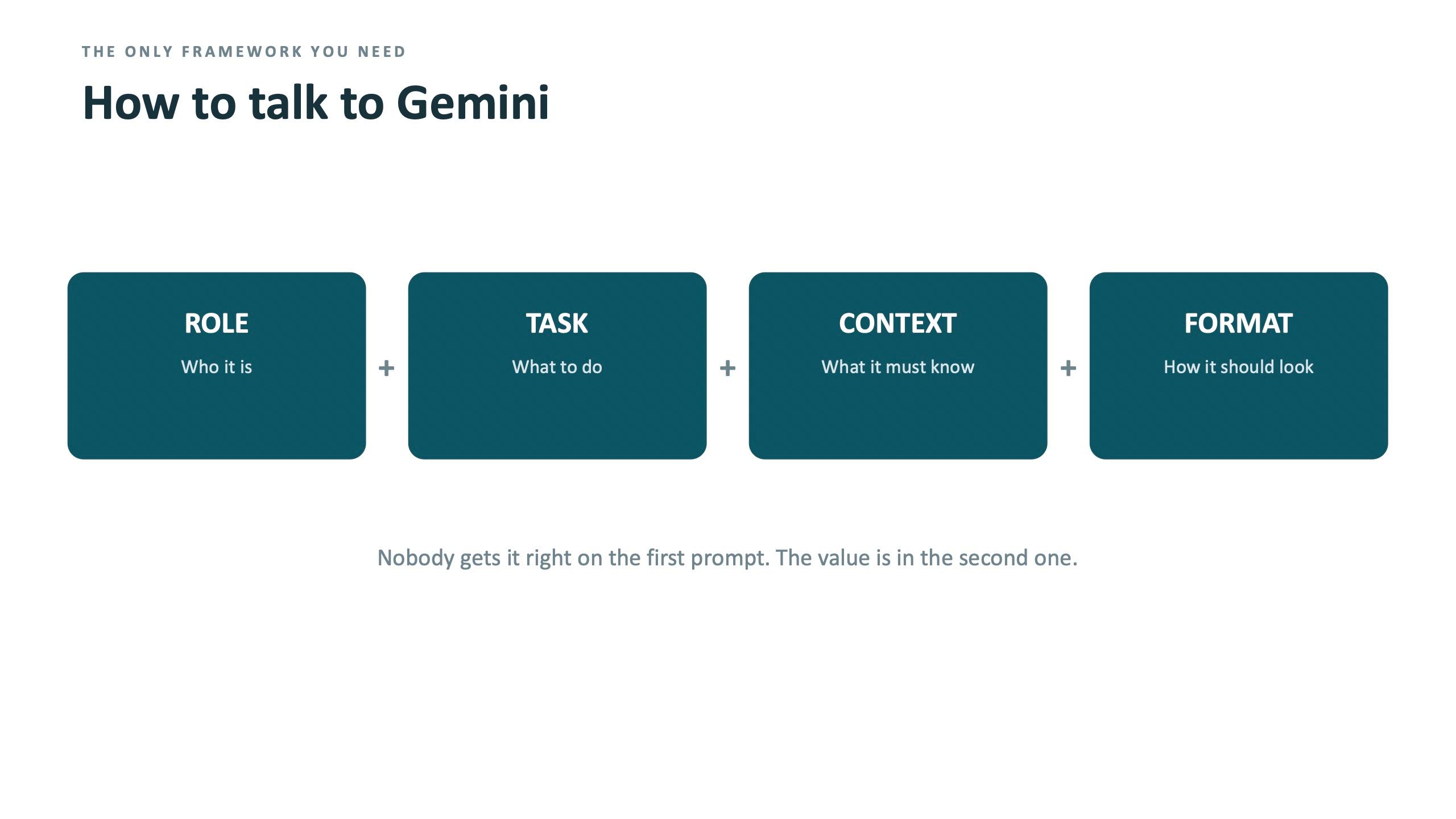
The framework used all day has four parts: Role, Task, Context and Format. Who the AI is, what it should do, what it must know, and how the answer should look. The slide says it bluntly: nobody gets it right on the first prompt, and the value is in the second one.
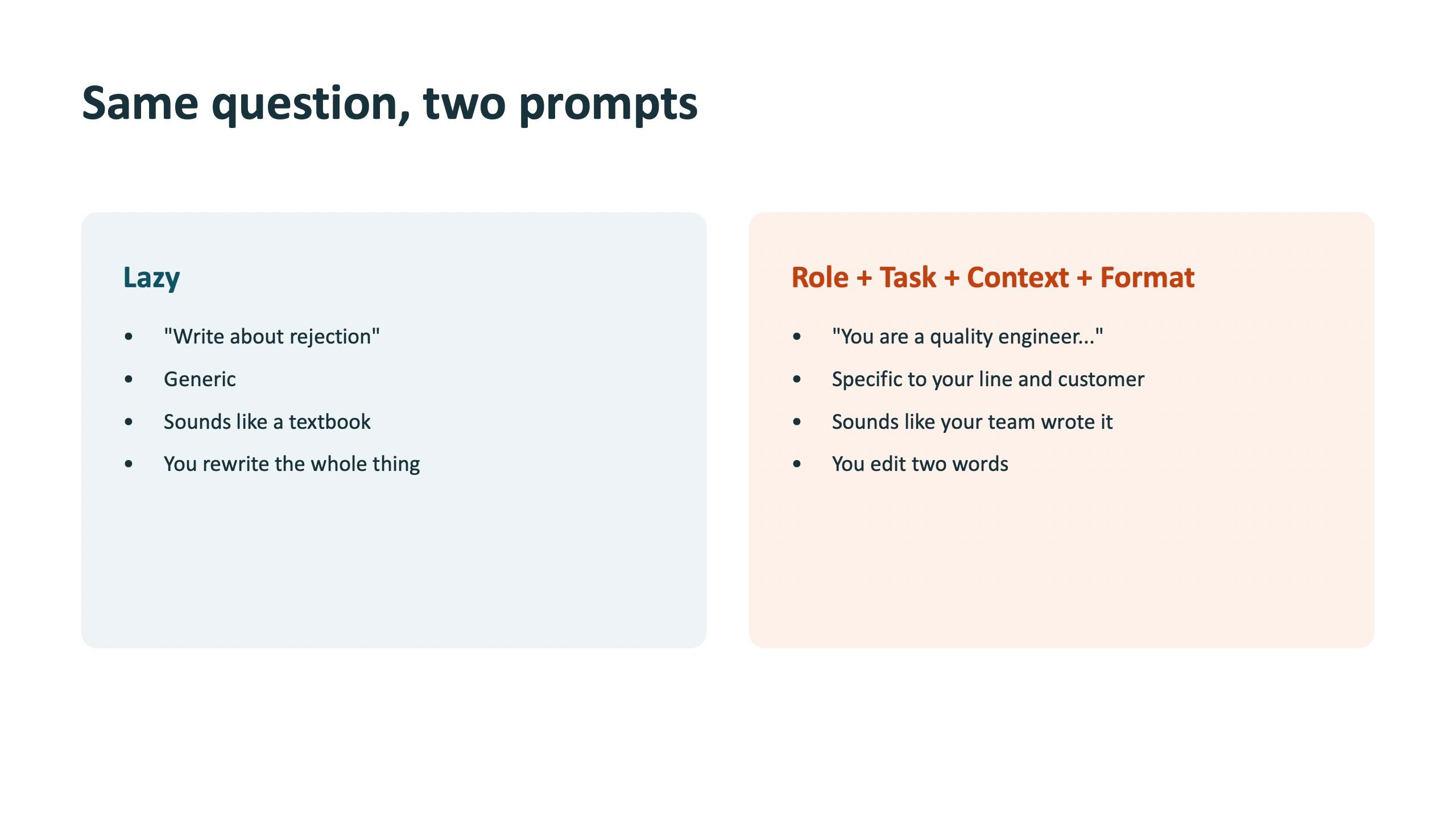
The contrast slide makes the point. A lazy prompt, "Write about rejection", gives a generic answer that sounds like a textbook, and you rewrite the whole thing. A prompt with Role, Task, Context and Format is specific to your line and your customer, and you edit two words.
Lazy prompt
Write about rejection
Generic and textbook-like. You rewrite the whole thing.
Role + Task + Context + Format
Role: You are a quality engineer at a plastics moulding plant. Task: Write a short note to the production head explaining why rejection on Line 2 rose this month. Context: Rejections are mostly short shots on the night shift. Two moulds were changed last week. The customer audit is in three weeks. Format: Five bullet points and one recommended action, under 150 words.
An example in the style of the session exercise. Replace the details with your own line, customer and shift, and keep all four parts.
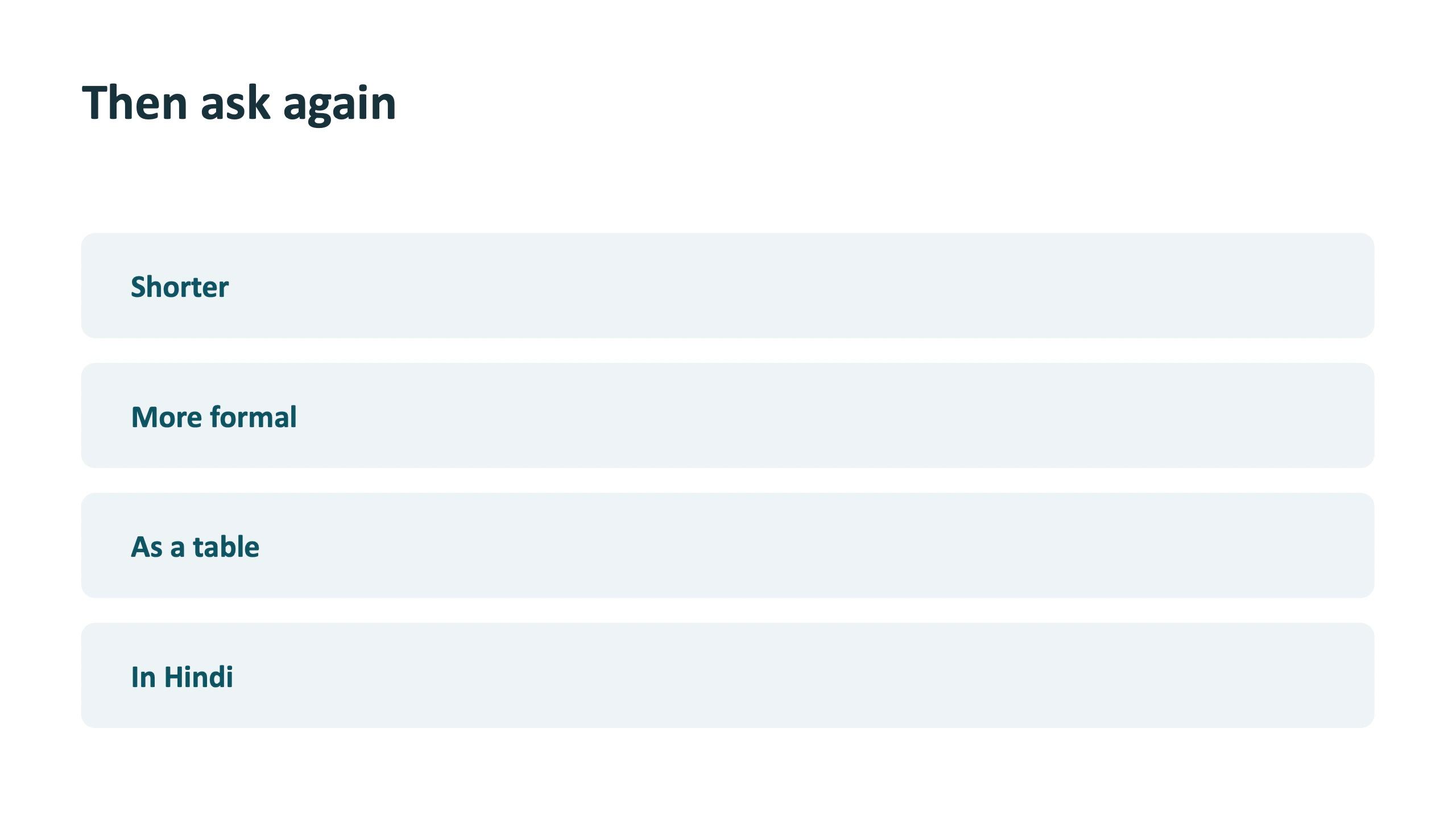
The first hands-on exercise was simply to pick a real task from your own desk, write it with all four parts, run it, and then ask again. Participants were asked to try shorter, more formal, as a table and in Hindi. That second round is where people feel the value.
Step 2: what Gemini can do for work
Before the apps, the room worked through the Gemini app itself in a series of short hands-on exercises, each one task from the person's own desk.
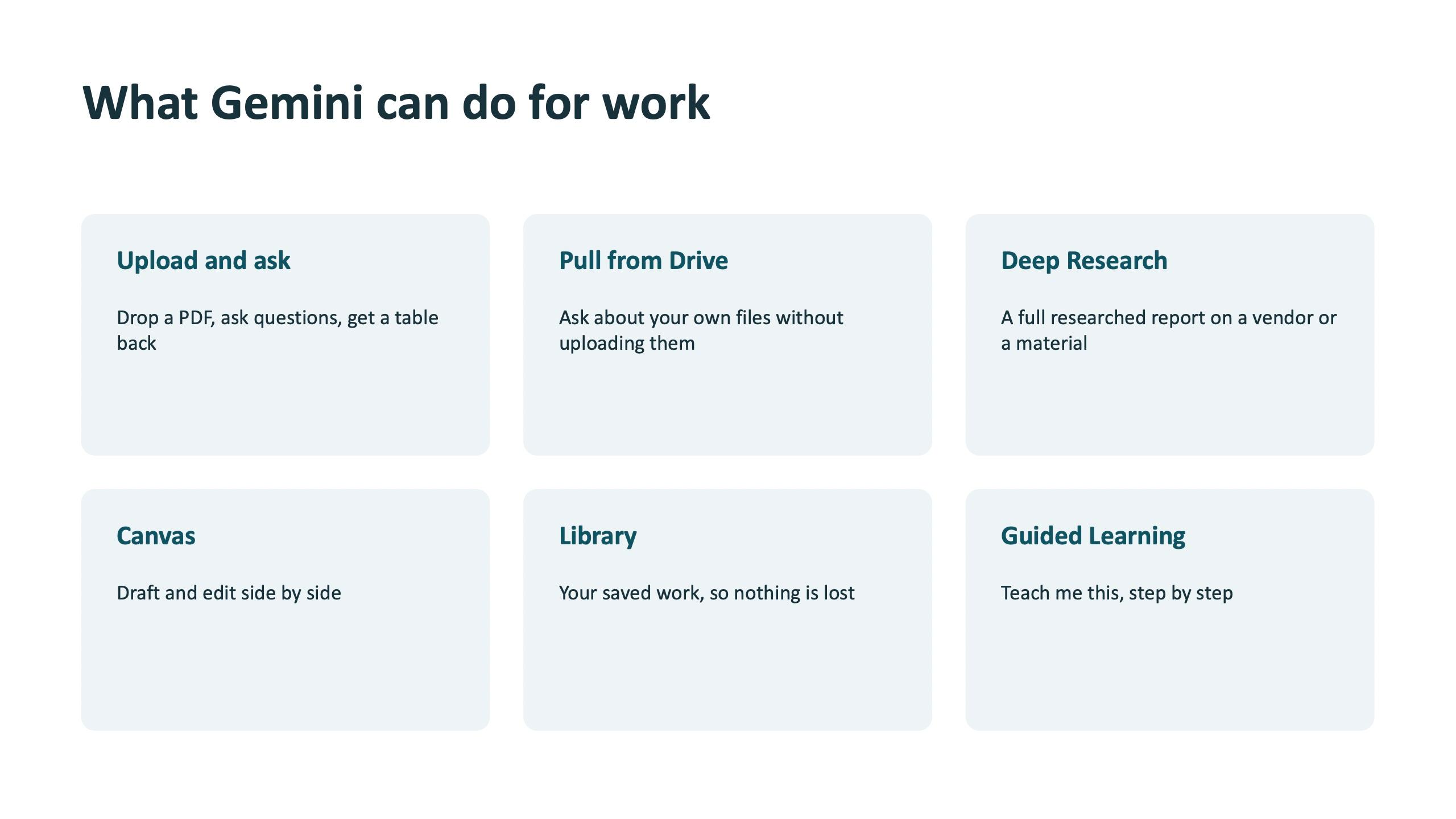
- Upload and ask: drop in any document from your laptop, ask three questions about it, then ask for the answer as a table.
- Ask about your own Drive: ask about a file without uploading it, then ask Gemini to compare two of your files.
- Deep Research: pick a real question from work, such as a vendor, a raw material, a competitor or a standard, and let it run while the session continues.
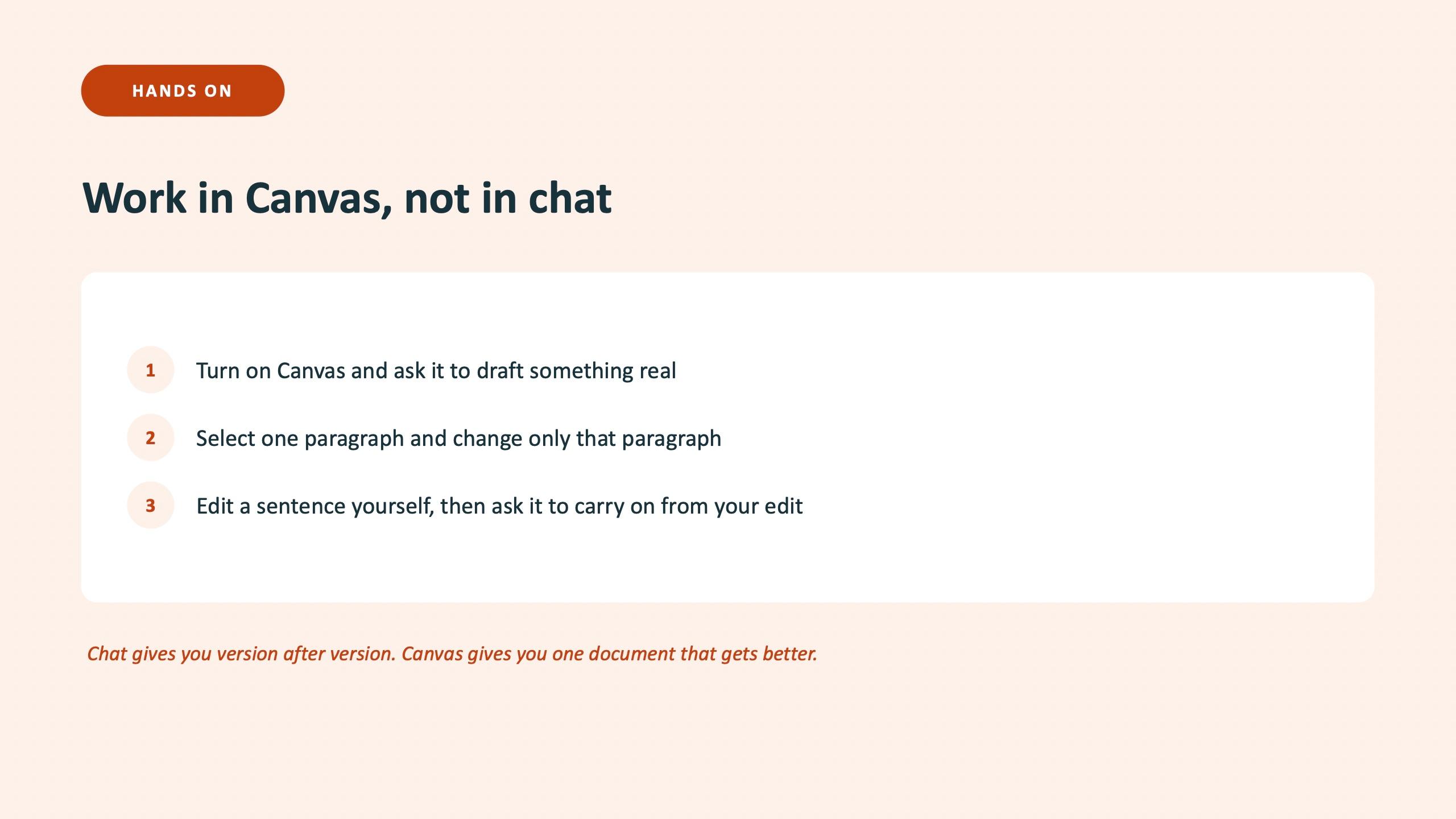
- Canvas: draft something real, select one paragraph and change only that paragraph, edit a sentence yourself, then ask it to carry on from your edit.
- Guided Learning: ask it to teach you the thing in your job you have been avoiding, and answer its questions honestly.
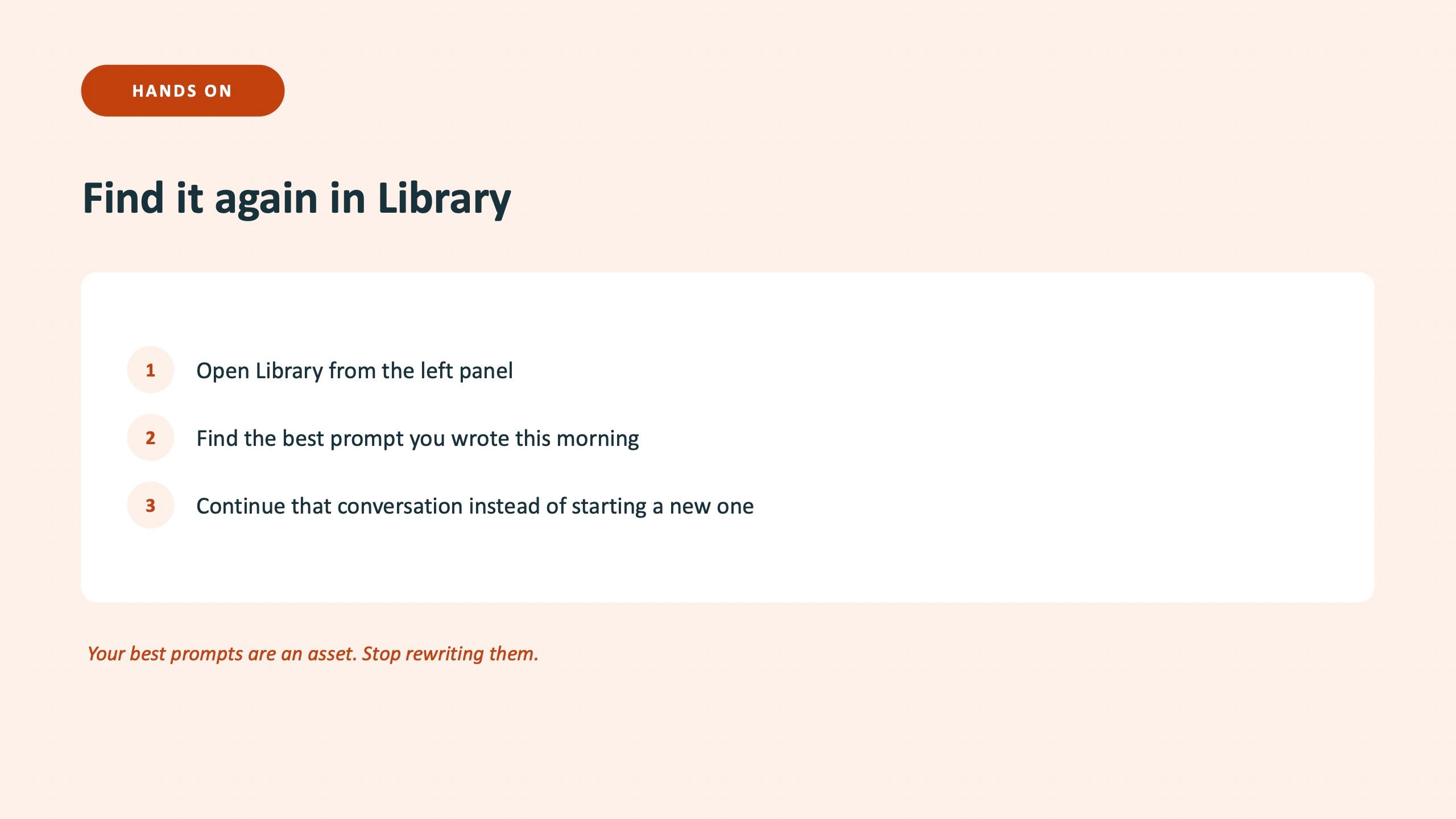
- Library: find the best prompt you wrote in the morning and continue that conversation instead of starting a new one.
The same session also covered the fun ones, image, video, music and an avatar presenter, with one practical use. Generating a safety poster or a diagram of your own process was described as the one people will use next week. A 30-second induction script presented by an avatar means nobody has to be filmed.
Step 3: make it permanent with Gems, Scheduled Actions, Skills and Spark
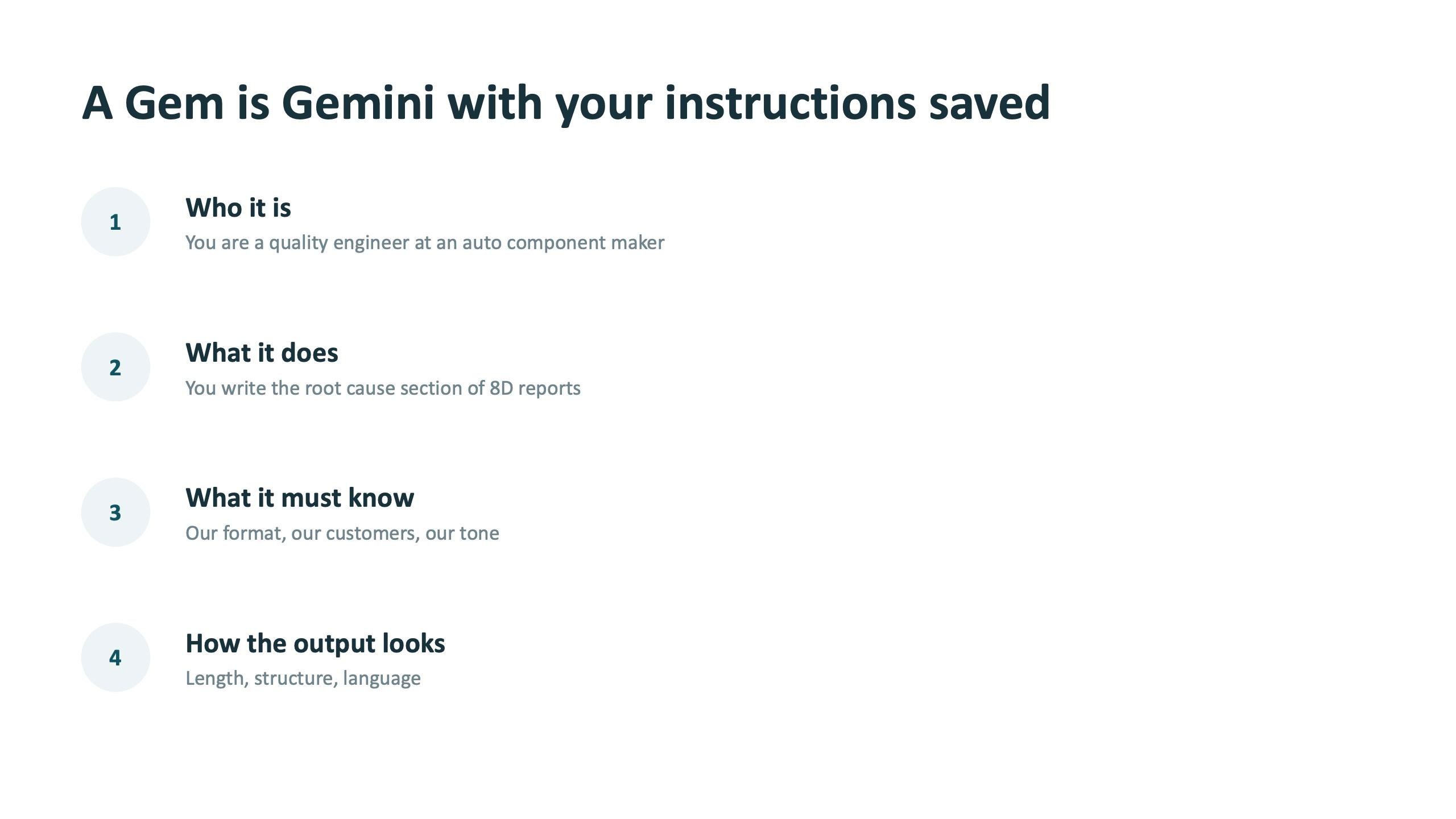
The most useful change in how a team works is to stop repeating yourself to a machine. A Gem is Gemini with your instructions saved. The slide breaks it into four parts: who it is, what it does, what it must know, and how the output looks.
The example on the slide is a quality engineer at an auto-component maker who writes the root-cause section of 8D reports in the company's format, for the company's customers, in the company's tone. The exercise was to build your own: pick the one thing you write again and again, write the four parts into a new Gem, run it twice with two different inputs, and fix the instruction, not the prompt. It works after the trainer leaves.
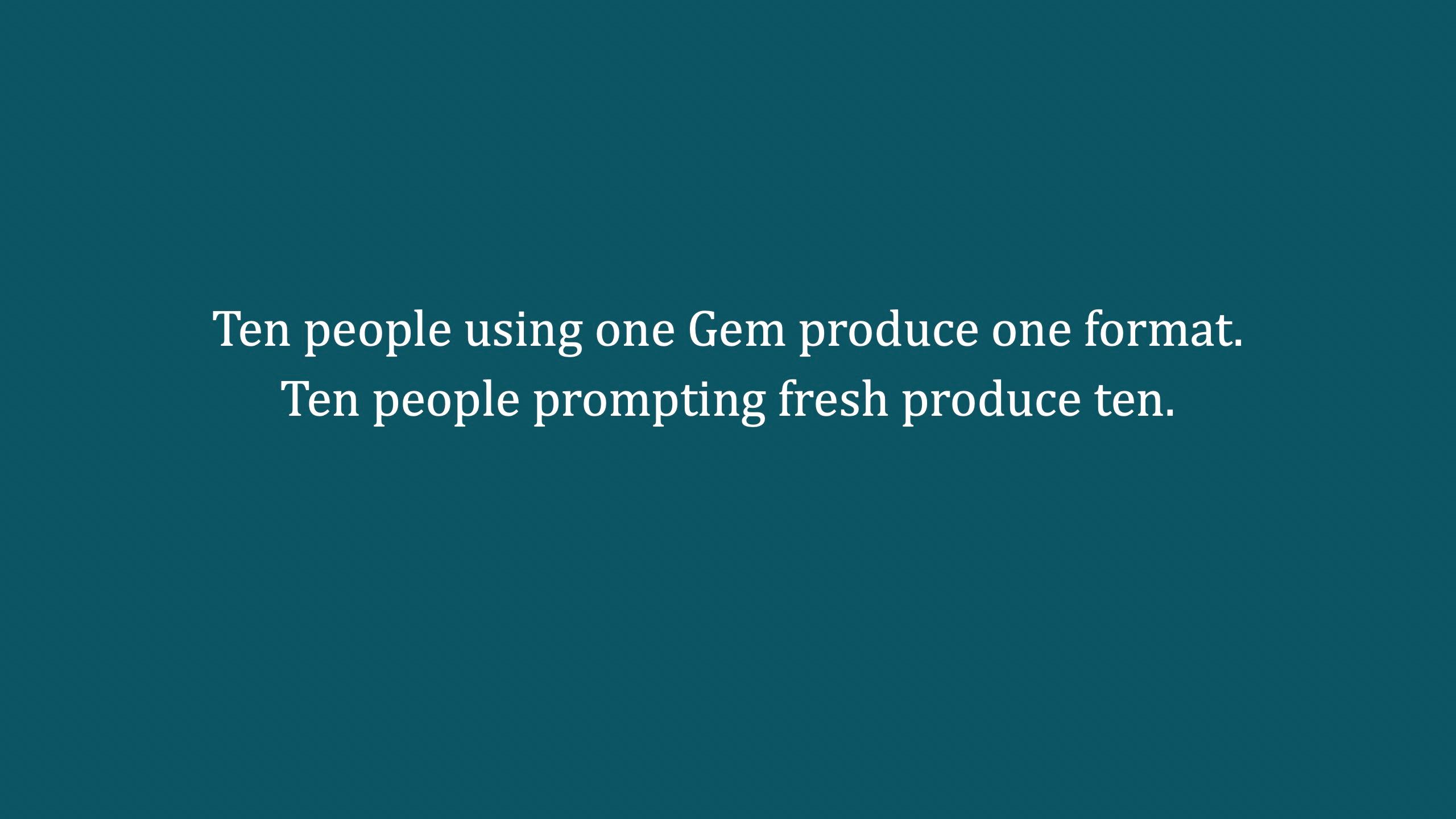
The reason this matters is on its own slide: ten people using one Gem produce one format. Ten people prompting fresh produce ten.
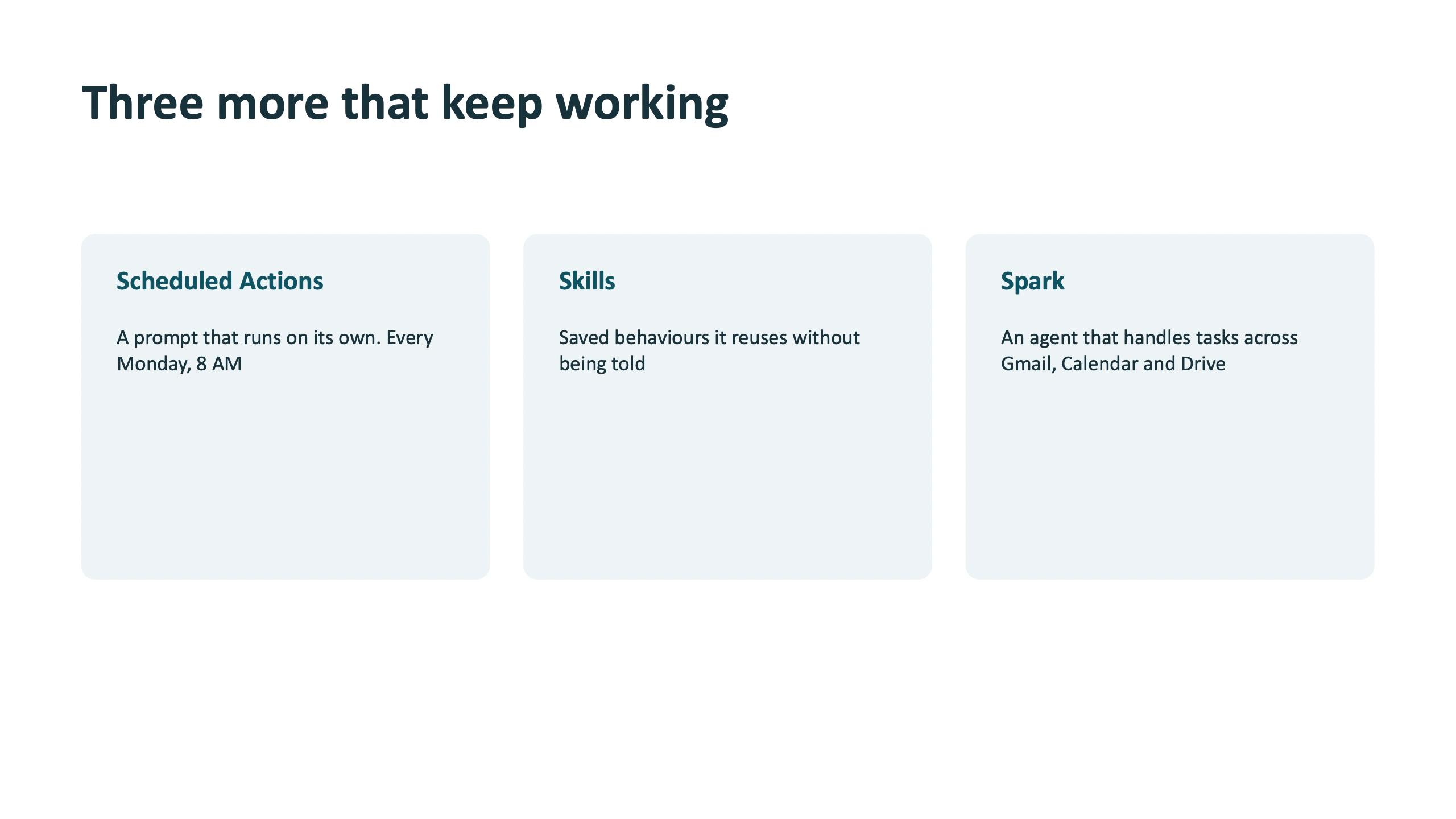
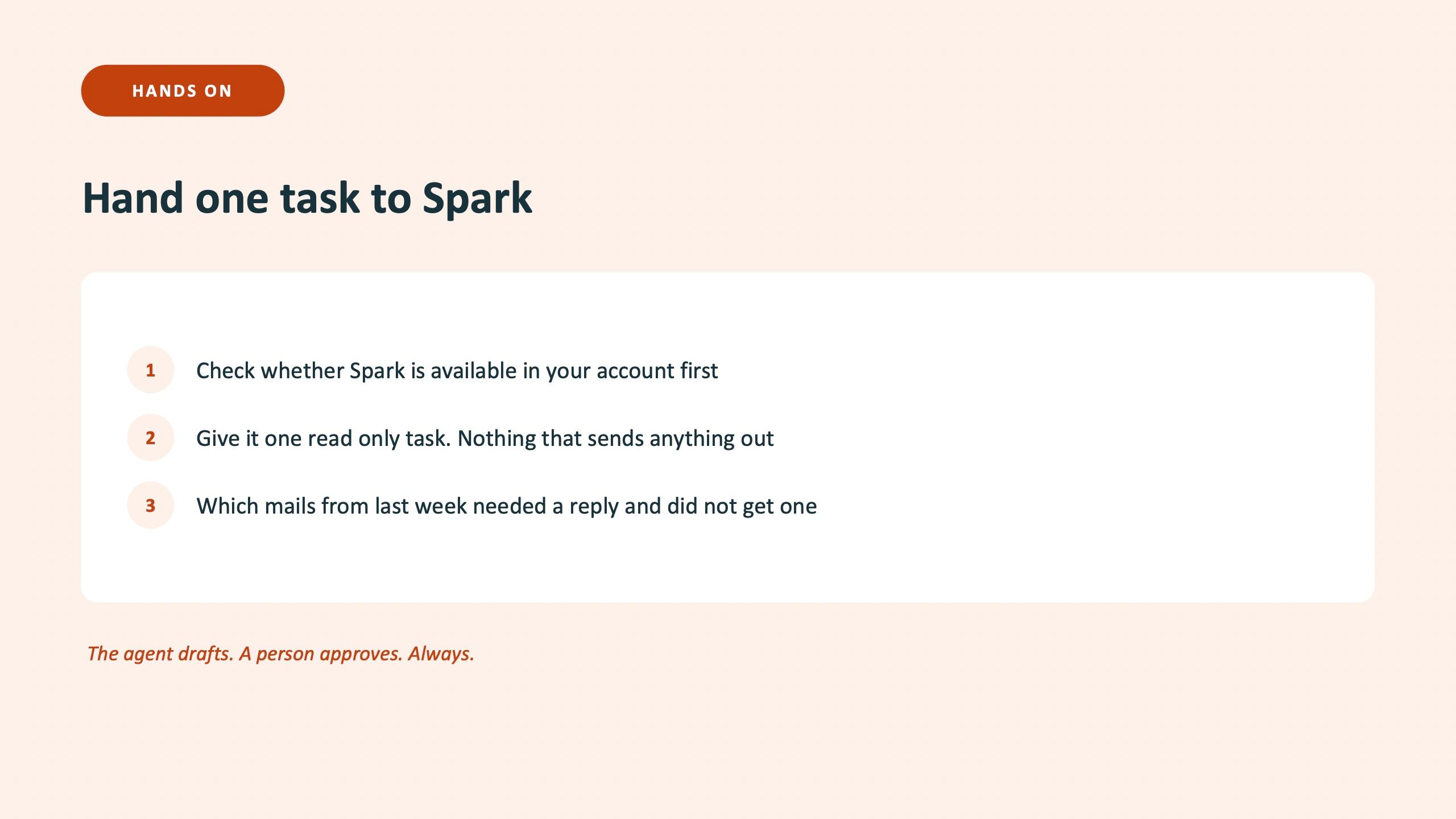
Three more features keep working after the session. Scheduled Actions run a prompt on their own, for example every Monday at 8 AM. Skills are saved behaviours: a Gem is a job, a skill is a rule applied to everything, and the best one to save is "tell me when you are not certain instead of guessing". Spark is an agent that handles tasks across Gmail, Calendar and Drive, and the exercise is deliberately read-only: which emails from last week needed a reply and did not get one. Check first that Spark is available in your account.
Gmail: search, draft, trigger
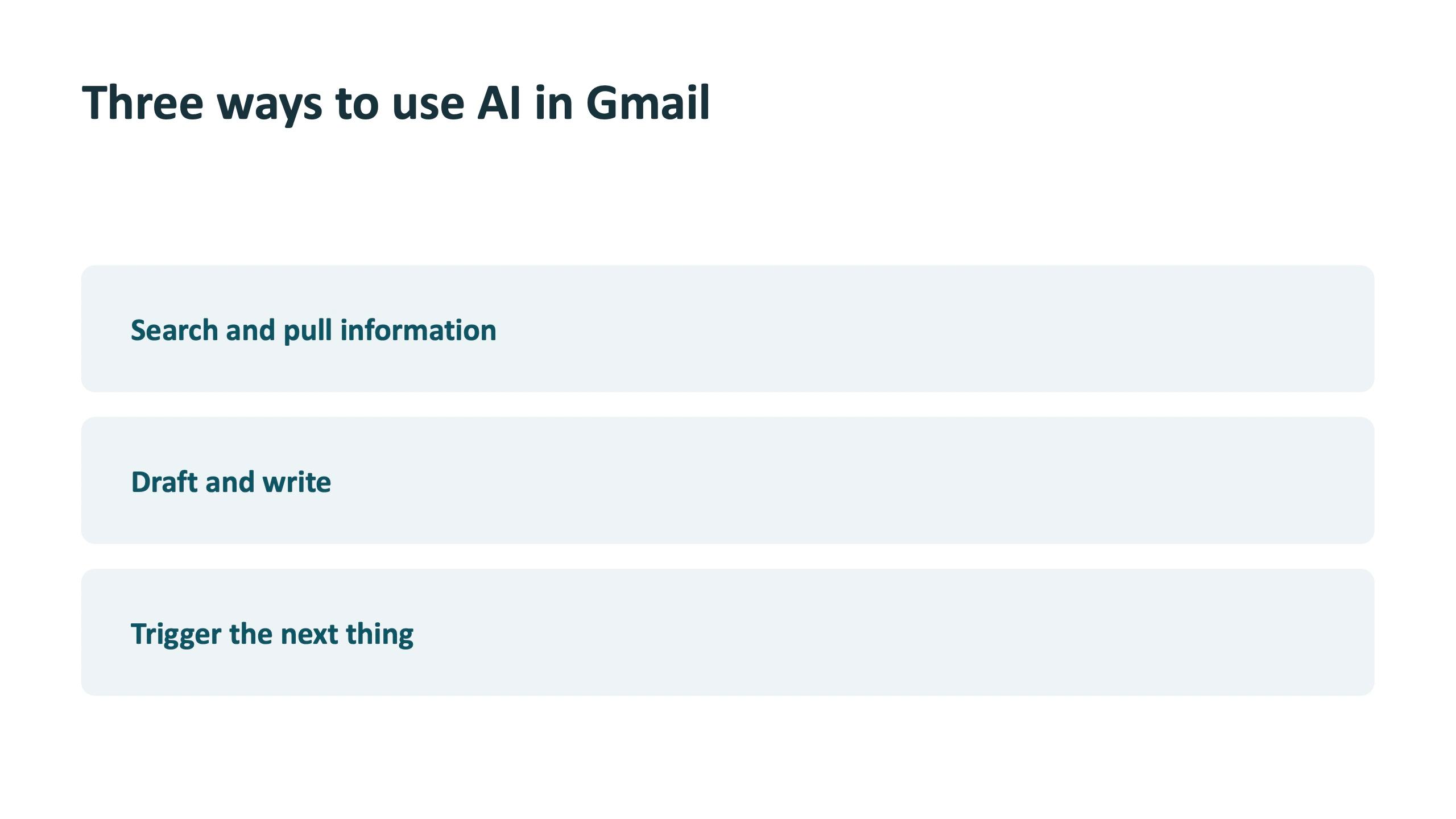
Where most of the day already goes. The session grouped Gmail AI into three ways: search and pull information, draft and write, and trigger the next thing.
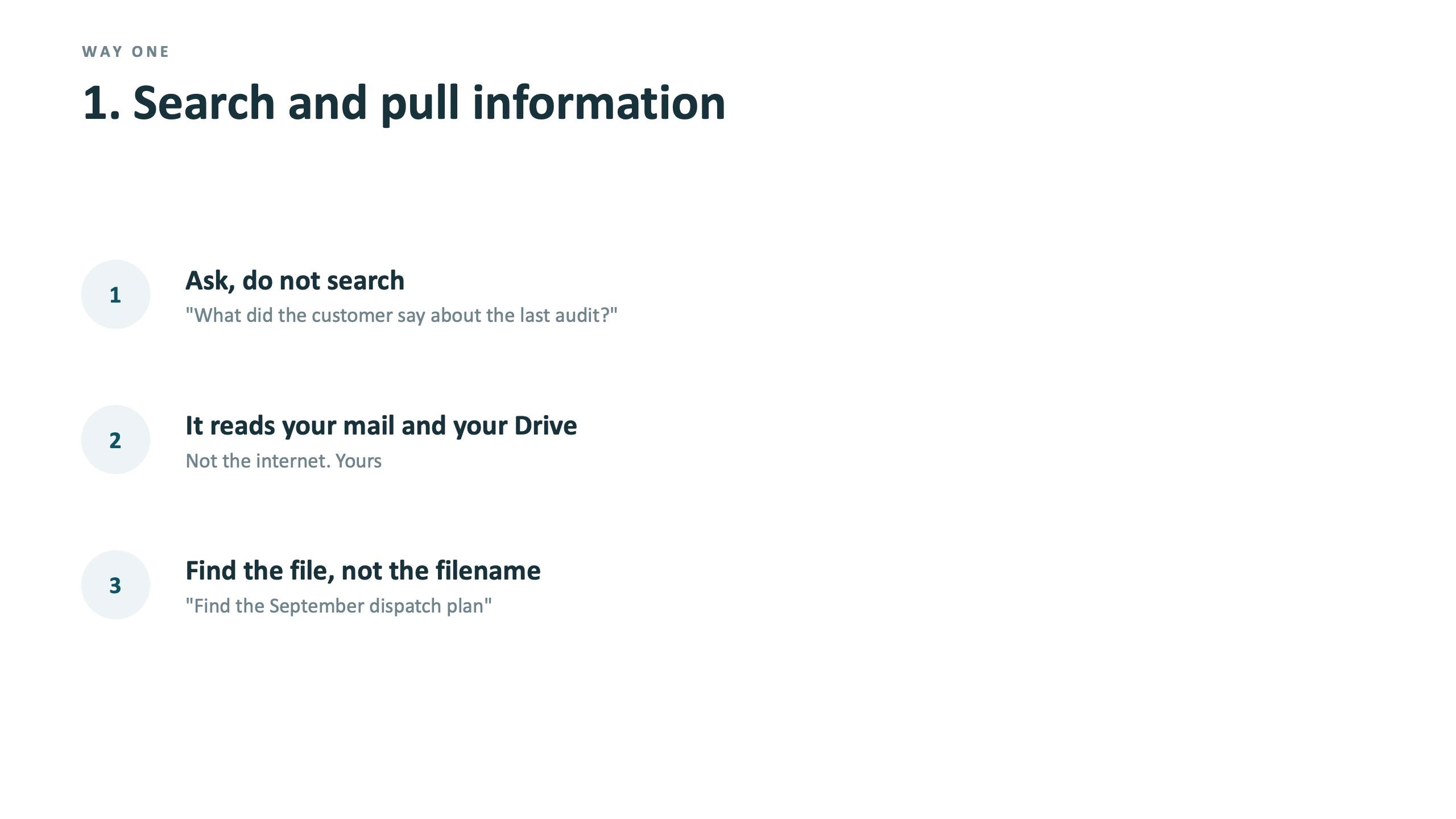
Search is about asking rather than searching. "What did the customer say about the last audit?" reads your mail and your Drive, not the internet, and "find the September dispatch plan" finds the file without the filename. Drafting covers a one-line instruction to a full draft, refining it, and summarising a forty-mail thread into five lines. The third way is where it stops being a writing tool: create a Calendar event from the mail, add the Meet link, and reading becomes doing.
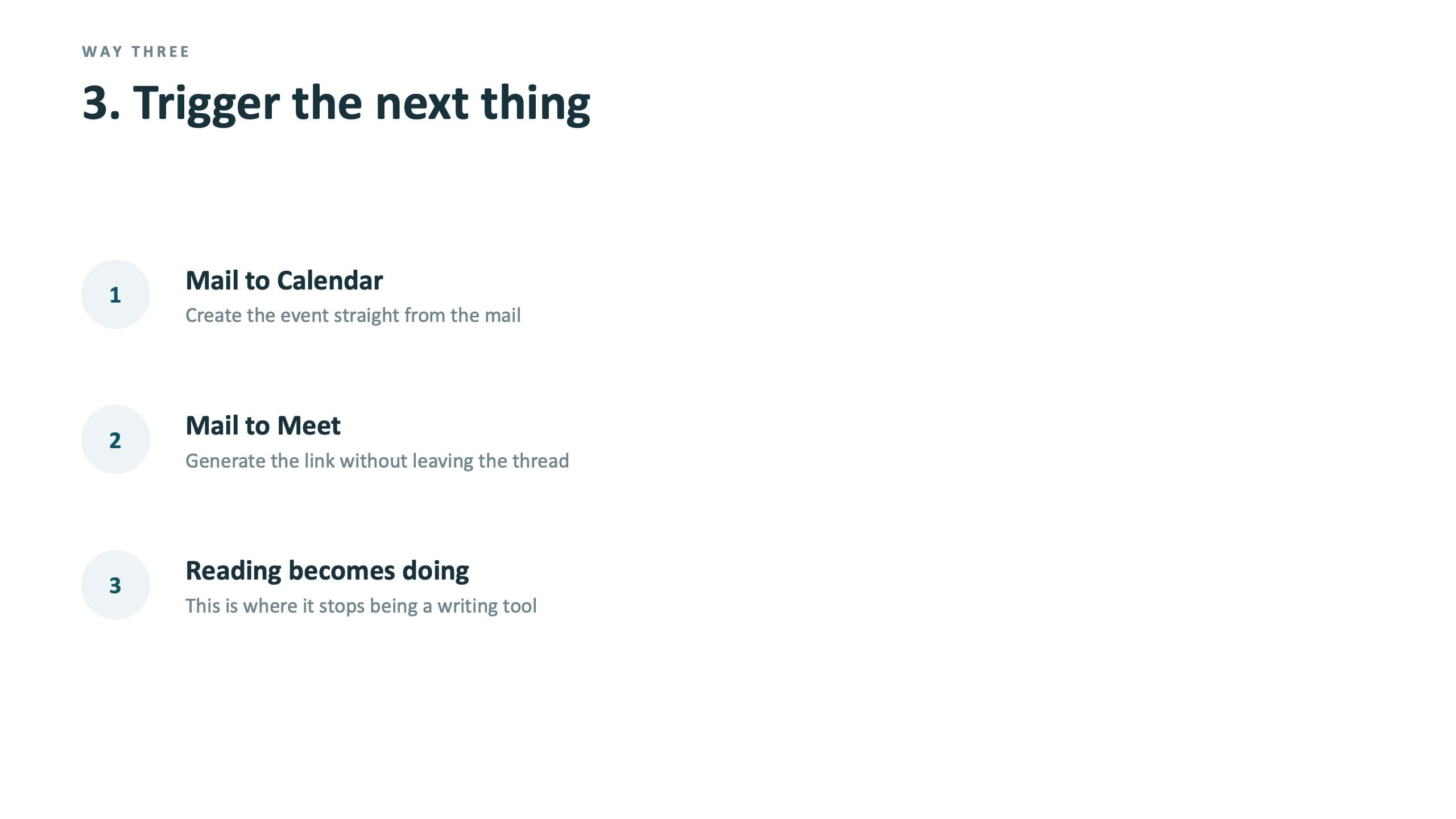
Hands-on, the room did three things. They asked their own inbox one question about something buried in it and asked it to find a file they could not remember. They took a long thread they had given up on, summarised it, drafted the reply they had been putting off, refined it once and shortened it. And they opened a mail that needed a meeting and created the Calendar event with the Meet link from inside it.
Docs: why AI sometimes gives you nothing
Before showing what Gemini does in Docs, the session explains why it sometimes returns nothing. There are three causes, and they are all about how the company organises files. The file is not in Drive, because Gemini cannot see your desktop or your pen drive. The document has no structure, because headings are how it reads your document. And it sits in My Drive, which means it leaves when the person leaves.
Inside Docs, the AI drafts a first version from one line, refines and rewrites for tone, length, bullets and tables, summarises into five bullets or every action with an owner, and can match your style when you feed it two of your own documents.
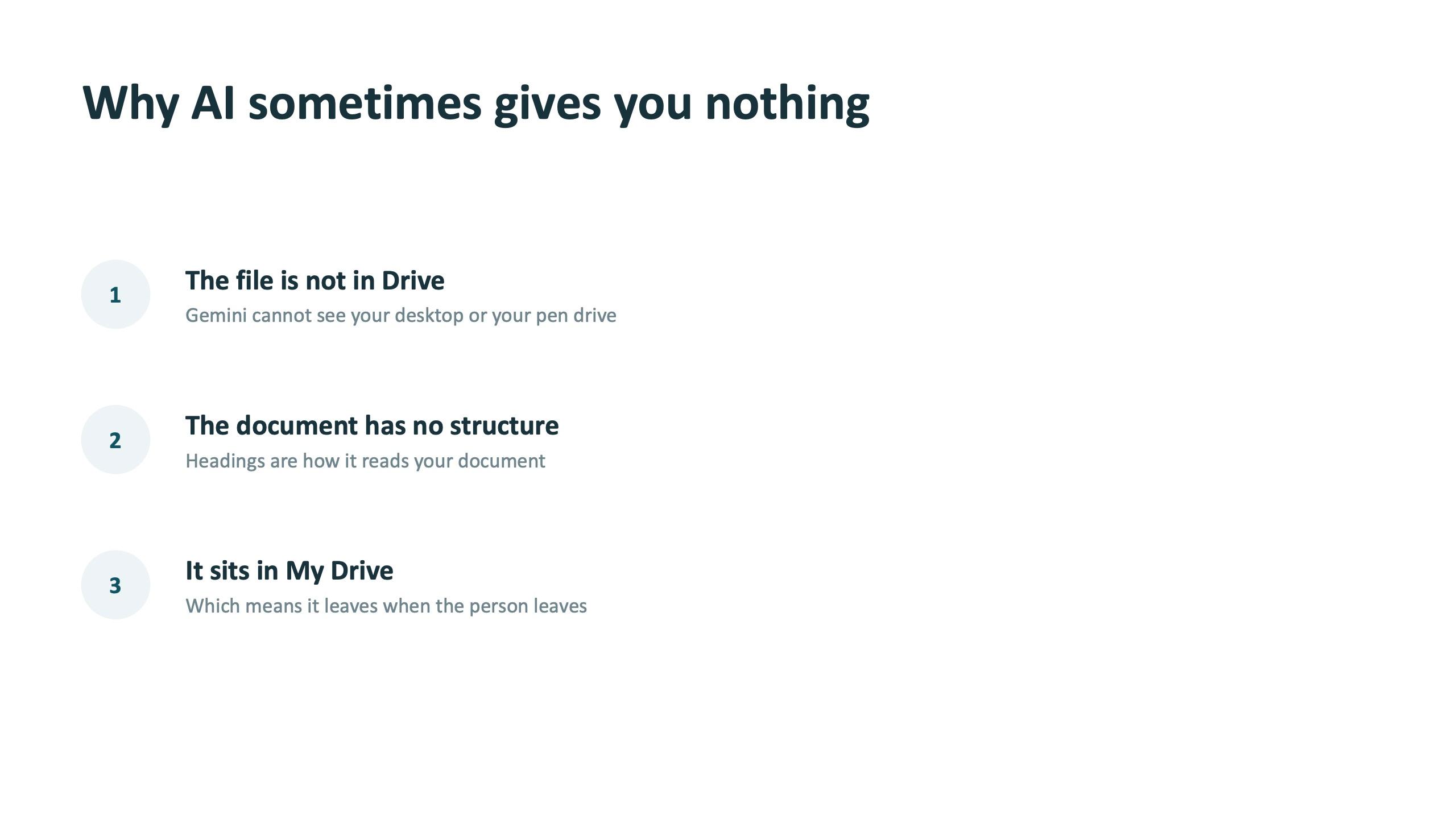
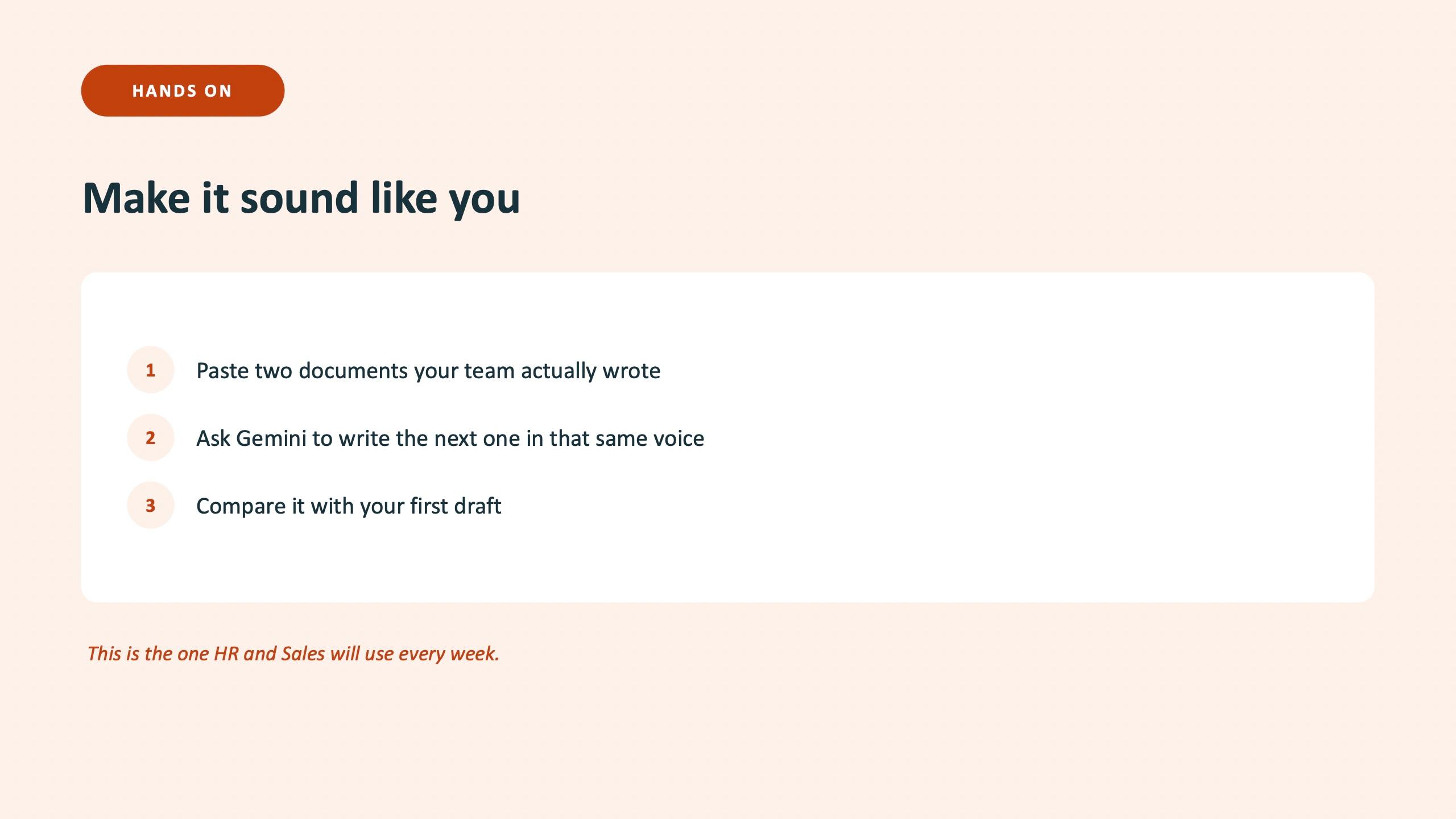
The hands-on had two parts. First, fix a real document: open the SOP in the shared folder, apply headings so it has structure, ask for a five-bullet summary, then ask for every responsibility as a table. Second, make it sound like you: paste two documents your team actually wrote, ask for the next one in the same voice and compare it with your first draft.
Sheets: the formula problem is over, the judgment problem is not
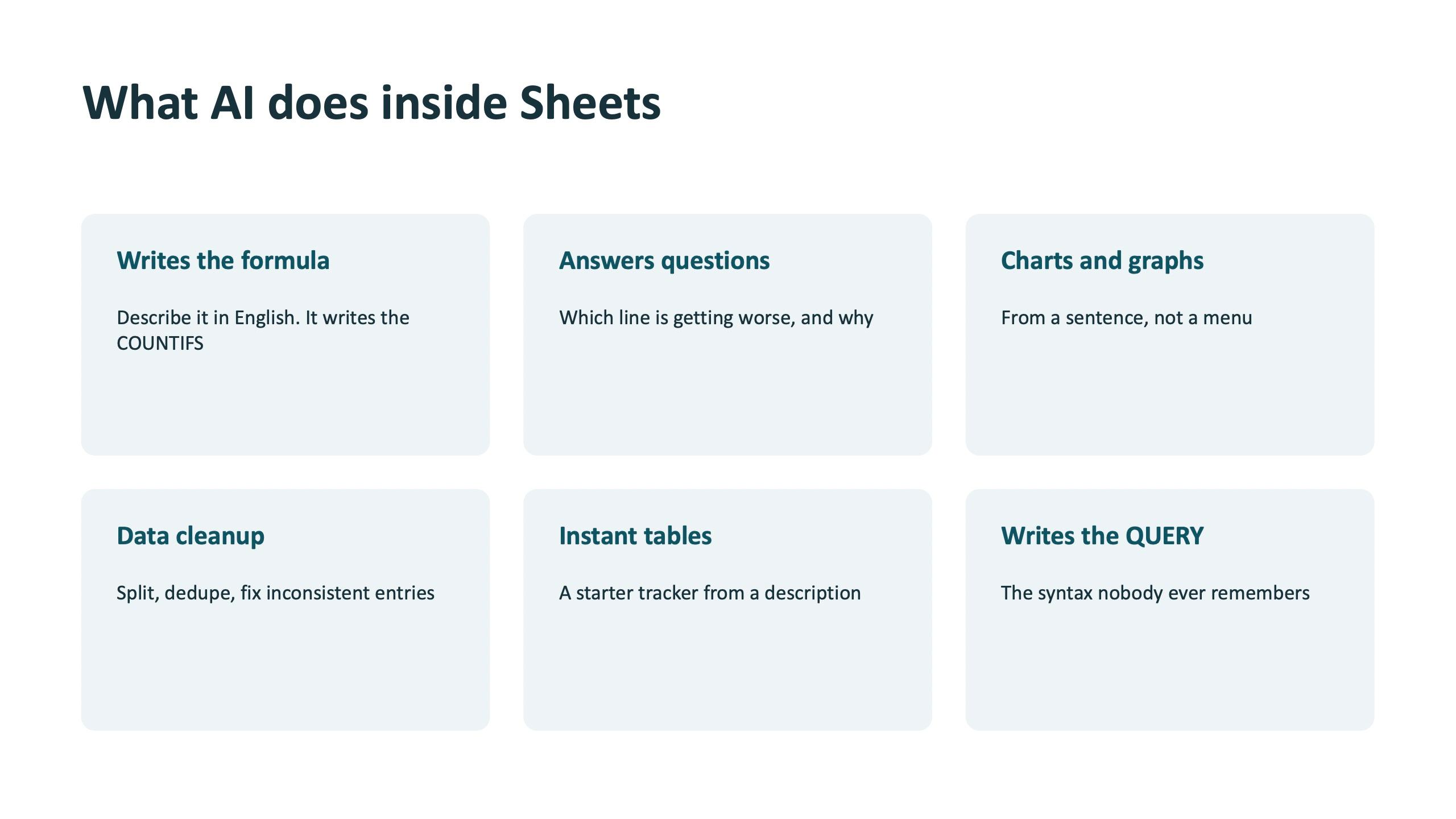
In Sheets, AI writes the formula and the QUERY syntax that nobody remembers, answers questions such as which line is getting worse and why, cleans data by splitting, de-duplicating and fixing inconsistent entries, builds a starter tracker from a description, and draws charts from a sentence.
The exercises used the production data in the shared folder. Ask for a rejection-percent formula and apply it. Ask for the count of one line in one month. Then ask the data three questions: which reject reason is the biggest and on which line, which shift is getting worse month on month, and make me a chart of rejection by shift.
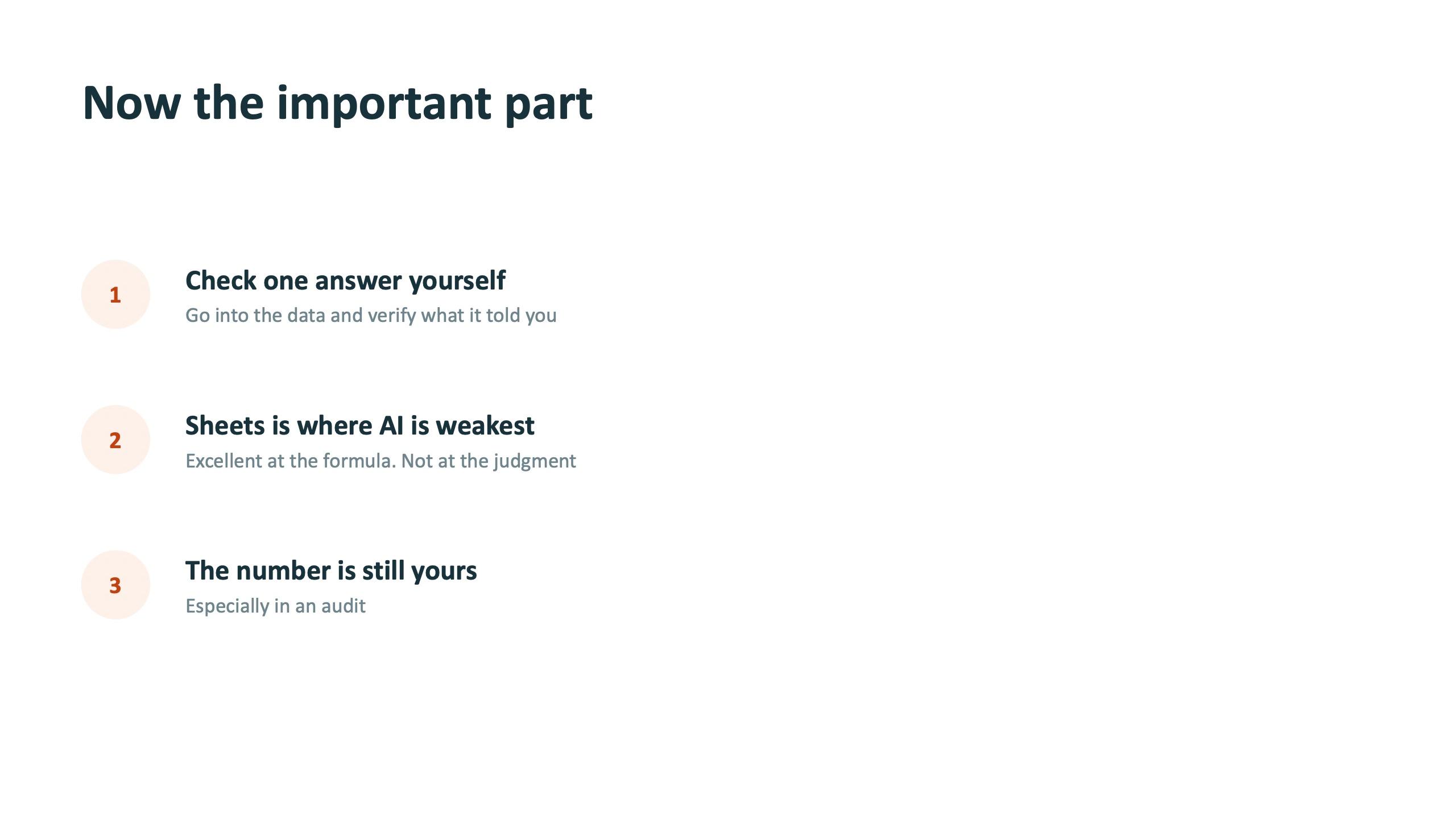
Then the most important slide of the module. Check one answer yourself: go into the data and verify what it told you. Sheets is where AI is weakest, excellent at the formula and not at the judgment, and the number is still yours, especially in an audit.
NotebookLM: the answer to the worry about invented answers
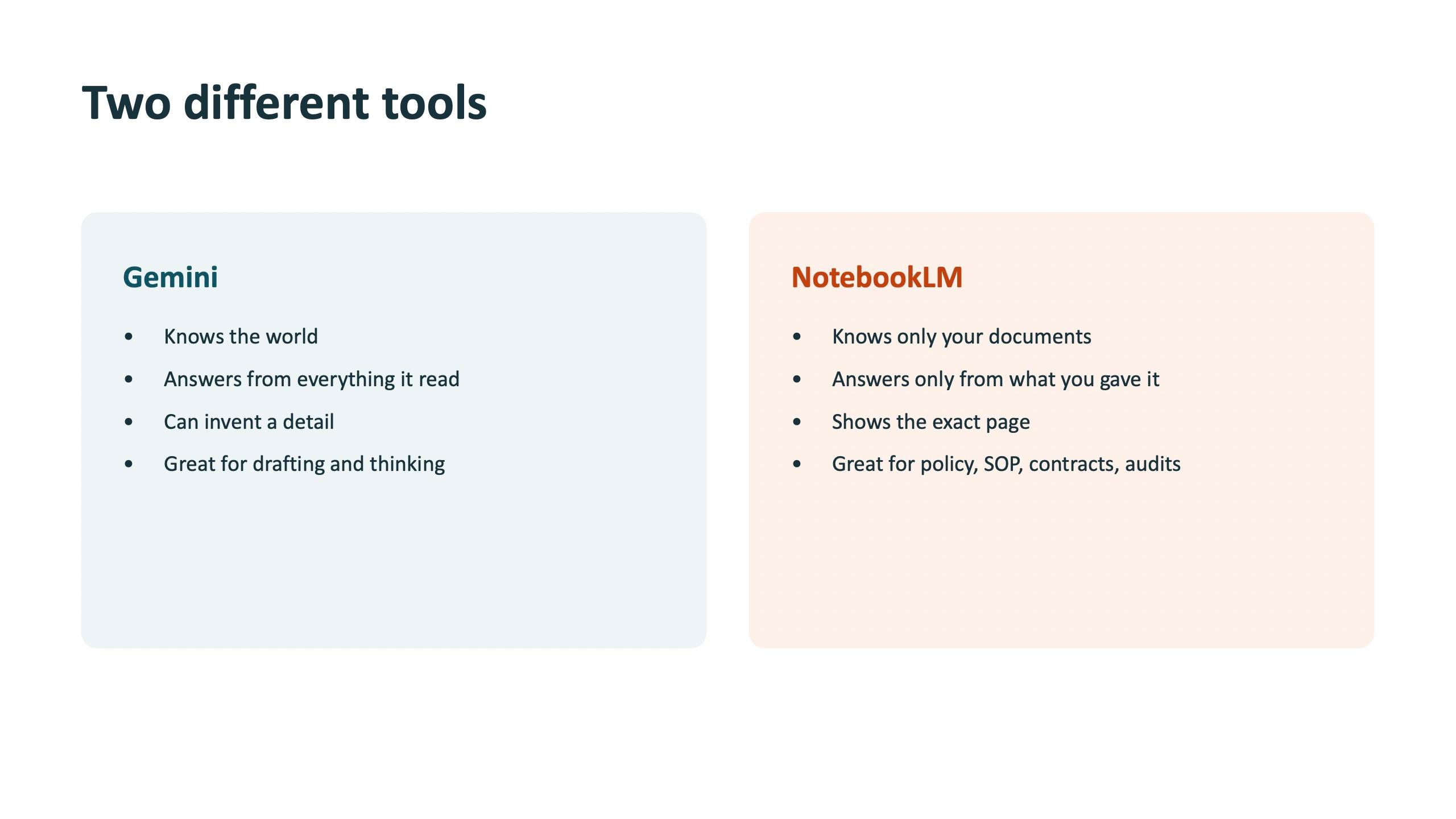
The slide for this module says it as "the answer to everything you were worried about at 10 AM". Gemini knows the world, answers from everything it has read, and can invent a detail. NotebookLM knows only your documents, answers only from what you gave it, and shows the exact page. It is the right tool for policies, SOPs, contracts and audits.
The exercise was to build your own notebook: load five to ten documents from your own department, ask three questions you are actually asked at work, and click a citation to land on the page. Every answer comes with a citation back to the page it came from. The notebook is yours to keep.
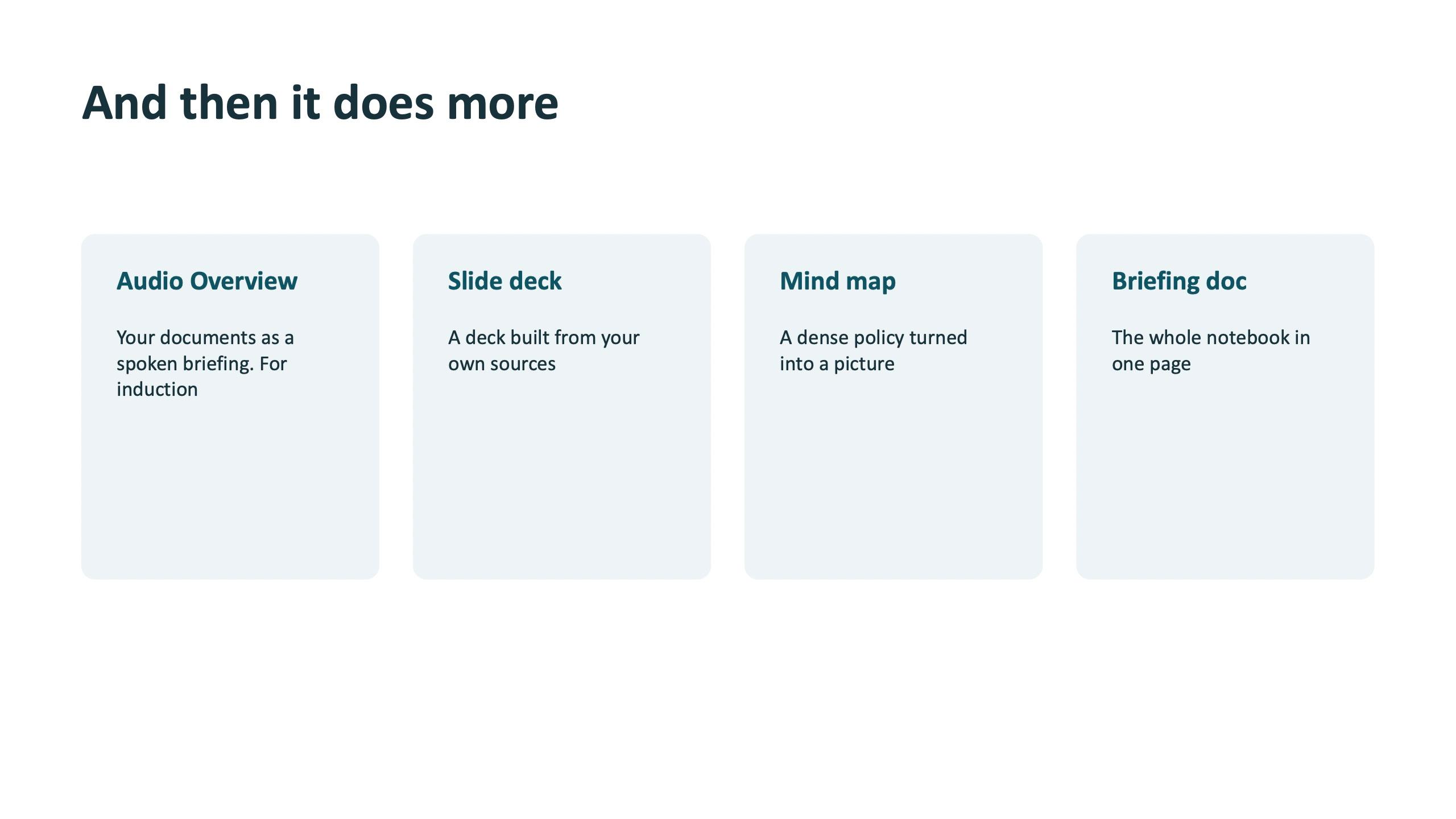
It can then do more: an Audio Overview that turns your documents into a spoken briefing (useful for inductions), a slide deck built from your own sources, a mind map that turns a dense policy into a picture, and a one-page briefing doc. The closing exercise was to turn a policy into a podcast, play 30 seconds, and ask who on your team would actually listen to it.
Slides, Forms, Calendar, Meet and Drive
These are the apps people do not realise have AI. In Slides, Gemini builds a full multi-slide deck from a prompt, with custom AI images instead of stock photos. The exercise was to describe a deck you actually need this month, let it build the slides, and change the tone of one slide.
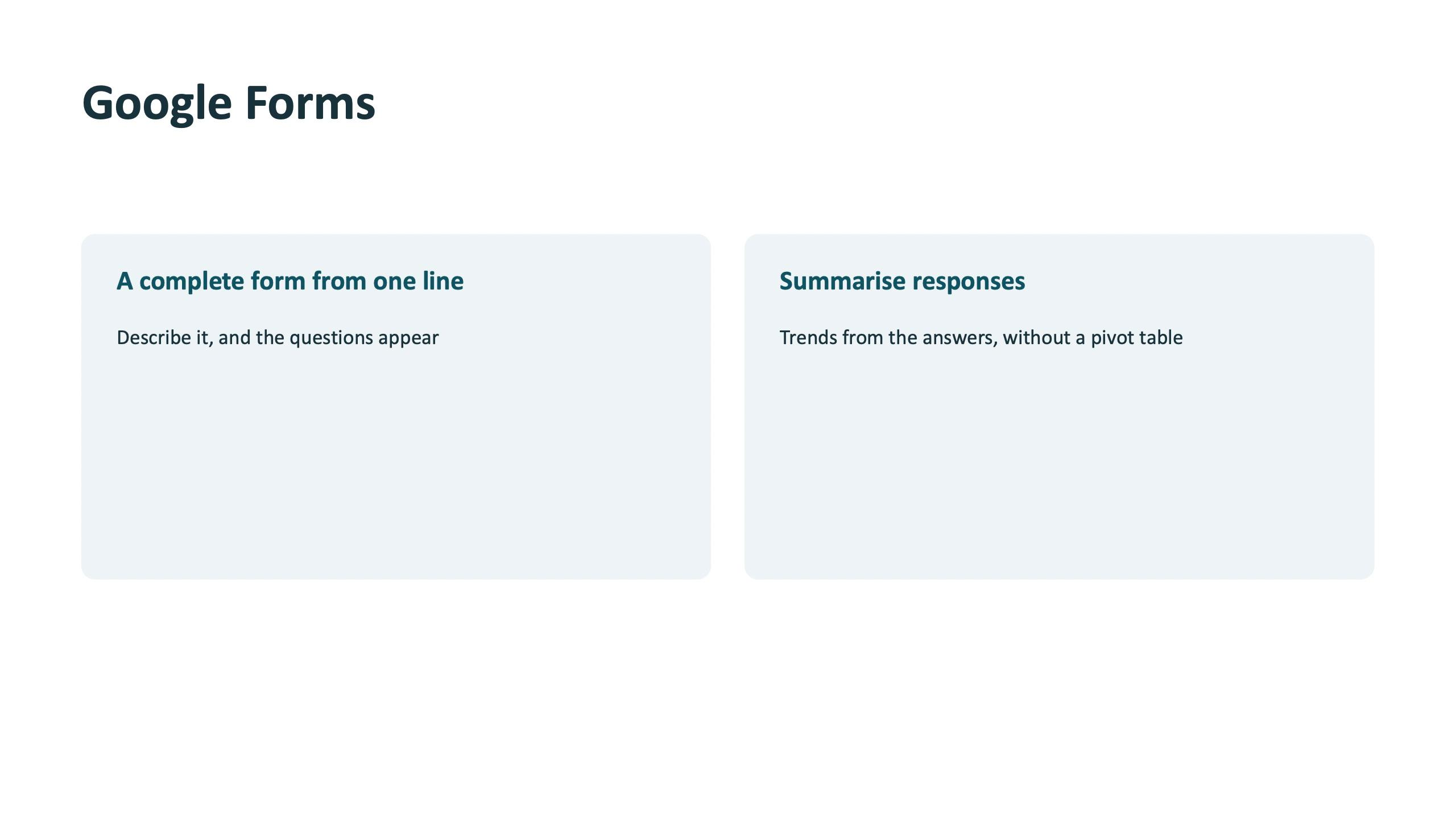
In Forms, one line produces a complete form, and AI summarises the responses without a pivot table. The exercise was to build the form you keep postponing, such as a safety observation, gate entry or leave request, send it to the person next to you and fill it.
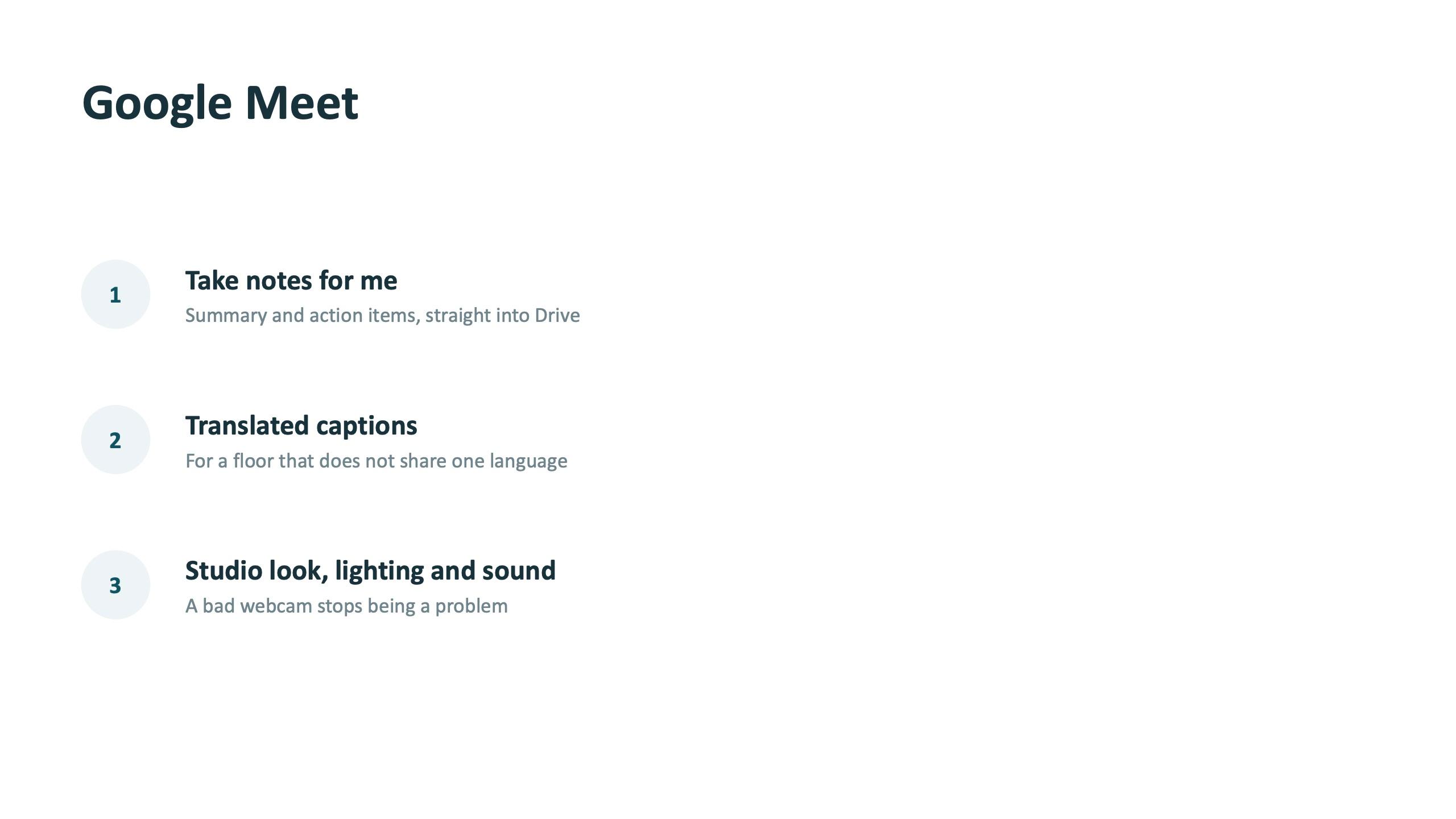
In Calendar, AI finds the best time from everyone's availability and resolves conflicts in one click. In Meet, "Take notes for me" writes a summary and action items straight into Drive, translated captions help a floor that does not share one language, and studio look, lighting and sound mean a bad webcam stops being a problem. The exercise was a 60-second call with the person next to you, with notes on, talking about your biggest time waster, then finding the notes in your Drive.
In Drive, you can summarise a PDF or sheet without opening it, ask one question across several files, and find a file by describing it. The hands-on had participants describe a file instead of naming it, and ask a question that needed two different files to answer.

Workspace Studio: agents that run without you
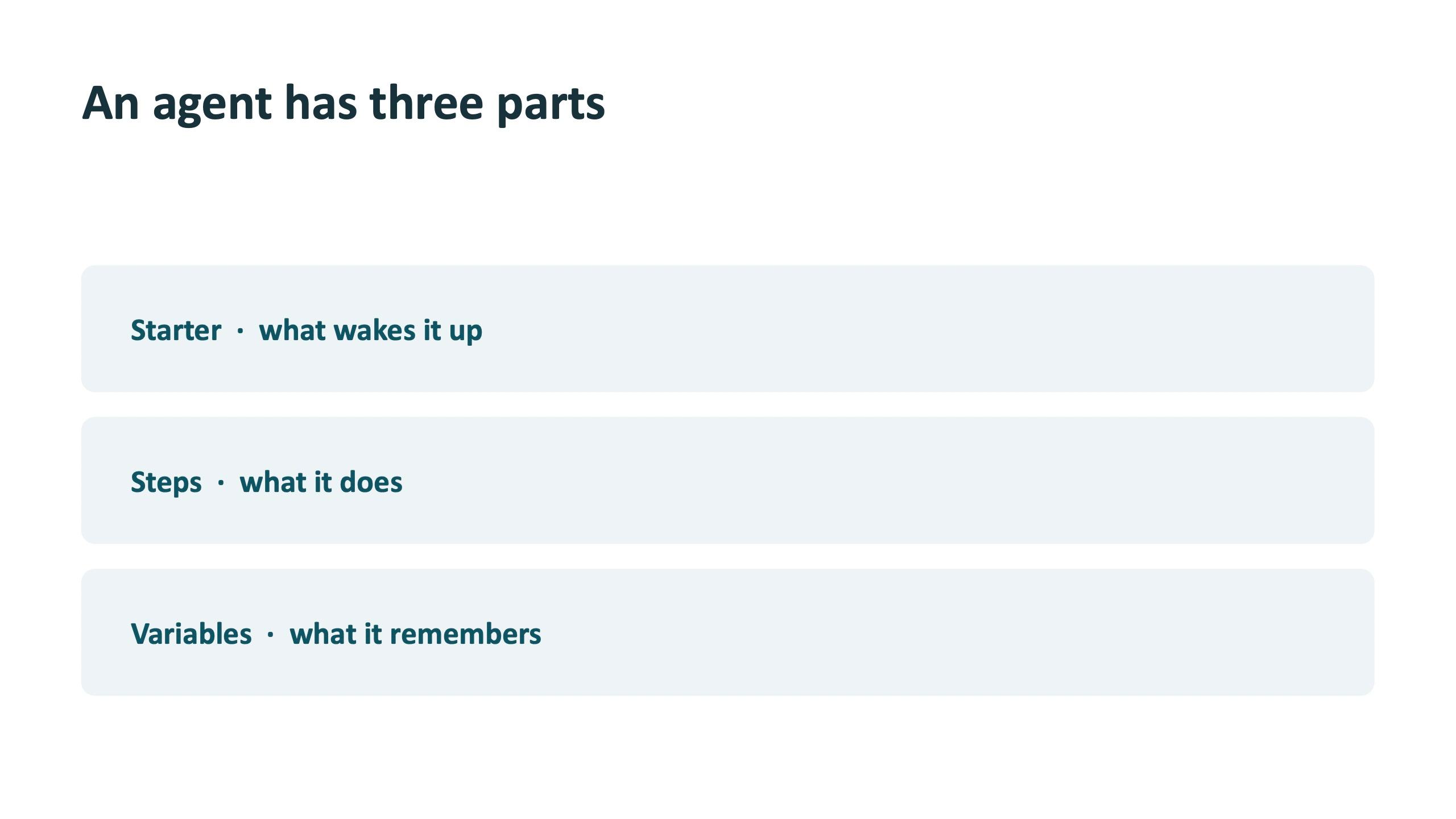
Everything so far needed a person to start it. Workspace Studio does not. An agent has three parts: a Starter that wakes it up, Steps that say what it does, and Variables that say what it remembers.
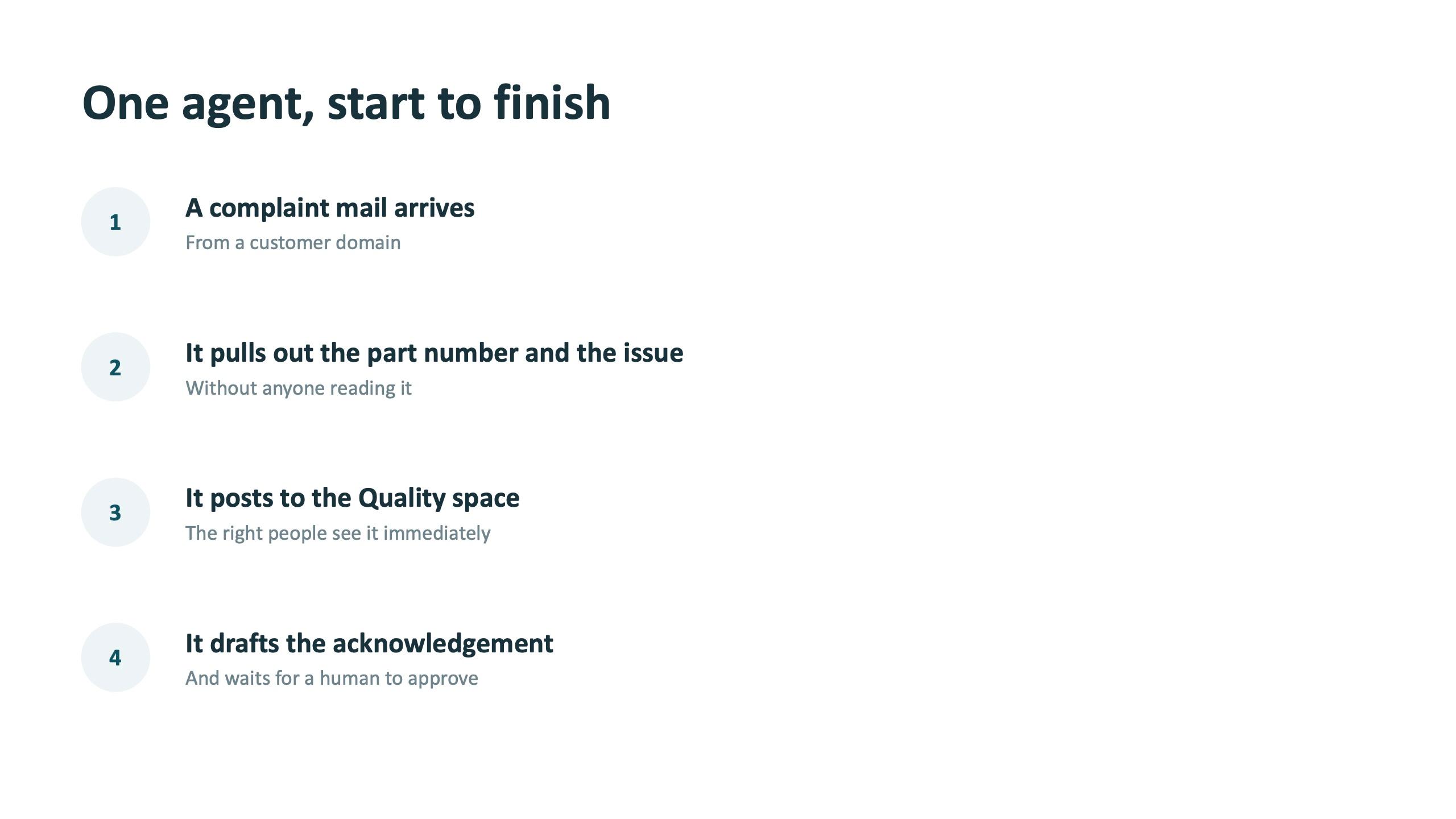
The worked example on the slide is a quality one. A complaint mail arrives from a customer domain. The agent pulls out the part number and the issue without anyone reading it, posts to the Quality space so the right people see it immediately, and drafts the acknowledgement and waits for a human to approve. The line on the next slide: the agent drafts, a person approves.
The group exercise was to find a process of your own that fits Starter, Steps and Variables, repetitive, rule-based and boring, with one per table written on the board.
How different departments use it
The session was built for about 30 people across HR, Quality, Production, Logistics, Accounts, Operations, Legal Compliance, MIS and IT. The exercises were the same for everyone, but each team found its own entry point. This is how the exercises map.
| Department | Where to start | Features from the session |
|---|---|---|
| HR | Write the next circular or policy in your team's own voice; turn a policy into an induction audio briefing | Docs voice matching, NotebookLM Audio Overview, Gems |
| Quality | Rejection analysis by reason, line and shift; draft the root-cause section of 8D reports; acknowledge complaints | Sheets questions and charts, a Gem for 8D, a Workspace Studio complaint agent |
| Production and Operations | Month-on-month shift trends, tracker from a description, weekly status via Scheduled Action | Sheets, Scheduled Actions, Forms for observations and handovers |
| Accounts and MIS | Formulas and QUERY without memorising syntax, cleanup of inconsistent entries, instant tables | Sheets formulas and data cleanup, with one answer always checked by hand |
| Logistics | Find the dispatch plan without the filename, mail to Calendar event with a Meet link | Gmail search, Drive search, Calendar and Meet |
| Legal and Compliance | Ask questions of policies, SOPs and contracts and land on the exact page | NotebookLM with citations |
| IT | Decide which agents are safe to run and who approves, check what is in Drive and what is not | Workspace Studio, Drive structure, admin policy |
Universities and public-sector teams can use the same sequence. A department head can use NotebookLM on circulars and regulations, a faculty member can use a Gem to draft the same format of feedback every time, and an administrative office can use Forms and Meet notes for routine intake and committee meetings. In all of these the red lines below apply first.
Limits, red lines and what only you can do
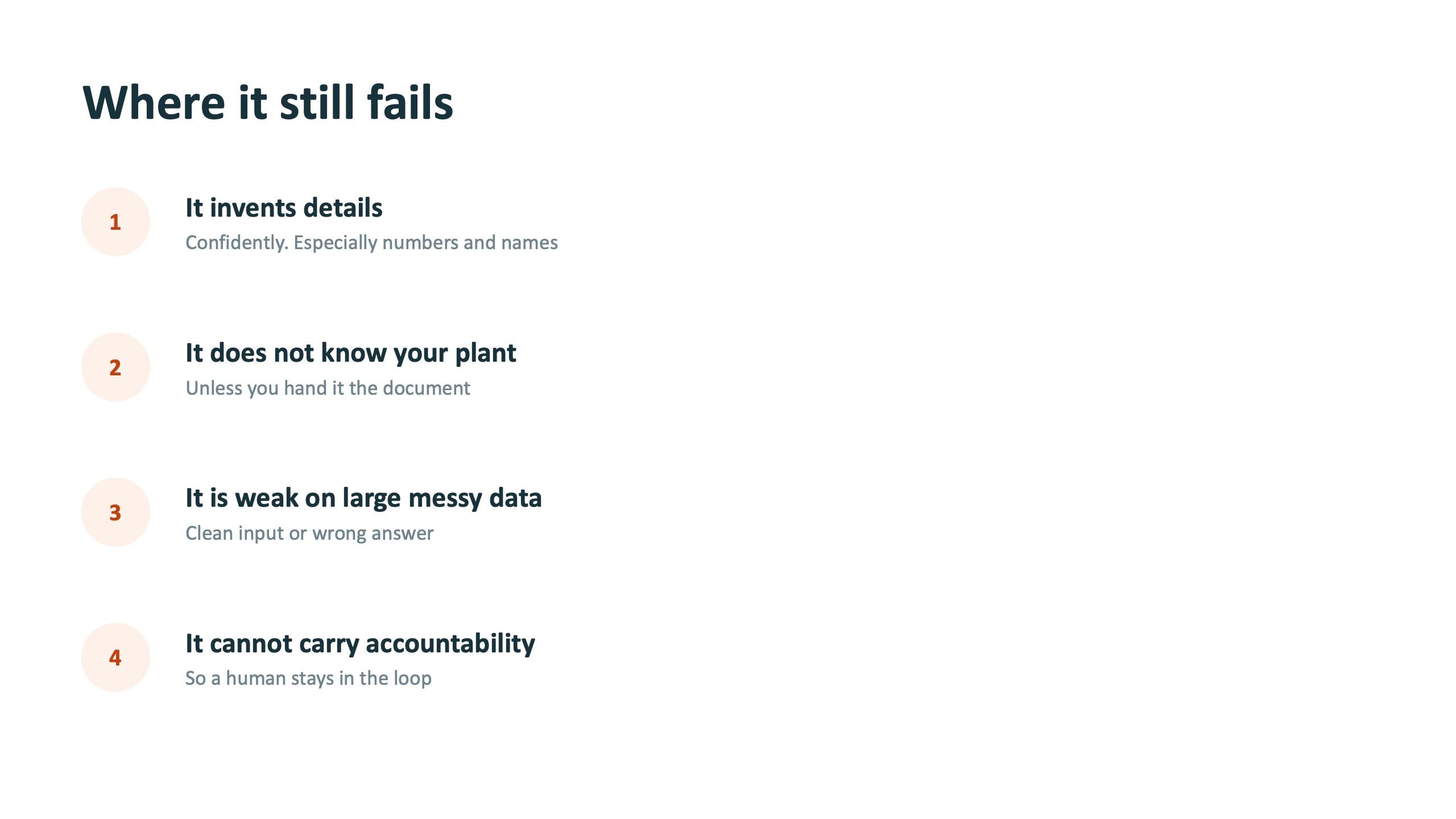
The last section of the day is the one the slides mark as the part that matters most. It starts with where AI still fails: it invents details, confidently, especially numbers and names; it does not know your plant unless you hand it the document; it is weak on large, messy data, so clean input or wrong answer; and it cannot carry accountability, so a human stays in the loop.
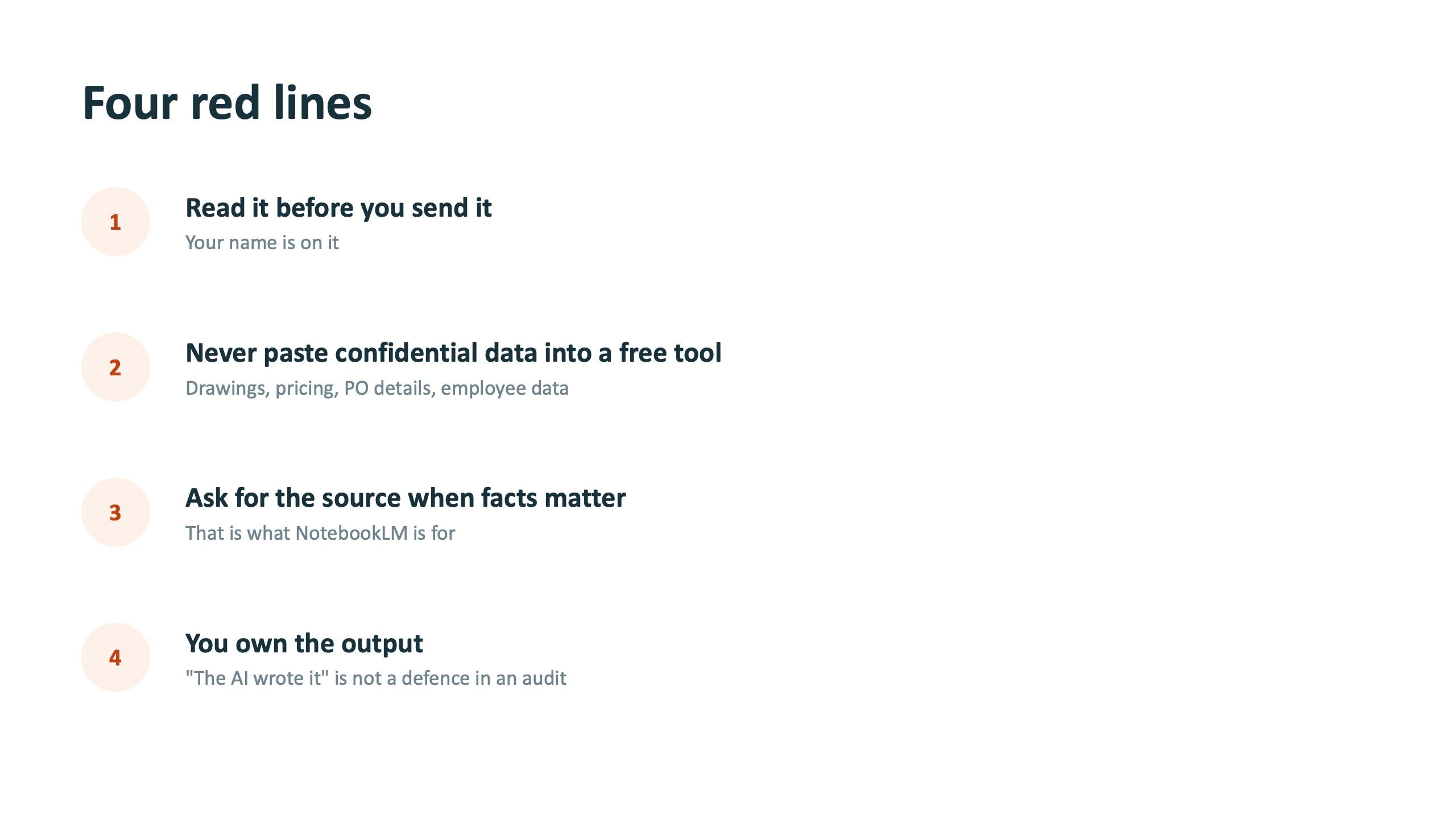
Then four red lines. Read it before you send it, because your name is on it. Never paste confidential data into a free tool: drawings, pricing, PO details, employee data. Ask for the source when facts matter, which is what NotebookLM is for. And you own the output, because "the AI wrote it" is not a defence in an audit.
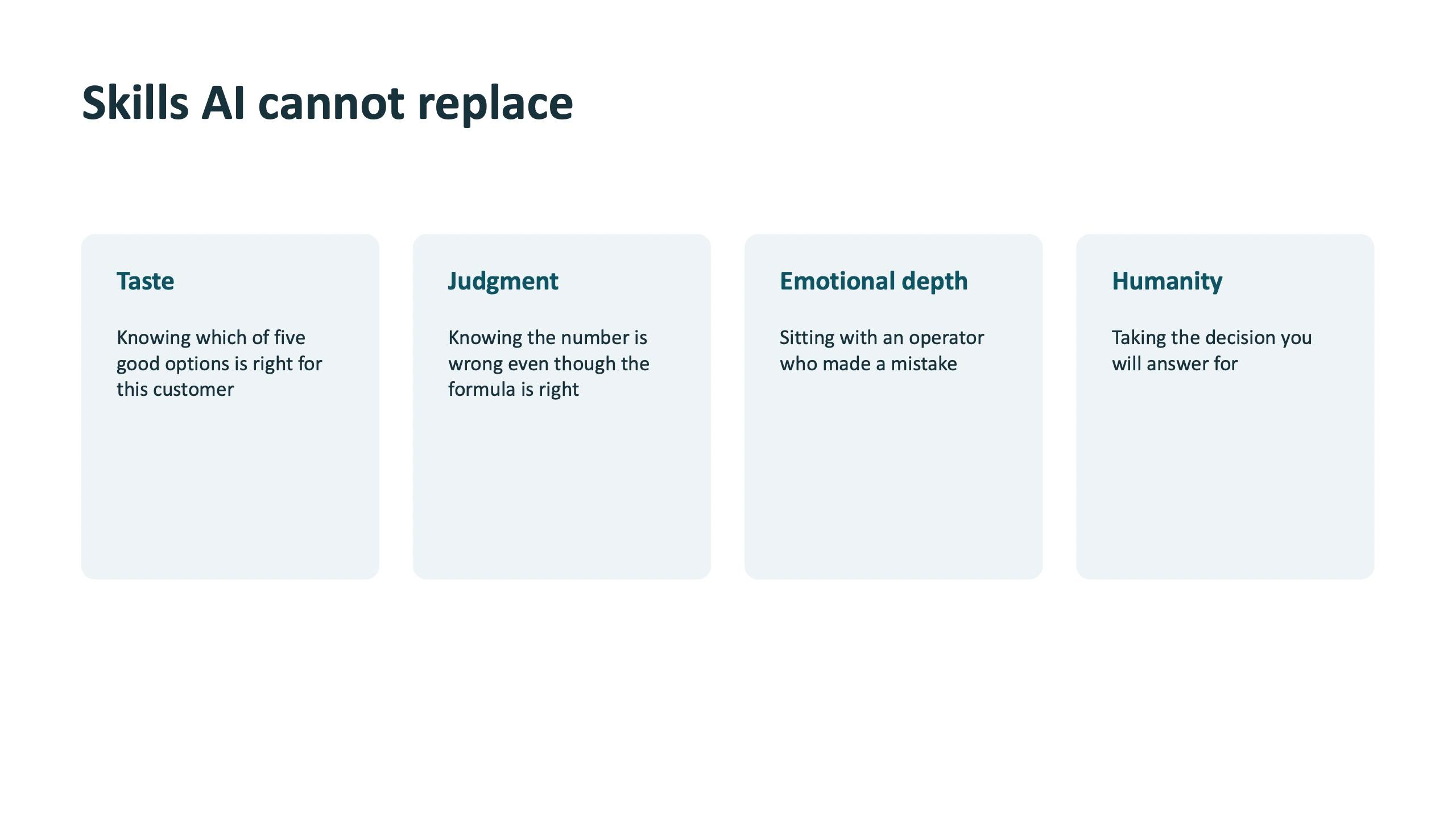
The session ends by naming what AI cannot replace: taste, judgment, emotional depth and humanity. The callback to the opening line is the one people repeat afterwards: a friend is useful, but you still do not let a friend sign your cheques.

Make it a habit
A one-day session only works if people use it the next week. Three habits from the day: save your best prompts in Library and turn the ones you reuse into Gems; pick one weekly job and put it on a Scheduled Action; and check one AI answer yourself every time you use it for a number.
If you would like a session built the same way for your team, with your own documents, your own data and your own departments, book a short scoping call below. You can also read how this played out in the Meenakshi Polymers case study linked underneath.
Frequently asked questions
Do we need to buy anything new to use Gemini in Google Workspace?
Often not. Many teams already have AI features available in the Workspace plan they pay for. Check what is enabled in your admin console and in each user's account, because availability depends on plan and settings, and some features such as Spark need to be checked before you plan around them.
What is the difference between Gemini and NotebookLM?
Gemini knows the world and is great for drafting and thinking, but it can invent a detail. NotebookLM answers only from the documents you give it and shows the exact page, so it is the better choice for policies, SOPs, contracts and audits.
What is a Gem, and why should a team use one?
A Gem is Gemini with your instructions saved: who it is, what it does, what it must know and how the output looks. When ten people use one Gem they produce one format. When ten people prompt from scratch they produce ten.
Can Gemini replace manual reporting in Google Sheets?
It can write formulas, clean data, answer questions and draw charts, but it is weakest on judgment. Always check one answer yourself in the data. The number is still yours, especially in an audit.
Why does Gemini sometimes find nothing in my files?
Usually for one of three reasons: the file is not in Drive, the document has no headings or structure, or it sits in someone's My Drive and leaves when that person leaves. Fix the file structure first.
What should we never paste into an AI tool?
Anything confidential in a free tool: drawings, pricing, purchase order details and employee data. Read every output before sending it, and ask for the source when facts matter.
Is Google Workspace AI training available for teams in India?
Yes. Surendra Pandar delivers Google Workspace AI training online and on-site for teams across India and abroad, built around each team's own documents and workflows.