Guide · 13 min read
Which AI Tool for Which Job: Claude, ChatGPT, Gemini or Copilot
A working guide to choosing between Claude, ChatGPT, Gemini and Microsoft Copilot for office work, and writing prompts with the CRAFT formula. Built from the deck, cheat sheet and exercise cards used in a live corporate training for 11 departments.
By Surendra Pandar, AI Trainer ·
In short
- Do not marry one tool. Pick the tool for the job: Copilot inside Outlook, Excel and Word; Claude for long documents and careful writing; ChatGPT for images, voice and quick everyday tasks; Gemini for fresh information from the web.
- Write prompts with CRAFT: Context, Role, Action, Format, Tone. Then ask a follow-up. The second prompt is where the value is.
- Three lines improve almost any answer: “Ask me questions before you start”, “Give me 3 options”, and “Check your answer and tell me what you are not sure about”.
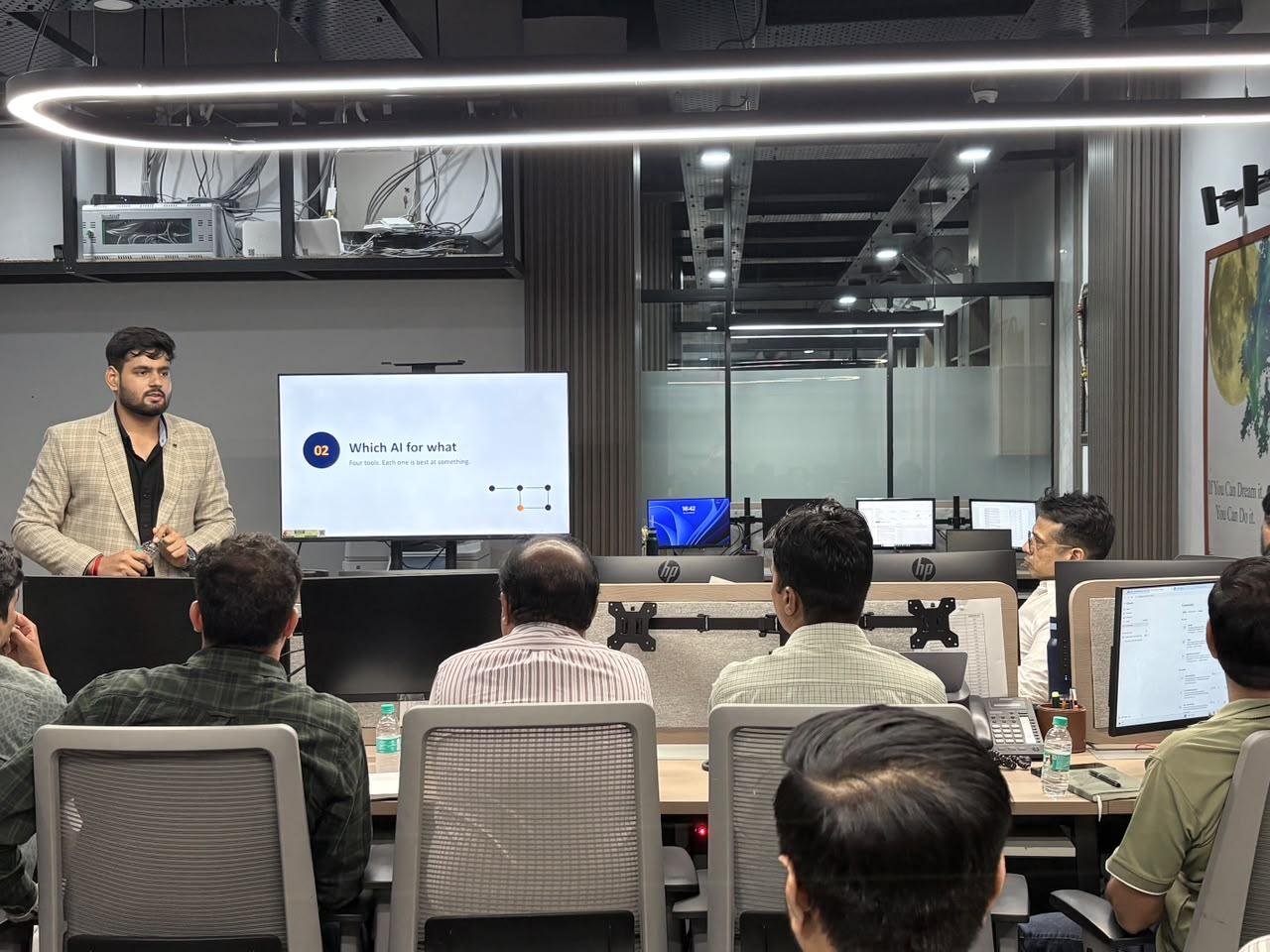
- This guide walks through the real slides, cheat sheet and department exercises from the Delhi Electric Company training on 17 October 2026, so you can run the same session with your own team.
Why teams waste time with AI
Most teams that are disappointed with AI made one of two mistakes. They used a single tool for every task, or they typed a one-line request and accepted whatever came back. Both are fixable in an afternoon.
In the training room we start with a story, not a tool demo. The session deck opens with Rahul, a tendering executive at an EPC company. He is fictional, and every department recognises him. A 180-page tender lands on Monday. He reads it page by page, builds the eligibility checklist by hand, chases vendor emails on Thursday and submits at 11 PM on Friday, having almost missed a clause.
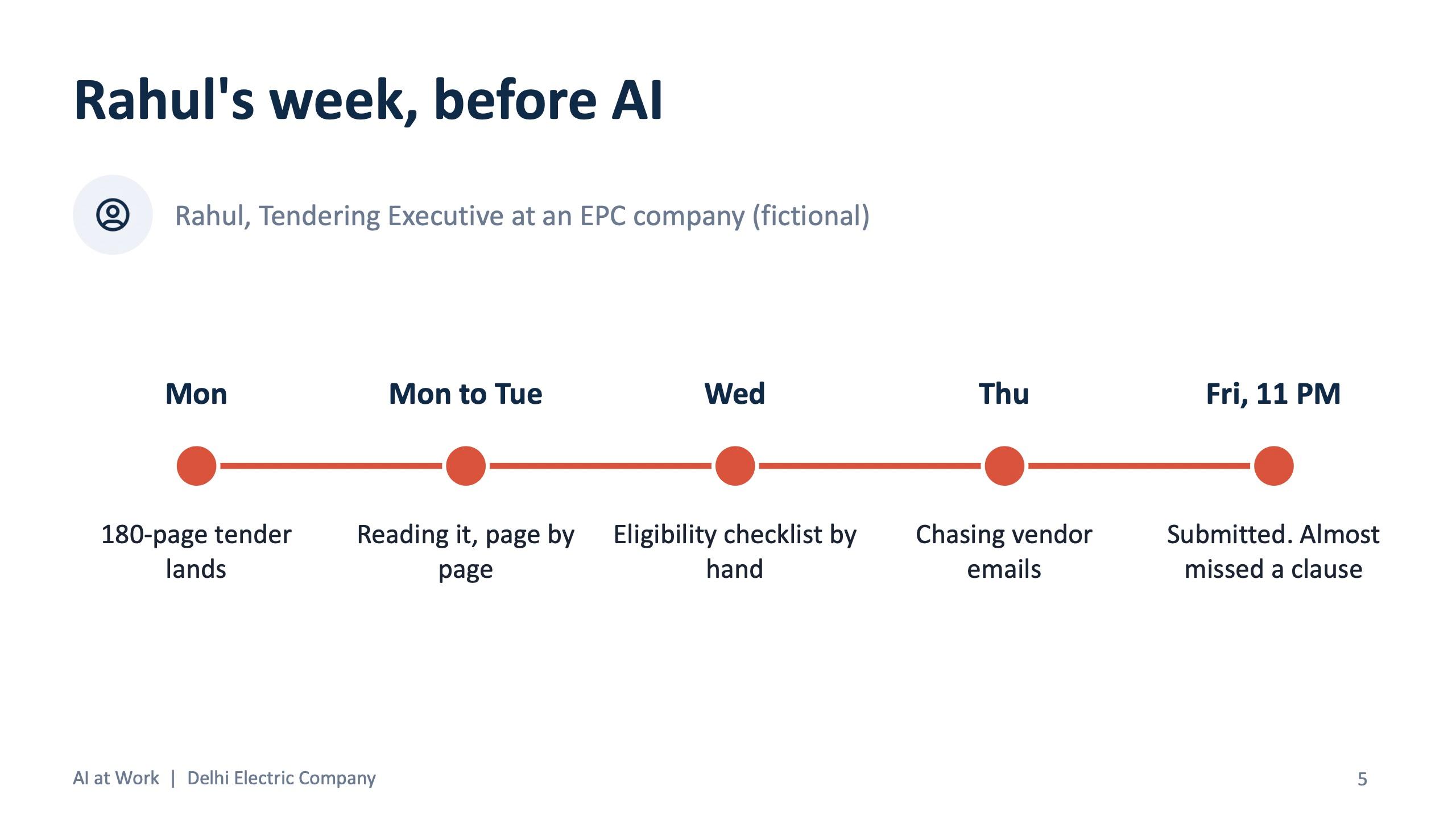
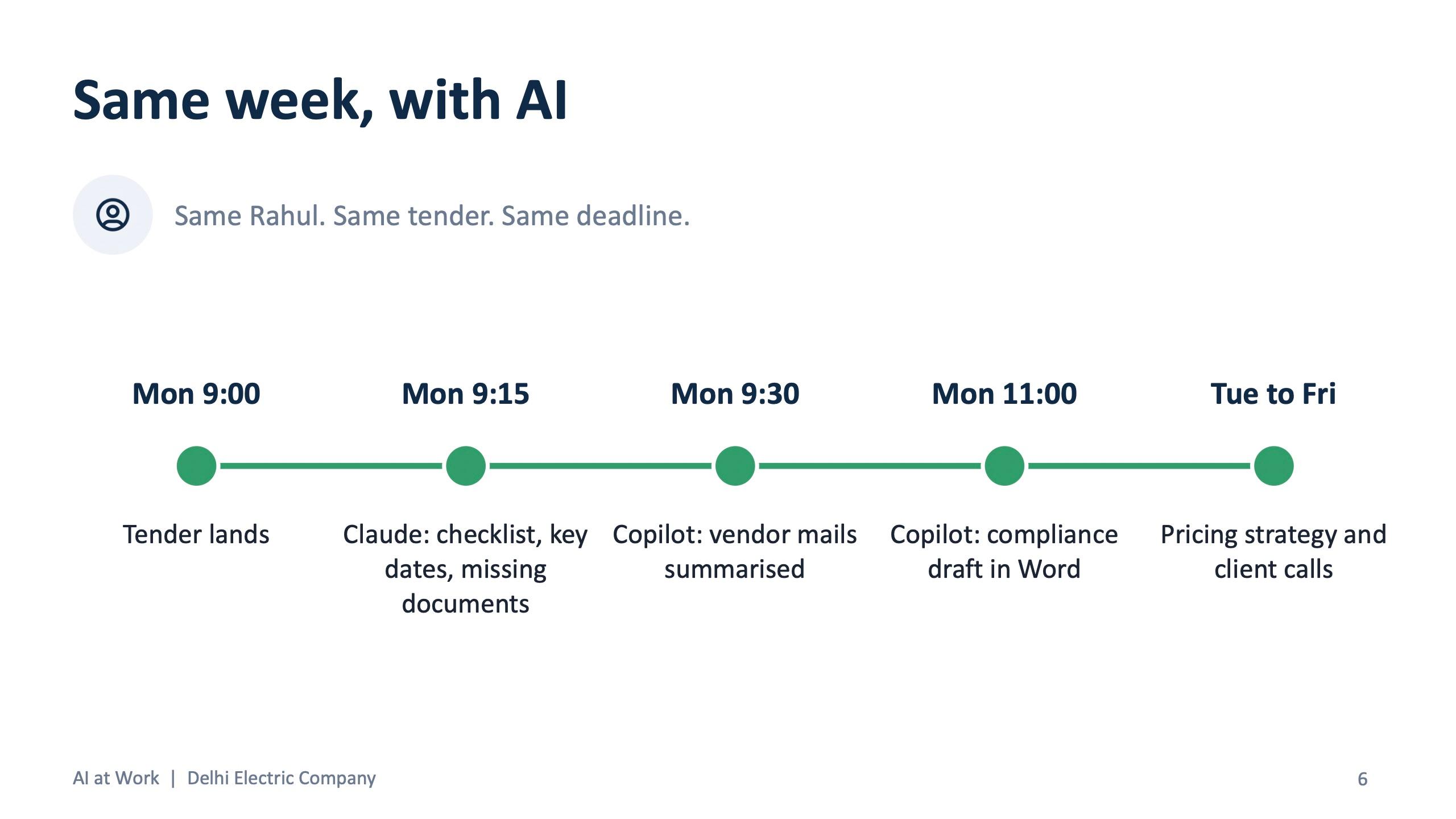
The deck makes the point in one line that participants repeat afterwards: AI did the boring part, Rahul did the part that needs Rahul. The slide on hours saved is marked “illustrative numbers” in the deck itself, because the point is the shape of the week, not a promise of a percentage.
Which AI for what
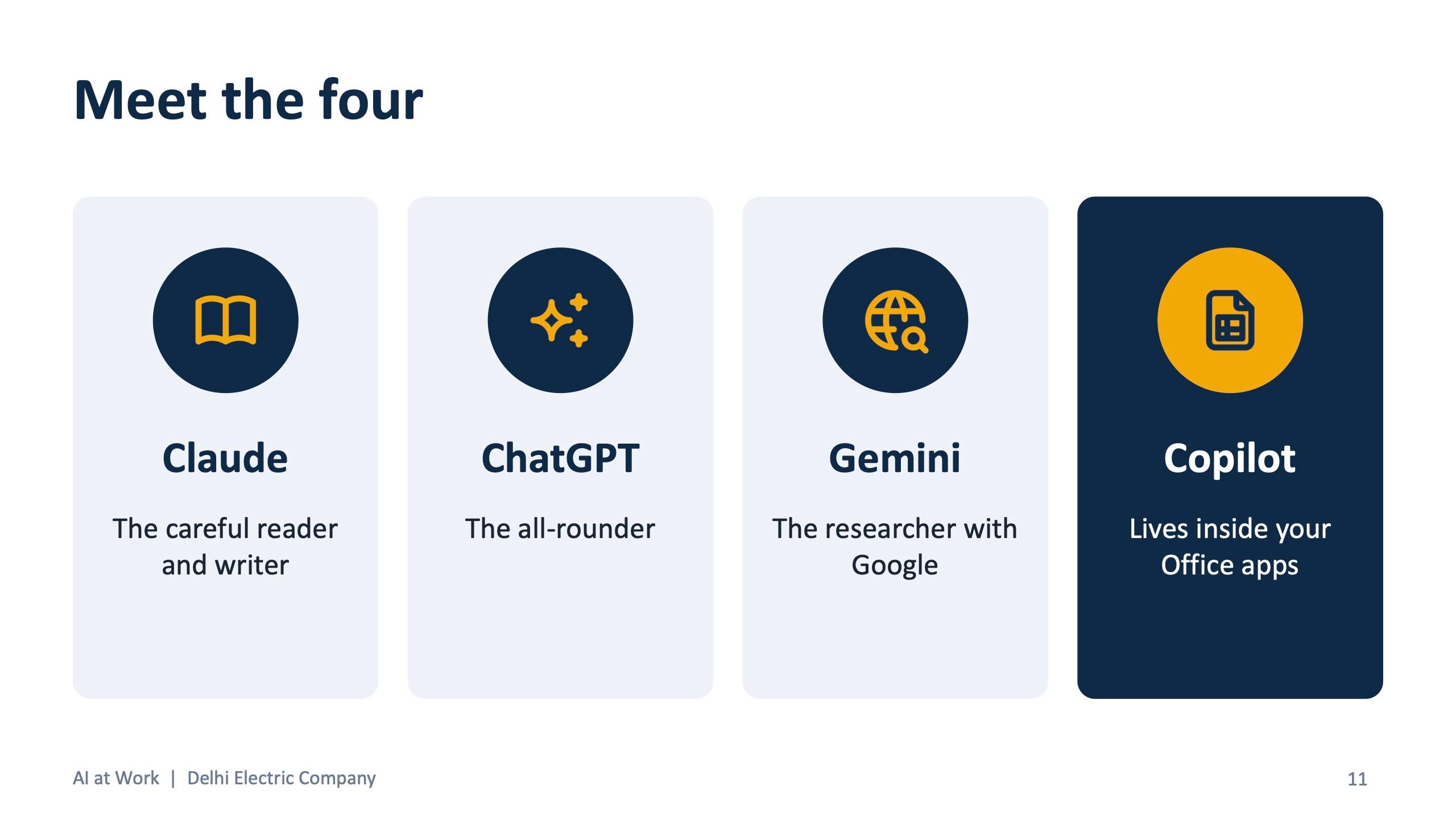
The deck introduces four tools as four personalities. Claude is the careful reader and writer. ChatGPT is the all-rounder. Gemini is the researcher with Google. Copilot lives inside your Office apps. The point of the module is that each tool is best at something, so a team should not be loyal to one.
| Tool | Best at | Use it for |
|---|---|---|
| Claude | Long documents, careful writing, analysis of PDF and Excel files | Tender review, specifications, proposals, reports |
| ChatGPT | Quick everyday tasks, images, voice | Social media posts, graphics, quick emails |
| Gemini | Research with live Google Search, YouTube summaries, NotebookLM for your own documents | Market and vendor research, competitor news, learning |
| Copilot (Microsoft 365) | Works inside Outlook, Excel, Word and Teams on your own files | Email summaries, Excel analysis, meeting notes |
This table is lifted from the one-page cheat sheet that every participant keeps on their desk. The sections below take each tool in turn, with the slide used in the session.
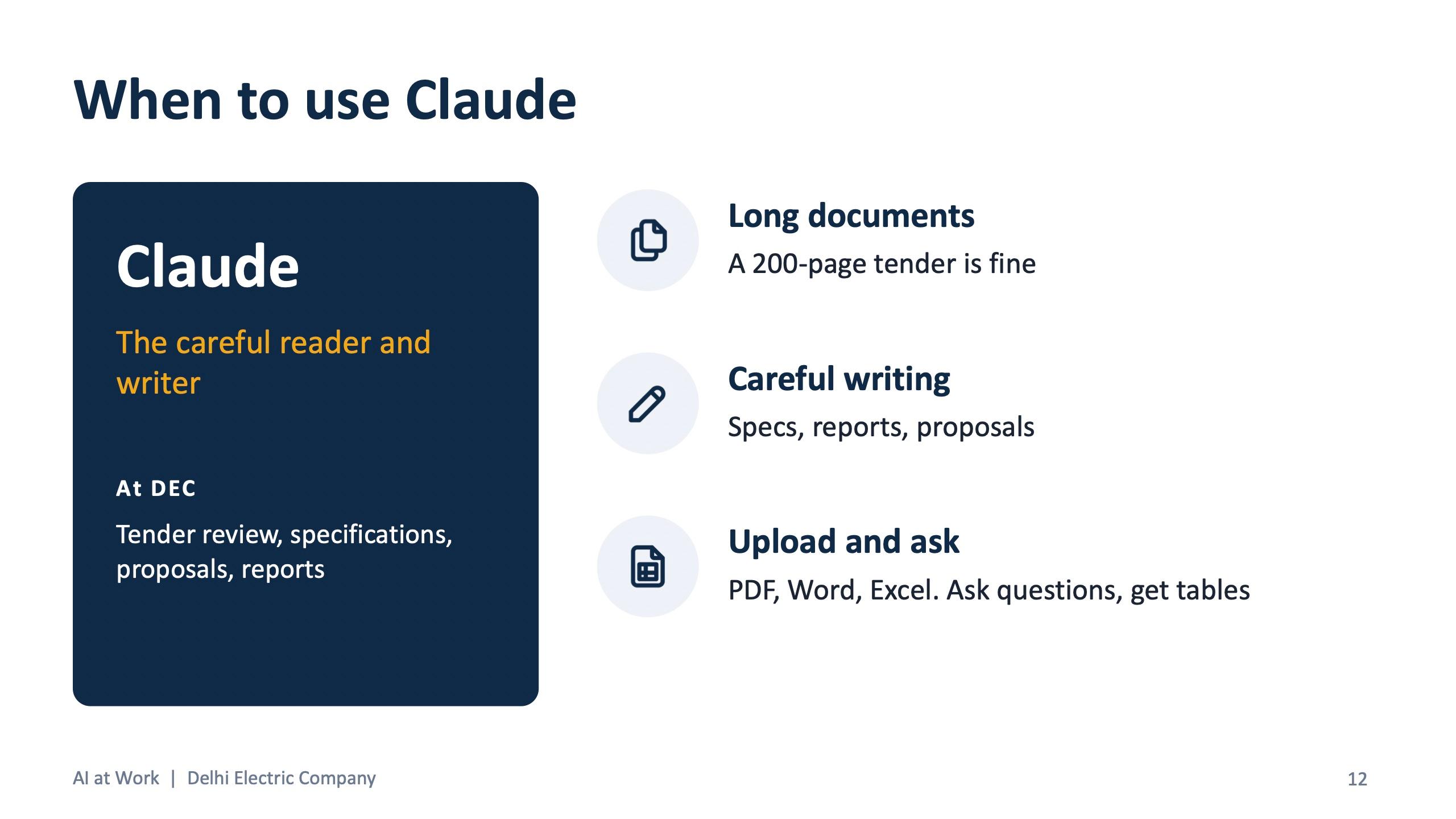
When to use Claude
Reach for Claude when the input is long or the output has to be careful. In the Delhi Electric session the example is a 200-page tender: upload the PDF, ask questions, get tables. The same applies to Word and Excel files. For this company the use cases listed on the slide were tender review, specifications, proposals and reports.
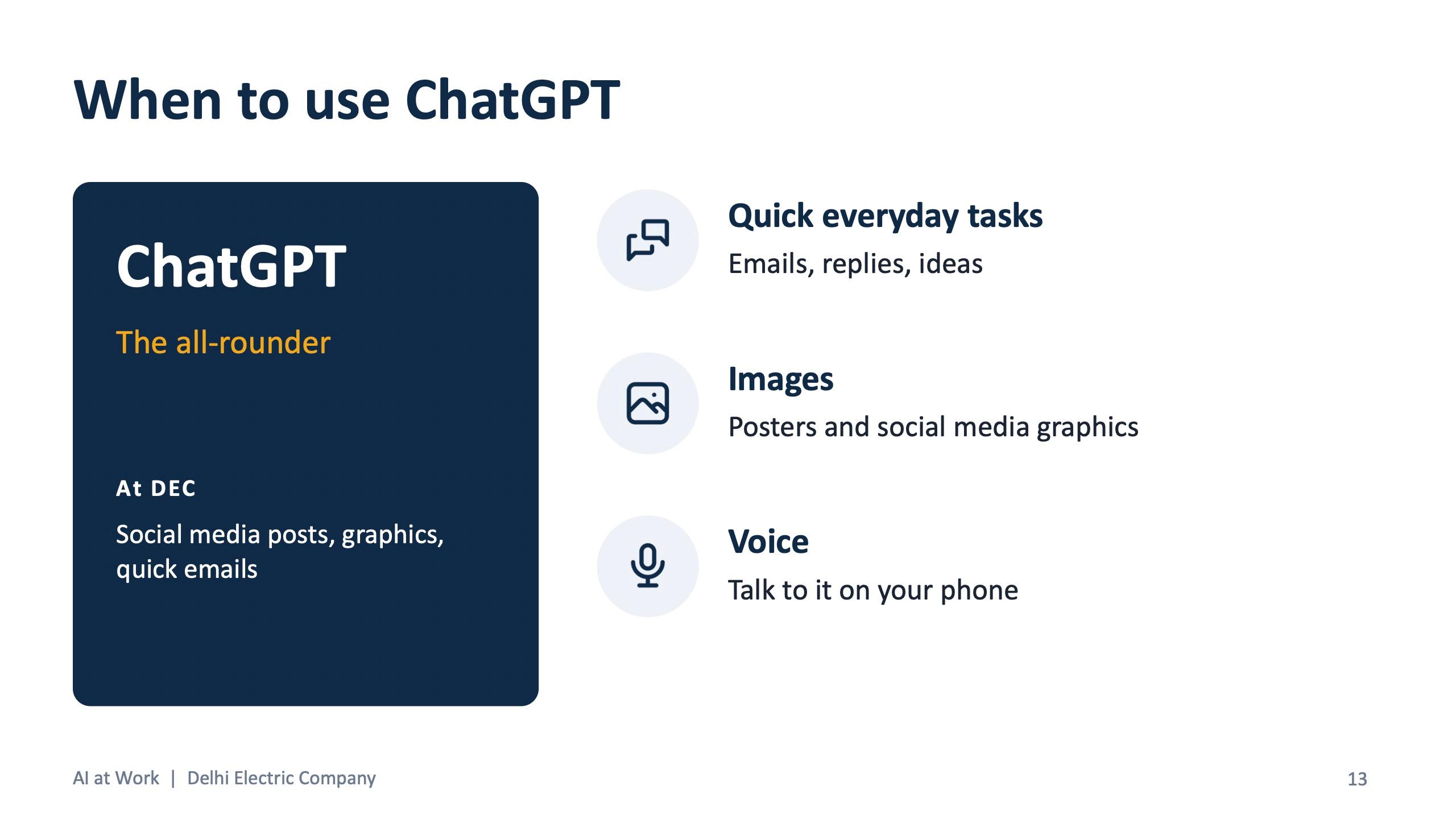
When to use ChatGPT
ChatGPT is the all-rounder for quick everyday work: emails, replies, ideas. It is also the tool the marketing group used in the session for images such as posters and social media graphics, and for voice, where you talk to it on your phone. In the Delhi Electric deck the use cases are social media posts, graphics and quick emails.
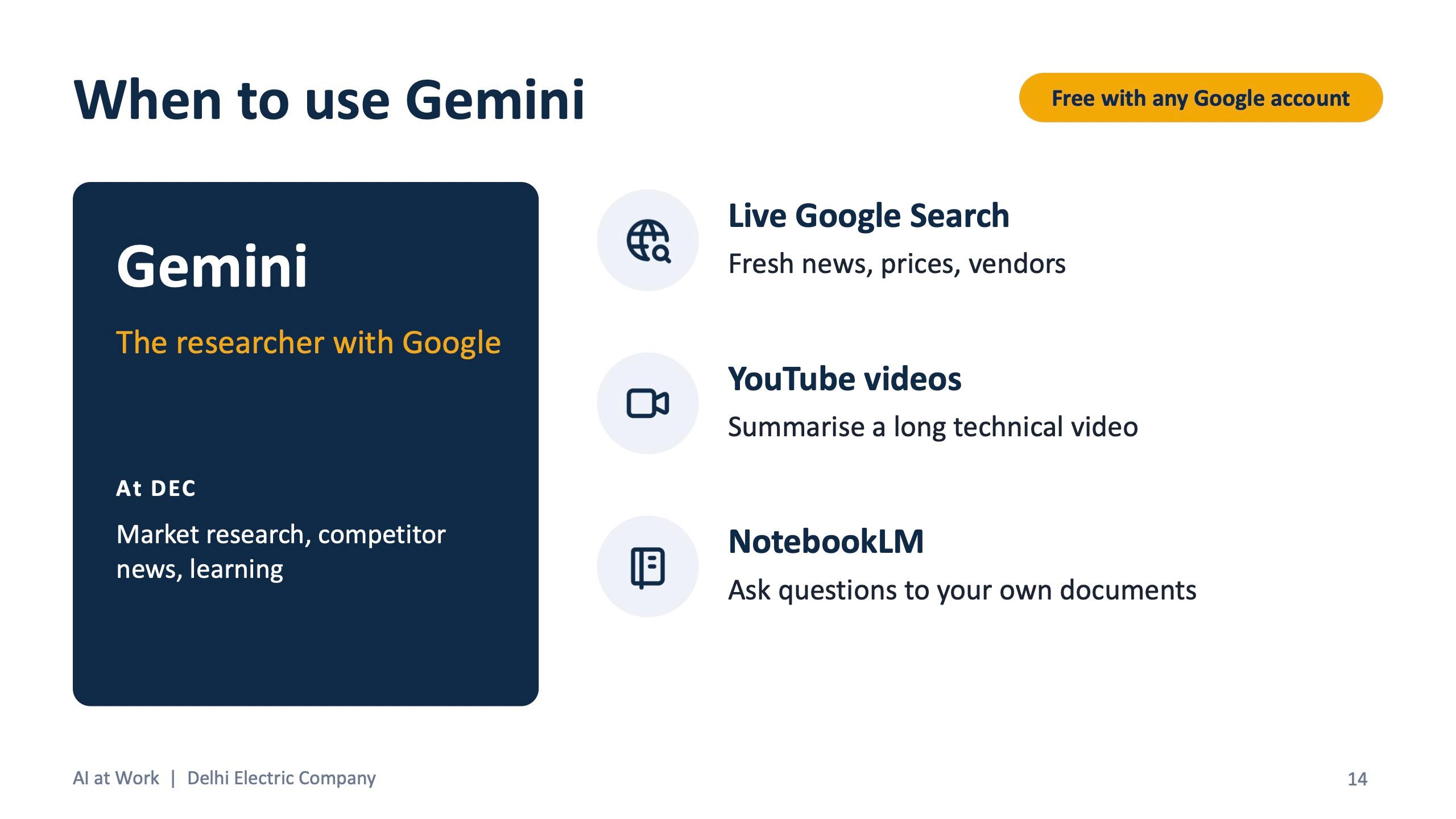
When to use Gemini
Gemini is the researcher. It is free with any Google account and searches Google live, so it is the right choice for fresh news, prices and vendors. The slide also lists two features participants rarely know about: summarising a long technical YouTube video, and NotebookLM, where you ask questions to your own documents. The use cases for the company were market research, competitor news and learning.
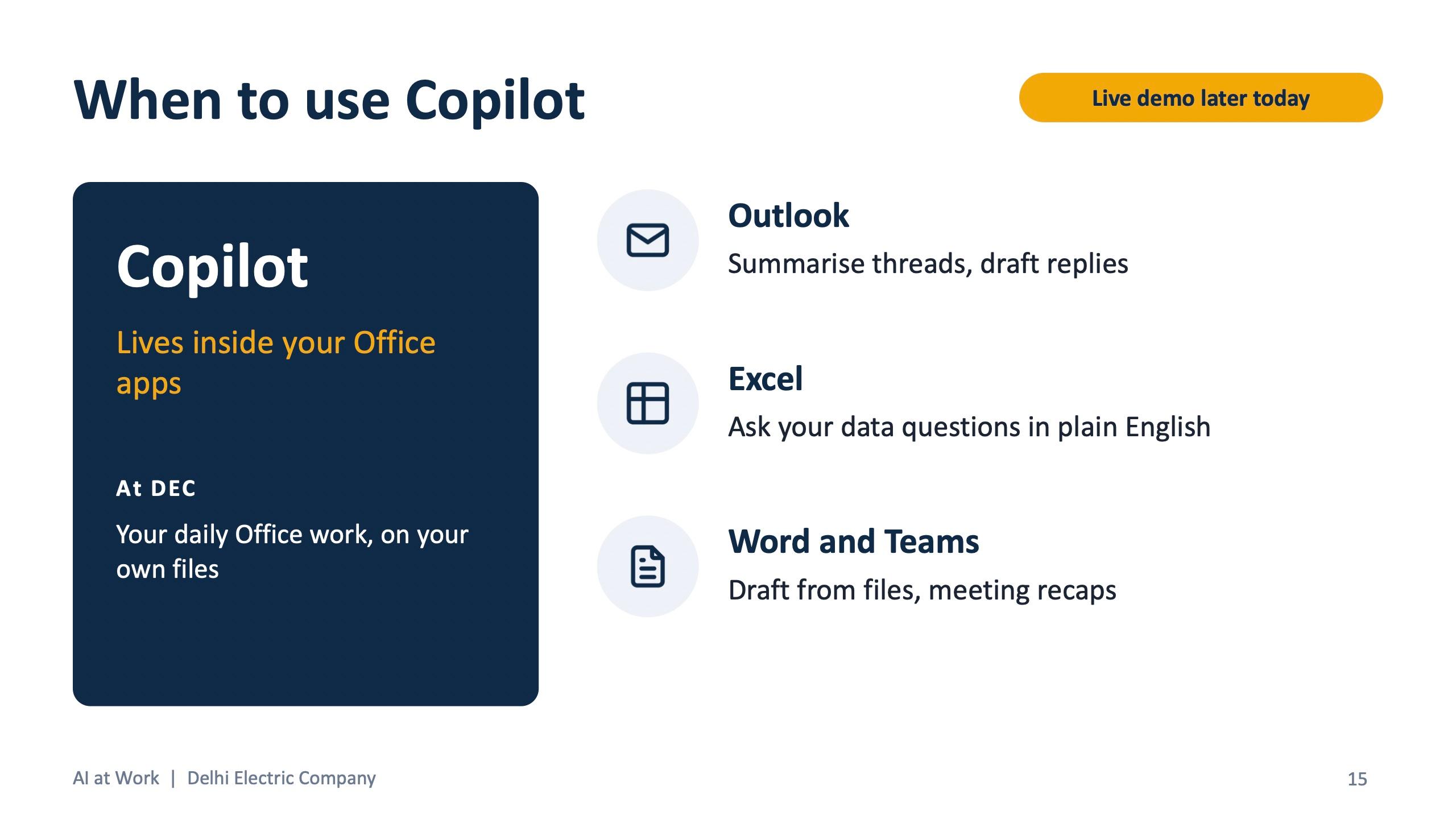
When to use Copilot
Copilot is the tool people already have, inside the apps they already use. Outlook: summarise threads, draft replies. Excel: ask your data questions in plain English. Word and Teams: draft from files, and recap meetings. Because it works on your own files inside your company account, it is the natural choice for daily Office work.
See it yourself: same prompt, four answers
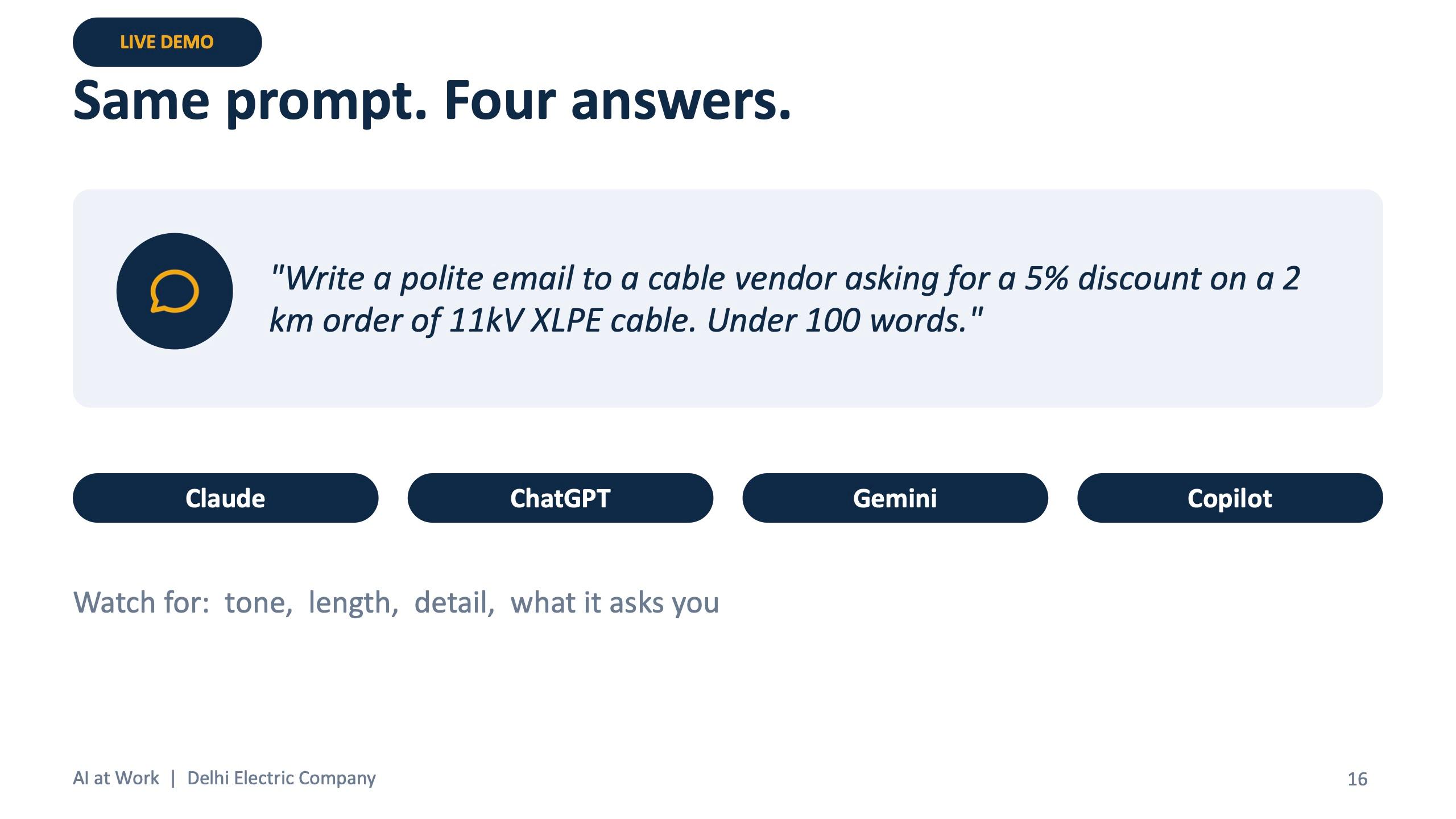
Participants believe the table faster when they see it. In the session, one prompt is run live in all four tools: “Write a polite email to a cable vendor asking for a 5% discount on a 2 km order of 11kV XLPE cable. Under 100 words.” The room is told what to watch for: tone, length, detail, and what each tool asks you.
You can run this exercise with your own team in ten minutes. Pick one real email your team writes every week, run the identical prompt in each tool, and ask people to vote on tone and usefulness. The outcome is usually not a single winner. It is that people stop expecting one tool to be best at everything.
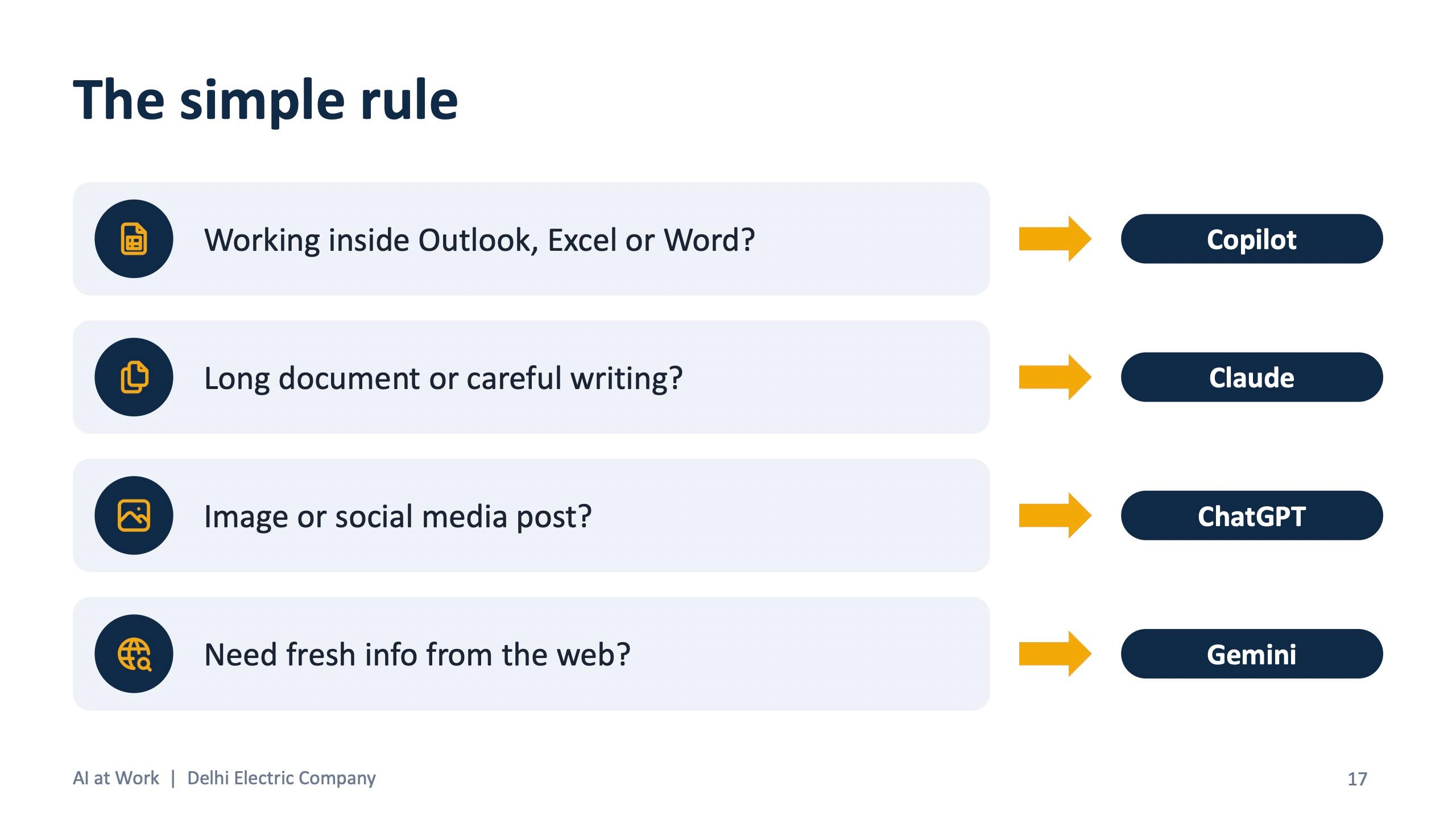
The simple rule: working inside Outlook, Excel or Word? Copilot. Long document or careful writing? Claude. Image or social media post? ChatGPT. Need fresh information from the web? Gemini. Tools change fast, so the rule is deliberately about the type of job and not about which model is “smartest” this month.
The CRAFT prompt formula
Choosing the right tool gets you halfway. The other half is the prompt. The deck frames it with a picture people remember: AI is a brilliant new joinee on day one. Smart and fast, and it knows nothing about your work. You would not hand a new joinee a one-line instruction, so do not give one to AI.
CRAFT is the five-part formula used in every training. It works the same way in every tool.
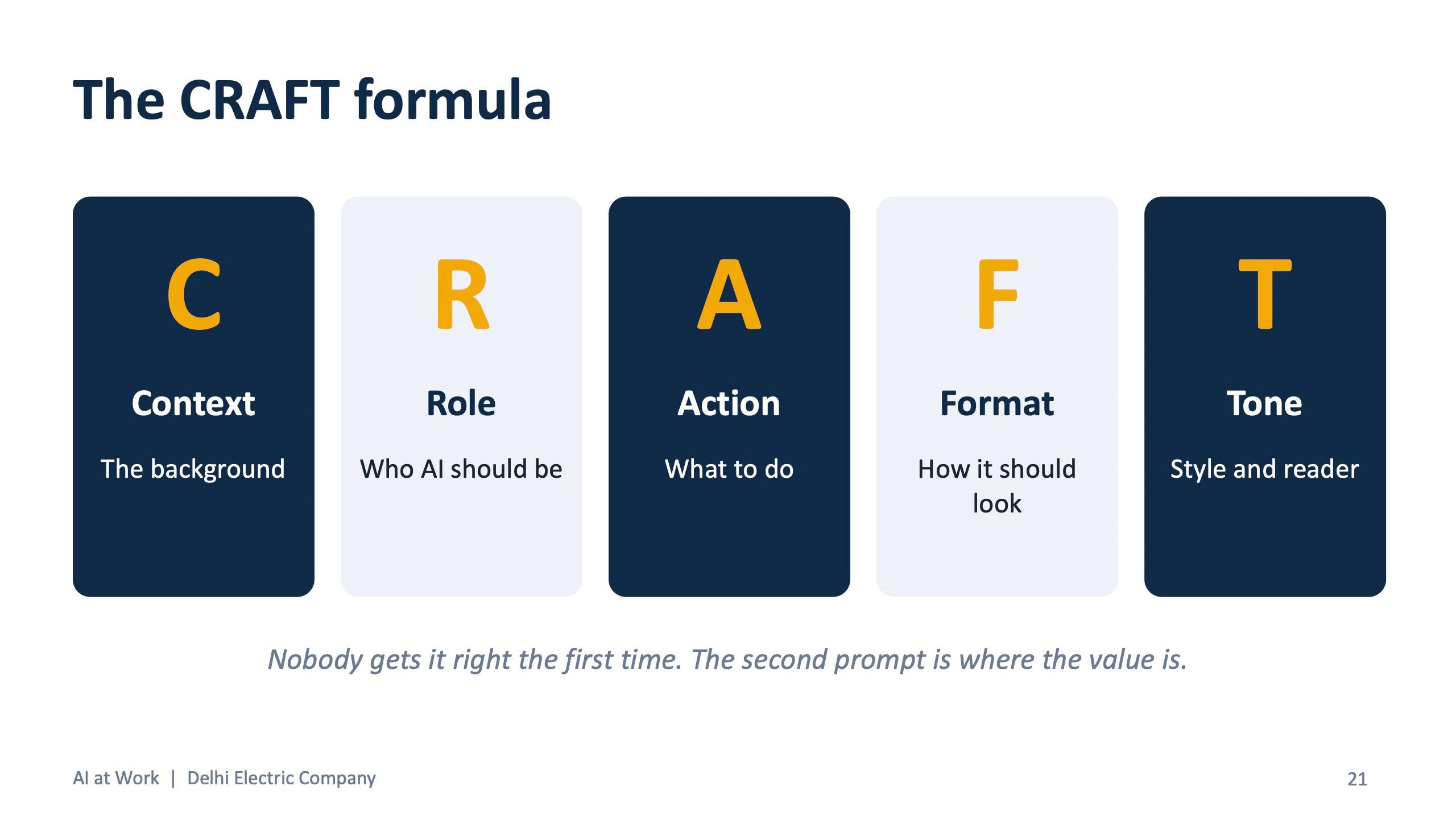
| Letter | Part | What it means | Example from the session |
|---|---|---|---|
| C | Context | The background | We are an EPC company. I have 3 quotes for 11kV XLPE cable for a sugar plant project. |
| R | Role | Who AI should be | Act as a senior procurement manager. |
| A | Action | What to do | Compare price, delivery, payment terms and warranty. Recommend one vendor. |
| F | Format | How it should look | Give a table first, then 3 lines of recommendation. |
| T | Tone | Style and reader | Simple and professional, for my manager. |
Same task, two prompts
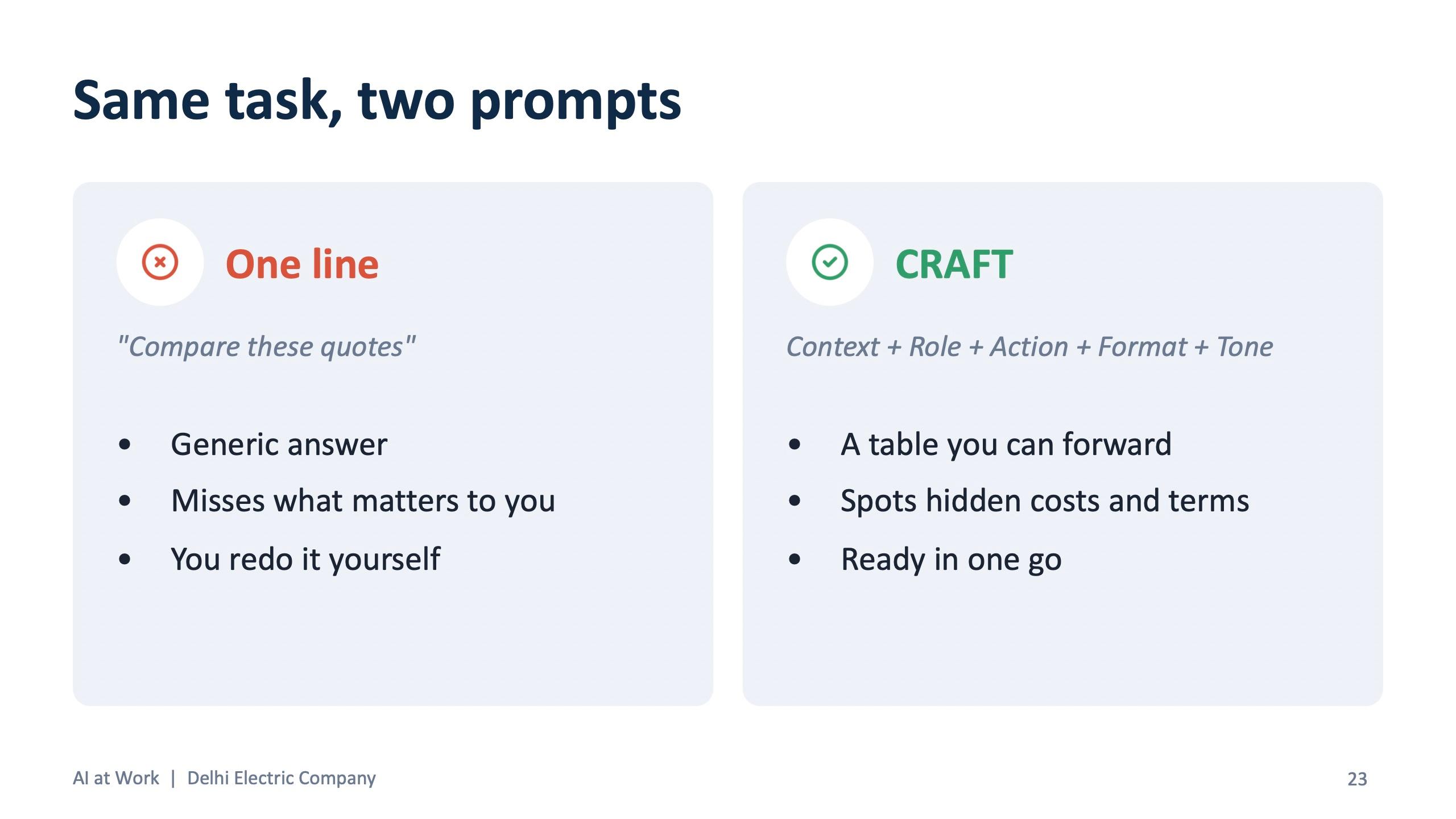
The slide that usually changes minds compares the same task written two ways. The one-line version is “Compare these quotes”. The CRAFT version carries context, role, action, format and tone.
One-line prompt
Compare these quotes.
What participants report on the slide: a generic answer that misses what matters to you, so you end up redoing it yourself.
CRAFT prompt
We are an EPC company. I have 3 quotes for 11kV XLPE cable for a sugar plant project. Act as a senior procurement manager. Compare price, delivery, payment terms and warranty. Recommend one vendor. Give a table first, then 3 lines of recommendation. Simple and professional, for my manager.
What the slide promises: a table you can forward, hidden costs and terms spotted, and an answer ready in one go.
Three lines that make any answer better
These are on the cheat sheet and work in all four tools. They are the habits that separate people who get good results from people who get average ones.
- “Ask me questions before you start.” The slide calls it the one line that helps most. If you are not sure what to put in the prompt, let the AI interview you.
- “Give me 3 options.” You choose, instead of accepting the first answer.
- “Check your answer and tell me what you are not sure about.” This surfaces the parts you must verify yourself.
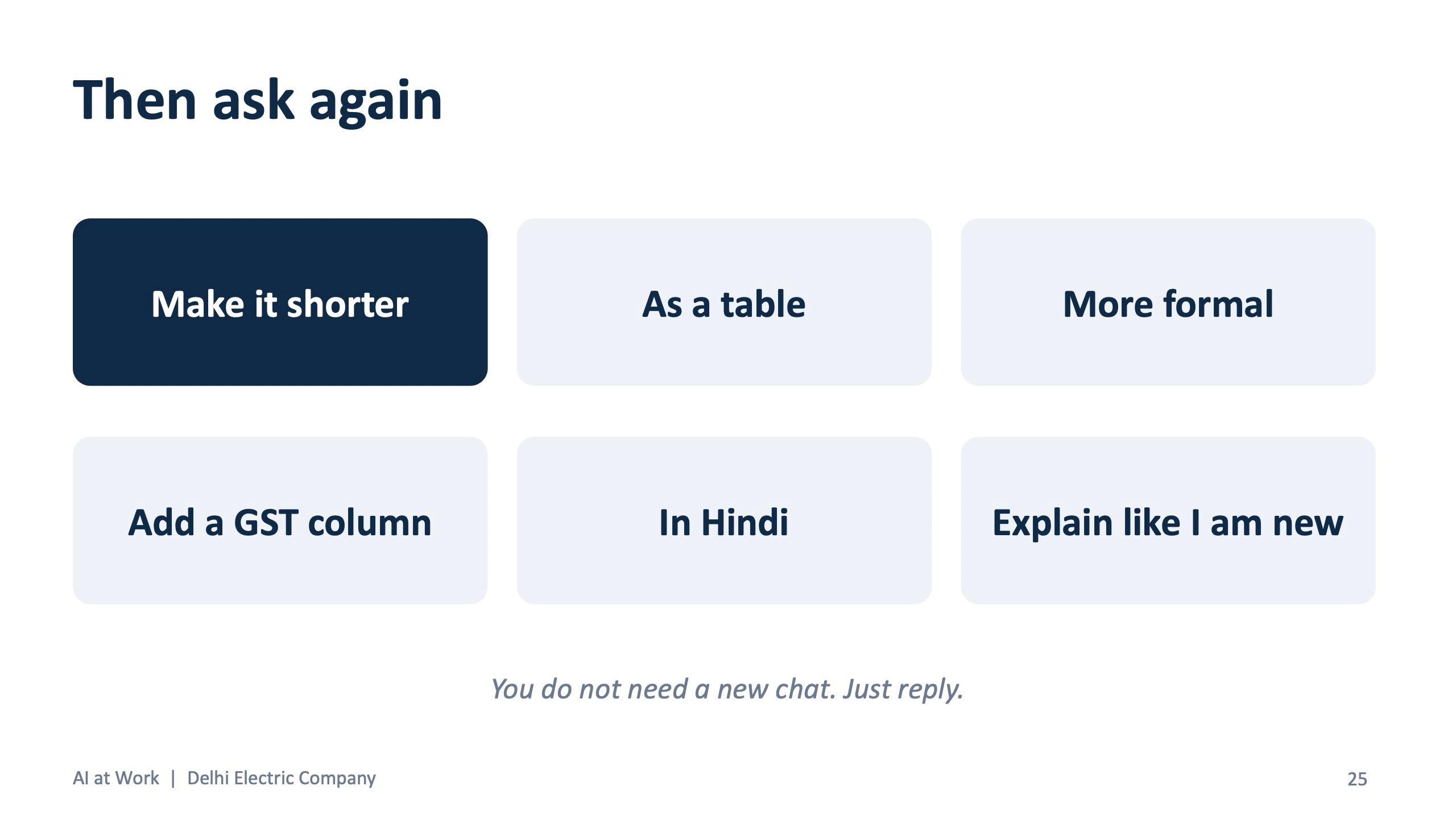
Iterate in the same chat. Participants who treat the first answer as a draft finish faster than those who restart with a fresh prompt each time.
Worked examples by department
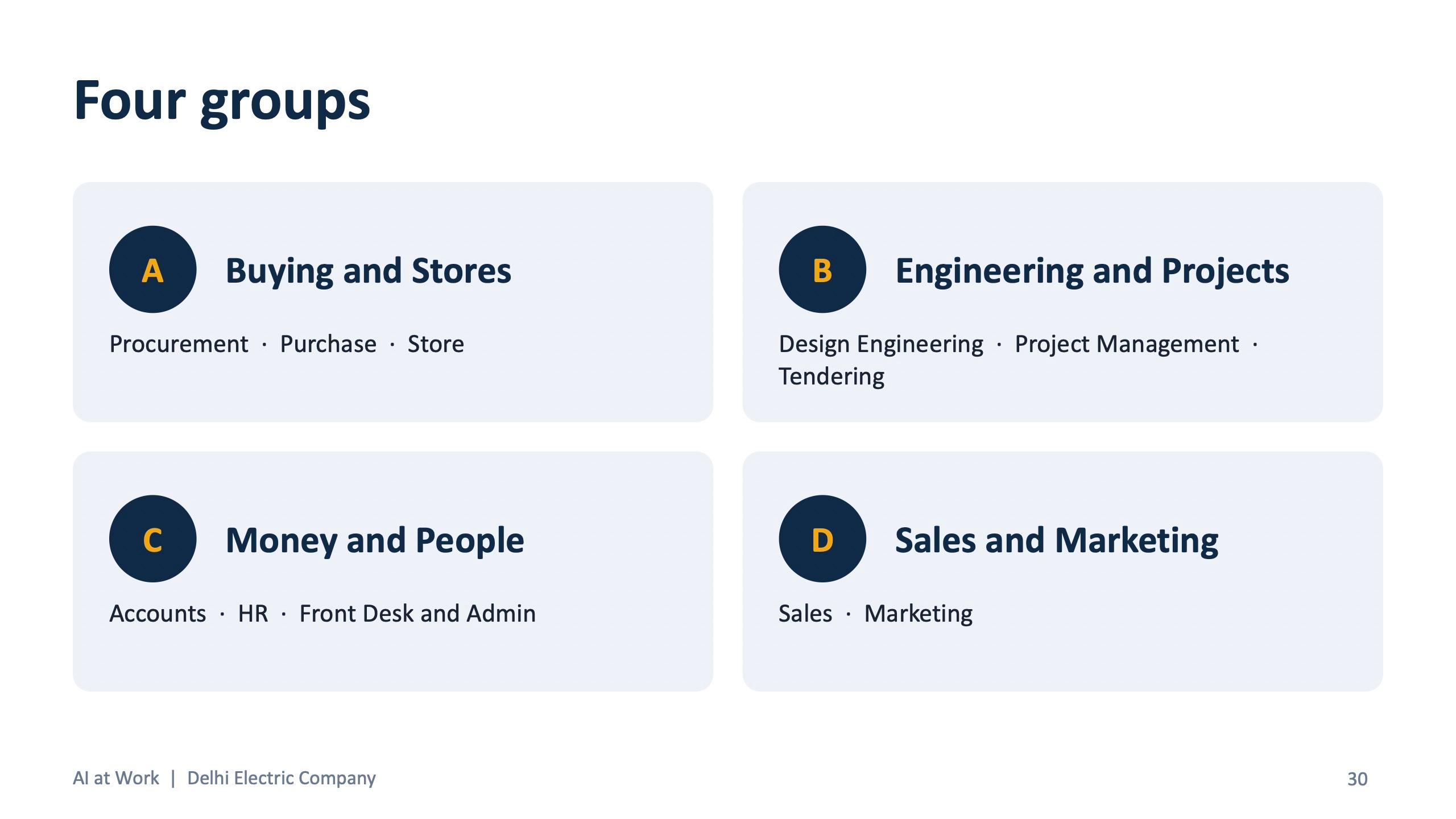
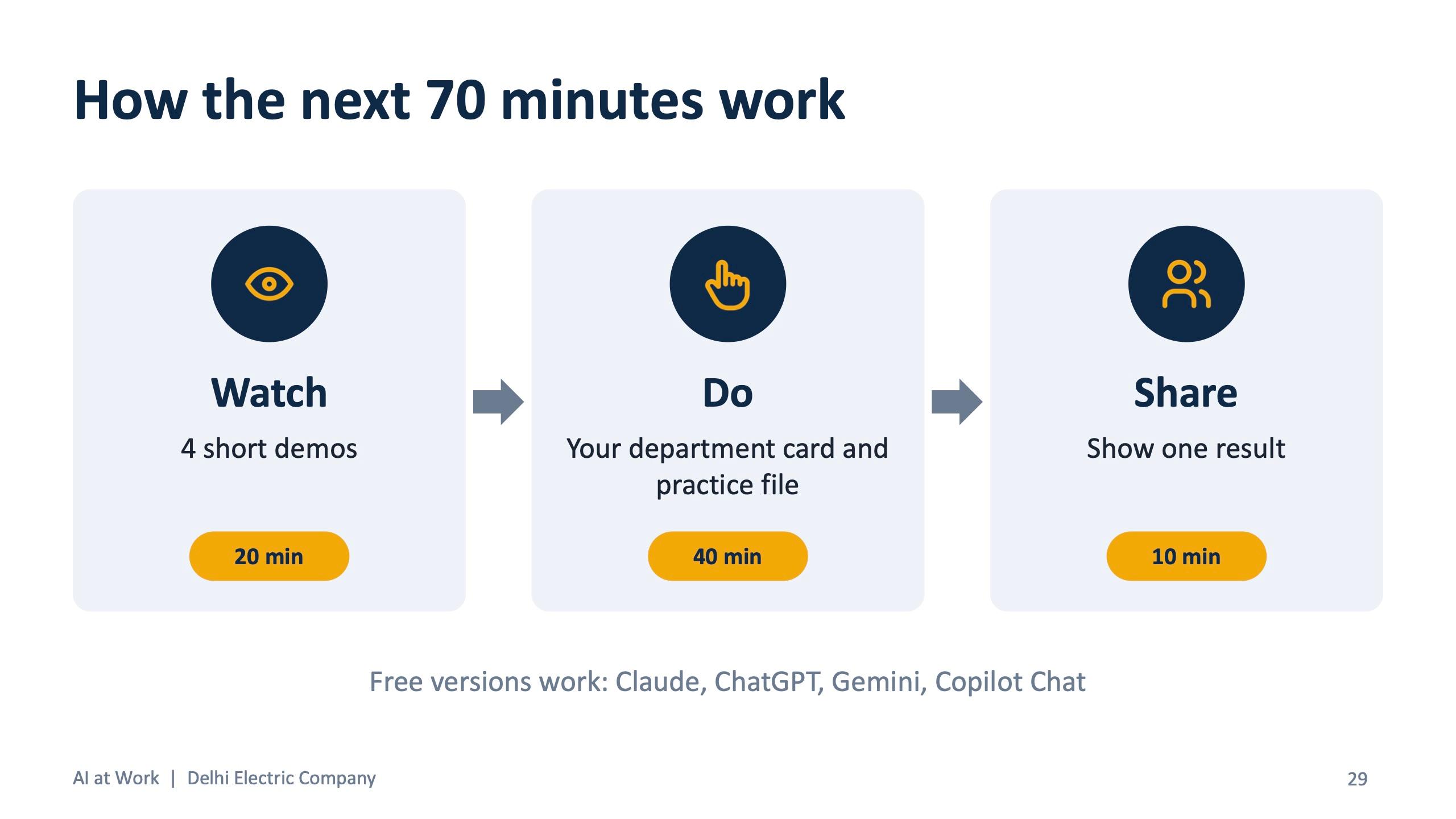
The Delhi Electric training split 11 departments into four groups, and every group worked on its own card and its own practice file. Practice files use fictional names and numbers, never real client or employee data. Below are the starting prompts from the exercise cards, grouped the way the session was run, so you can adapt them to your own departments.
Procurement, purchase and stores (Group A)
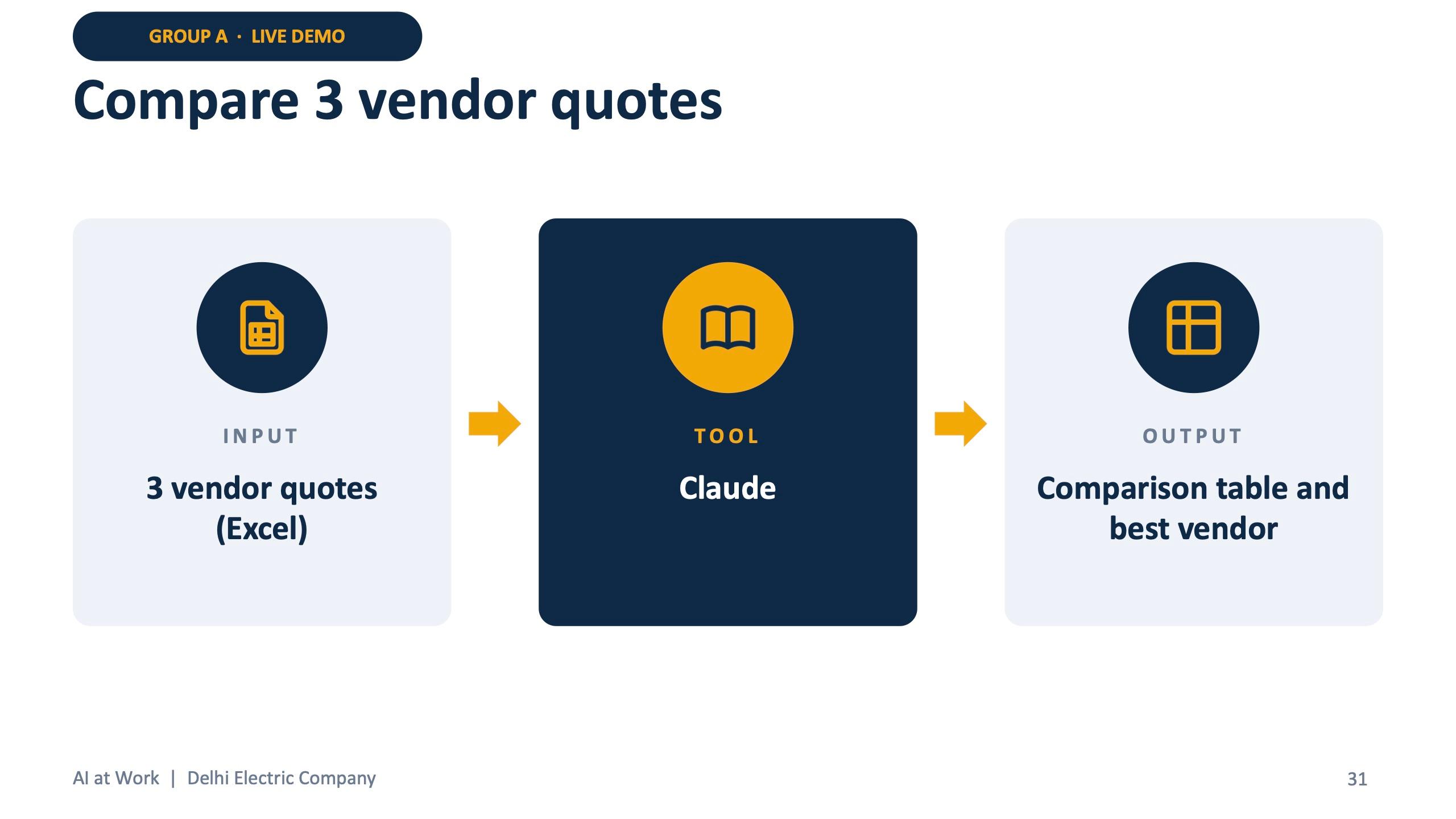
The live demo for this group is to compare three vendor quotes from an Excel file in Claude, producing a comparison table and a best-vendor recommendation. The prompt below is the starting prompt from the Procurement card. It is CRAFT in full: context (EPC company, the cable, the project), role, action, format and tone.
Procurement · Claude · compare vendor quotes
Upload the file. We are an EPC company. These are 3 quotes for 2,000 m of 11kV 3C x 240 sq mm XLPE cable for a sugar plant project. Act as a senior procurement manager. Compare price, freight, GST, payment terms, delivery, warranty, test certificates and any hidden costs. Recommend one vendor. Give a table first, then 3 lines of recommendation. Simple and professional, for my manager.
Purchase · Claude · find late orders
Upload the file. Today is 17 October 2026. List every order delivered late, and every pending order past its promised date. Show PO number, vendor, item and days late. Sort by most late first.
Then a follow-up: write a firm but polite email to the vendor with the most overdue PO, asking for a confirmed dispatch date and the reason for the delay, under 120 words.
The Store card uses the same pattern for reorder lists, PO versus goods received, and a monthly stock summary. The habit being built is the same everywhere: give the file, give the context, say what the output should look like, then check one result yourself.
Tendering, design and project management (Group B)
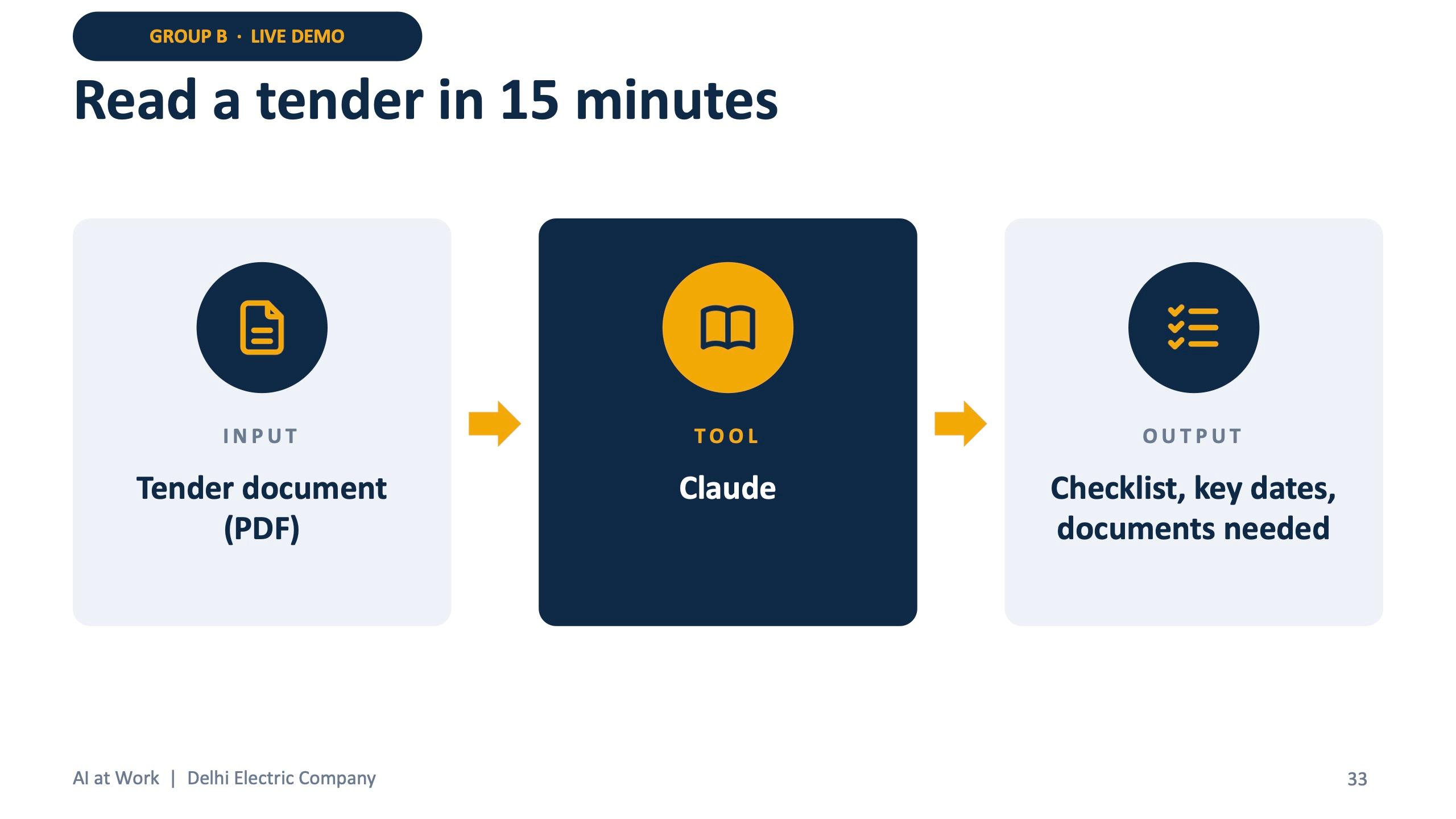
This is Rahul's world. The live demo reads a tender PDF in 15 minutes and produces a checklist, key dates and the documents needed. Tendering, design engineering and project management each have their own card.
Tendering · Claude · eligibility checklist
Upload the tender. Make a table of every eligibility criterion with: clause number, requirement, documents needed, our status (leave blank). Then list all key dates in date order.
Tendering · Claude · pre-bid queries
List the points in this tender that are unclear, missing or risky for the bidder. Write them as polite pre-bid queries with clause numbers.
Design engineering uses the same method to turn rough notes into a draft panel specification and to check a BOQ. Project management uses it for the weekly client report, a risk list and a milestone plan. In every case the file is fictional in the training and real at work, and the engineer remains responsible for the result.
Accounts, HR and front desk (Group C)
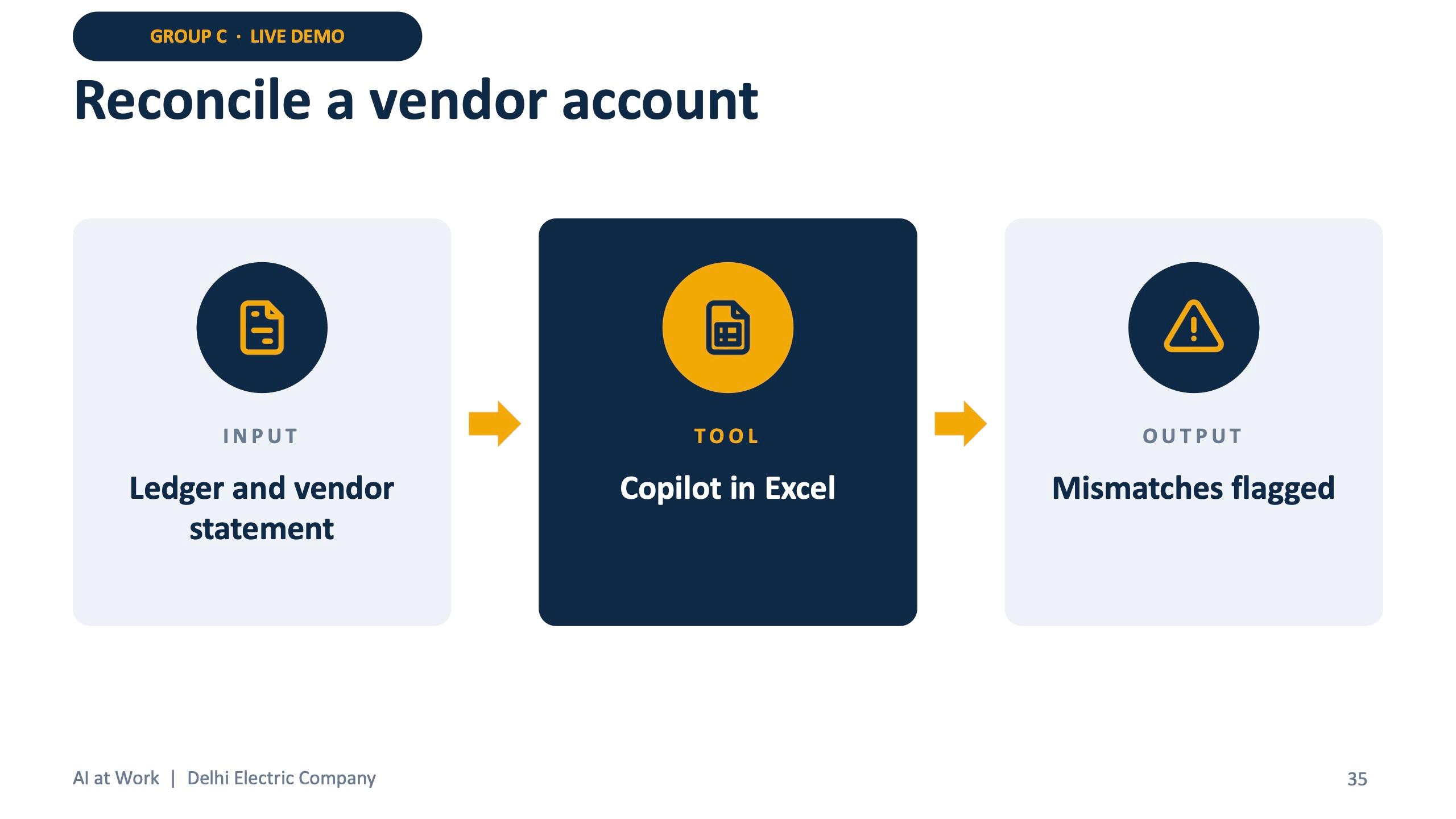
For the money and people group, the live demo reconciles a vendor account in Copilot in Excel, with mismatches flagged. Accounts also works on invoices, HR on job descriptions and policies, and the front desk on agendas, visitor logs and difficult emails.
Accounts · Claude · invoices to a table
Upload the invoices. Pull out vendor, GSTIN, invoice number, date, PO number, taxable value, tax type, tax amount and total. One row per invoice. Then flag any invoice with a missing PO, wrong tax maths or a doubtful tax type.
HR · ChatGPT or Claude · policy to circular
Upload the policy. Rewrite this policy as a short circular for site staff. Simple English, bullet points, under 200 words. Keep every number and date. Then give a Hindi version.
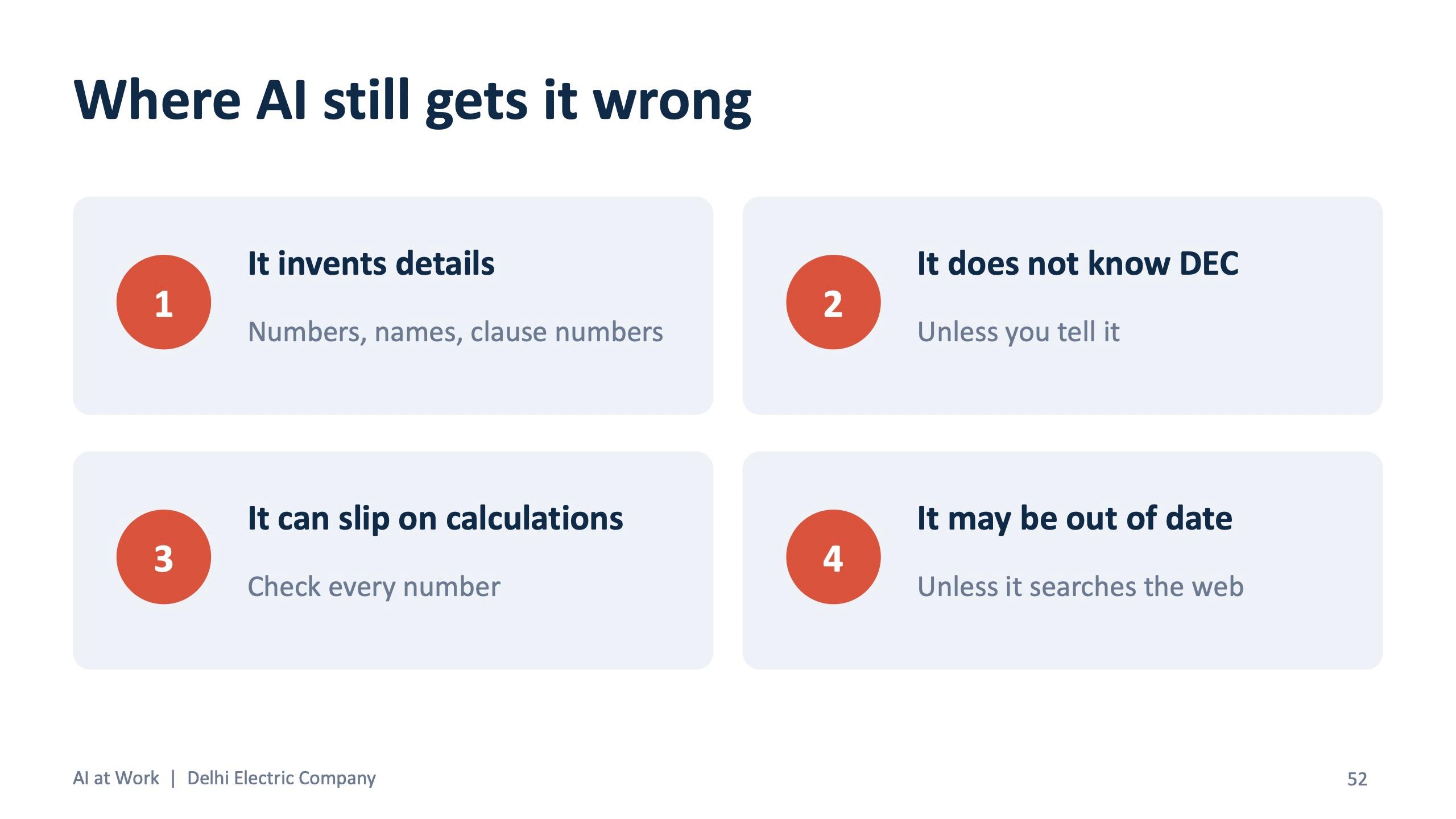
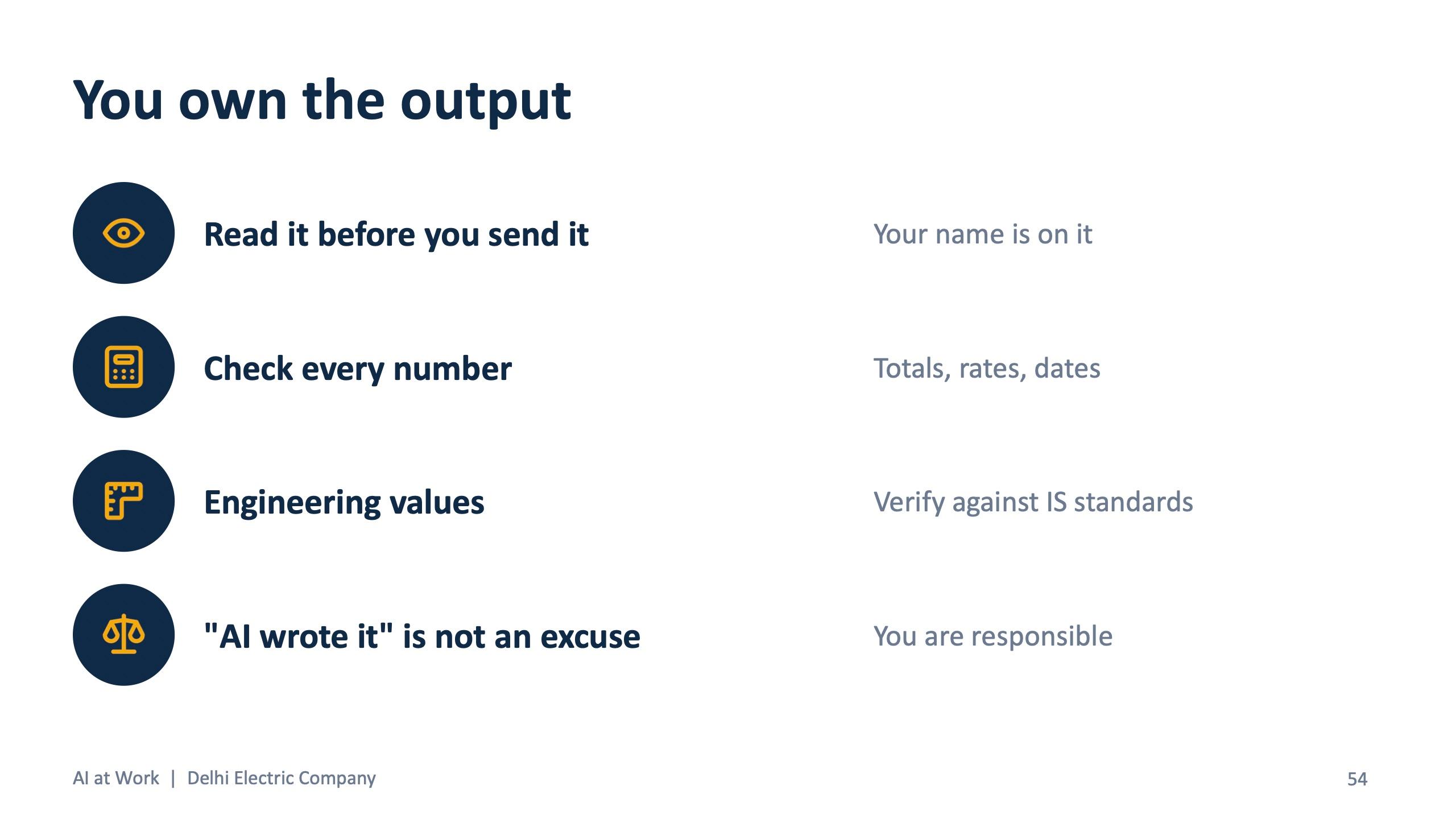
Notice the last line of the HR prompt. “Keep every number and date” is an instruction that protects accuracy, which matters because the deck itself warns that AI can slip on calculations and invent details.
Sales and marketing (Group D)
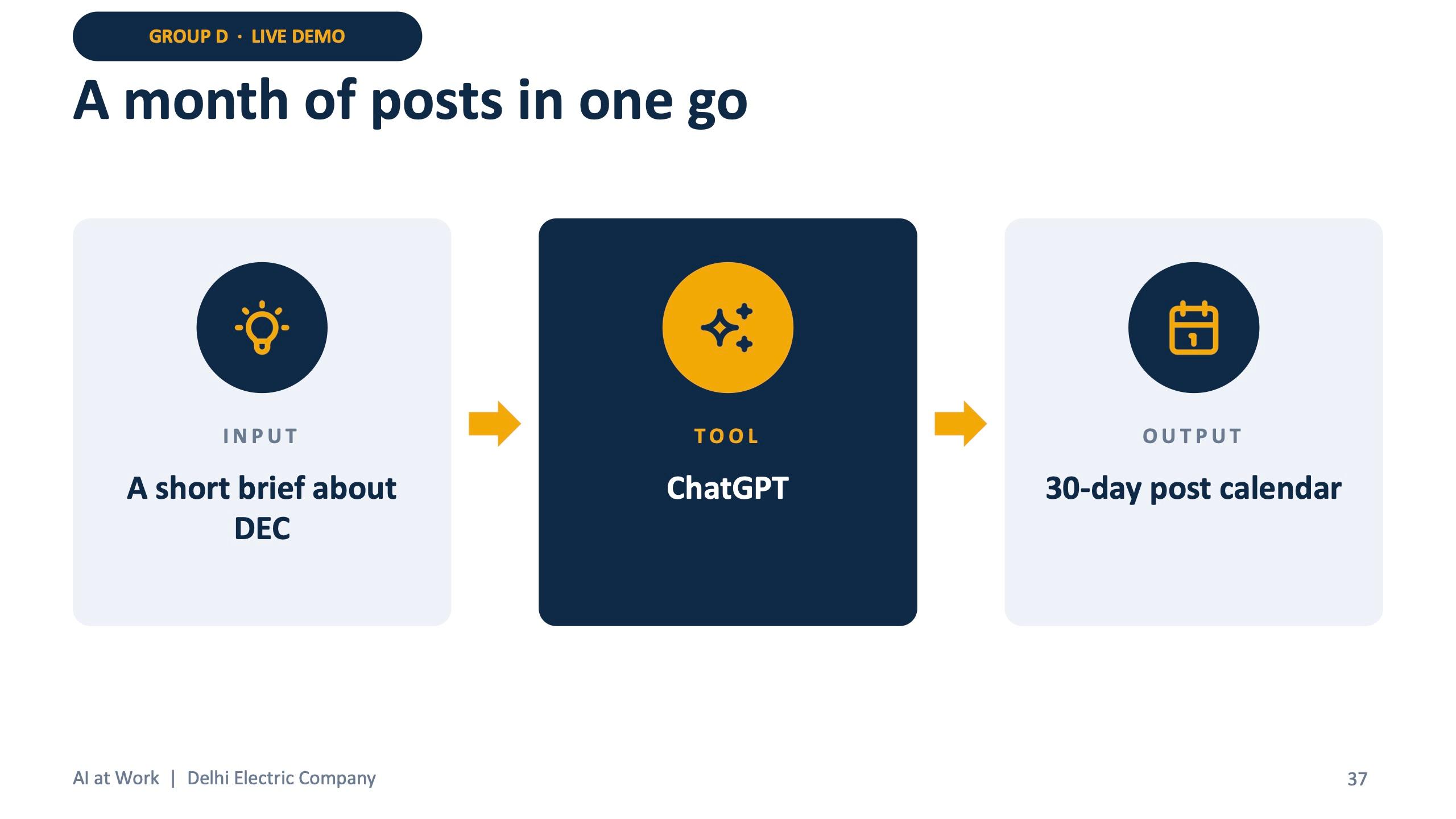
The live demo for this group is a month of posts in one go. The input is a short brief about the company, the tool is ChatGPT, and the output is a 30-day post calendar. Sales works on meeting notes, proposals, competitor scans and forecast summaries.
Sales · Claude or Gemini · meeting notes to follow-up
Upload the notes. Turn these notes into: a 5-point summary, action items with owner and date, and a follow-up email to the MD.
Marketing · ChatGPT or Gemini · 30-day calendar
Upload the brief. Make a 30-day social media calendar for LinkedIn, Instagram and Facebook. Columns: date, platform, post type, topic, caption, image idea. Mix project stories, safety, people and industry tips.
The check the card asks for is as important as the prompt: did the AI add any facts that are not in the brief, like numbers or awards? Remove them.
Universities and public-sector teams
The tool rule does not change for a university or a public-sector organisation, but the context in the prompt does. These are guidelines drawn from running the same method in different rooms, not a claim about any one client.
- Faculty and administrators: use Claude for long documents such as circulars, accreditation papers and syllabi, and Copilot or Gemini for the mail and Sheets or Excel work you already do every day.
- Students: Gemini with NotebookLM is a strong fit for studying from your own notes, because answers come from the documents you upload.
- Public-sector and engineering teams: put the technical standards, tender clauses or regulations into the context, and ask the AI to cite the clause number so every claim can be verified.
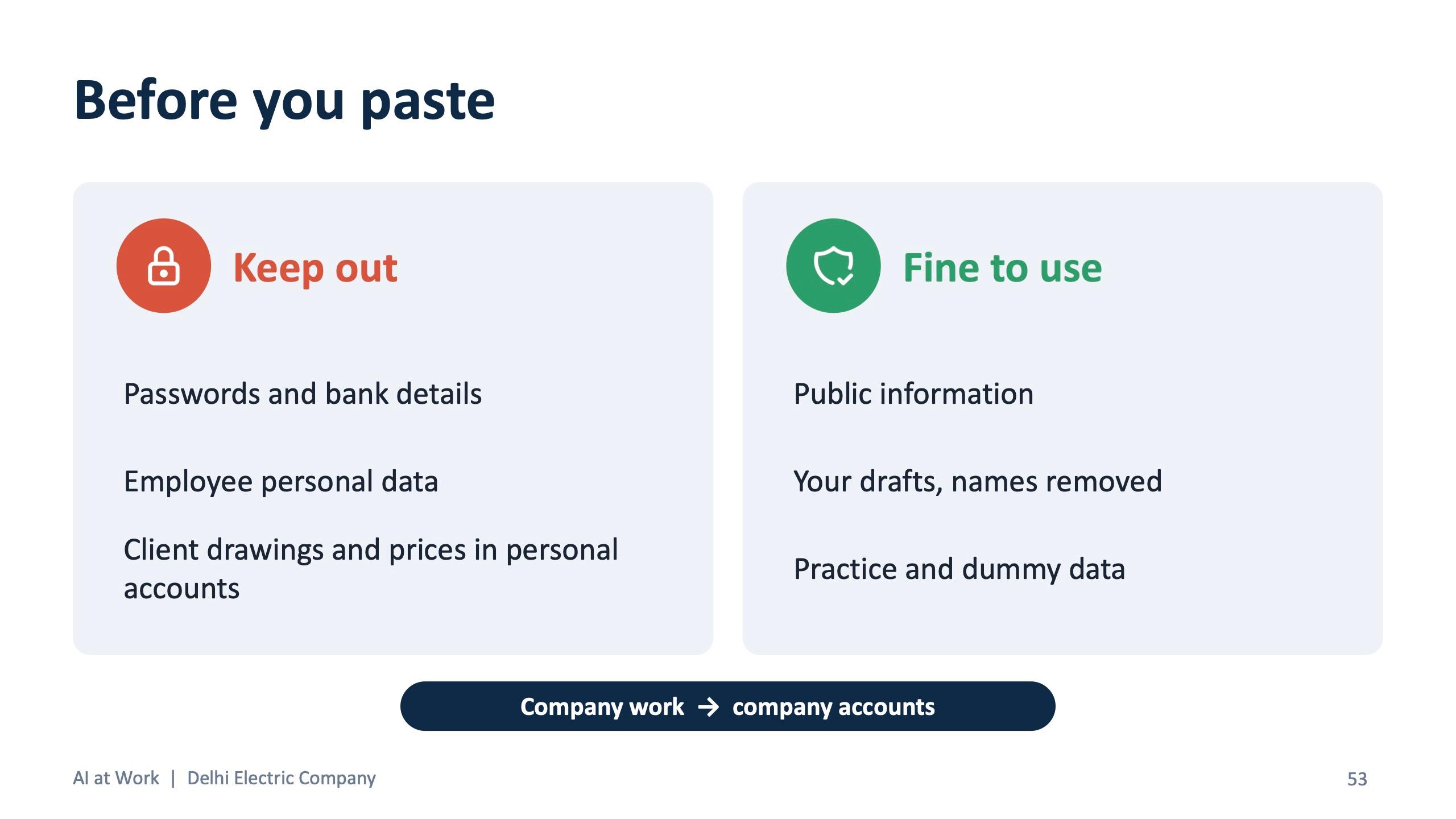
- Data-sensitive environments: use the company or institution account, keep personal data out, and practise on dummy data first.
If you want a session tuned to your own sector, the free scoping call is where we agree the departments, the tools you already license and the practice files, before anything is built.
Keep it safe
The deck calls safety the part that matters most, and it takes about ten minutes of any session. It has three slides that you can adopt as your own policy.
The closing line of the safety block sums up the whole programme: AI is the assistant, you are still the engineer.
Make it a habit
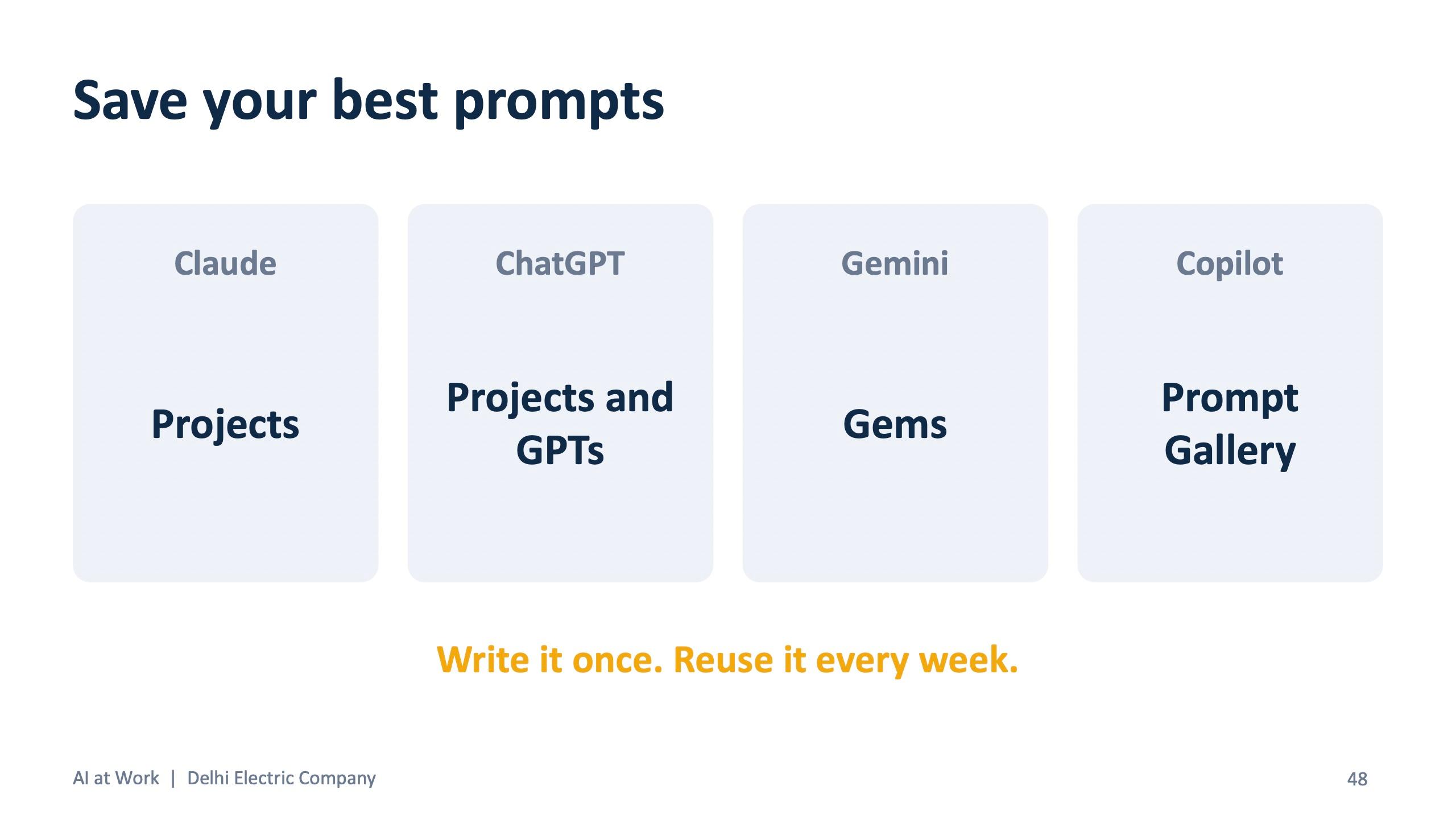
Training ends the same day. The habit starts on Monday. The last module asks every participant to pick one task they repeat every week, write one CRAFT prompt for it, and save it for reuse. Each tool has a place for that: Projects in Claude, Projects and GPTs in ChatGPT, Gems in Gemini, and the Prompt Gallery in Copilot.
Each participant then writes down three AI tasks for the week, with the tool and the day. The slide gives an example (a weekly stock summary in Claude on Monday) and a challenge: use it three times this week, and by Friday it is a habit.
Teams that want this to stick usually do two things. They nominate one person per department as the prompt owner who maintains the shared prompt book, and they review the saved prompts after a month.
Run this with your team
A practical order for a half-day session, based on how the Delhi Electric training ran: a story that makes the problem real, the four-tool rule, CRAFT and a ten-minute hands-on prompt, a break, department labs of about 70 minutes, a live Copilot demo, the habit exercise, and the safety block. Each participant leaves with a cheat sheet, a department prompt book, and a plan for three tasks.
If you would like this tuned to your departments and tools, book a short scoping call below.
Frequently asked questions
Which AI tool is best for a business team?
There is no single best tool. Use Copilot inside Outlook, Excel, Word and Teams; Claude for long documents and careful writing; ChatGPT for images, voice and quick everyday tasks; and Gemini for research with live Google Search.
What is the CRAFT prompt formula?
CRAFT stands for Context, Role, Action, Format and Tone. Including all five parts in a prompt gives clearer, more useful answers in any AI tool.
Can we use the free versions of these tools?
Yes. Every exercise in the Delhi Electric training worked with free versions of Claude, ChatGPT, Gemini or Copilot Chat, so teams can start before buying licences.
What should we never paste into an AI tool?
Passwords, bank details and employee personal data. Keep client drawings and prices out of personal accounts, use company accounts for company work, and practise on dummy data first.
How do I stop AI from making up facts?
Give it the source document, ask it to tell you what it is not sure about, and check every number, name, date and clause yourself before you send it. You own the output.
Do I need a new chat for every follow-up?
No. Reply in the same chat with follow-ups such as make it shorter, put it in a table, more formal, or in Hindi. The second prompt is where the value is.